


Catch text that starts wrapping onto more lines, before it ships.
Someone edits a headline, a translation runs longer, a font update shifts a few pixels, and now your hero title takes three lines on phones and a button label breaks in two. Screenshot tests catch that, along with a hundred one-pixel shifts nobody cares about. wrapguard checks one thing: how many lines each piece of text takes, at each screen width.
Here is a real run. We lengthened the last sentence of the fynepdf.com hero from "Start free, no signup." to "Start free today, no signup or credit card needed." and ran wrapguard check:
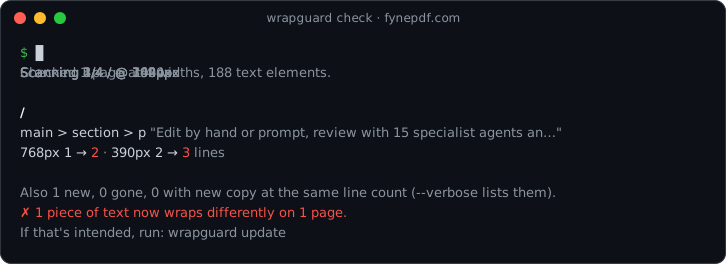
The longer sentence still fits on a laptop, but adds a line on tablets and phones. (The "1 new" is a chat demo further down the page that types its messages on a timer. See Limits.)
- wrapguard opens your pages in Chromium (via Playwright) at each width you list.
- It counts the lines of every heading, paragraph, link, button, label and list item. Icons, hidden text and screen-reader-only text are left out, and each piece of text is counted once.
wrapguard updatesaves the counts towrapguard.snap.json. Commit it.wrapguard checkmeasures again and fails if any count changed. Copy edits that keep the same line count pass.
The snapshot has one line per element, so a pull request that changes it shows exactly what moved.
npm install --save-dev wrapguardnpx playwright install chromiumIt needs Node 20 or newer.
npx wrapguard initEdit wrapguard.config.json:
{
  "baseUrl": "http://localhost:3000",
  "pages": ["/", "/pricing", "/blog/hello-world"],
  "widths": [1440, 1024, 768, 390]
}
Start your site (or let wrapguard start it for you), then save the baseline and commit wrapguard.snap.json:
npx wrapguard updateFrom then on, compare against it. The exit code is 1 when any text wraps differently:
npx wrapguard checkThe snapshot catches changes. Line limits catch text that's too long, even the first time you run it. Add rules to your config:
{
  "baseUrl": "http://localhost:3000",
  "pages": ["/", "/pricing"],
  "rules": [
    { "selector": "h1", "maxLines": 2 },
    { "selector": "button", "maxLines": 1 },
    { "selector": "nav a", "maxLines": 1, "widths": [390] }
  ]
}
wrapguard check then also fails when any matching element takes more lines than its rule allows. fynepdf.com passes the h1 and button rules above. A tighter rule, one line for the tool cards on its home page, finds the three that wrap on tablets:
Line limits
  #home-panel-tools a  max 1 line
    /  #home-panel-tools > a[5]  "Compare PDF AI"
      768px 2 lines
    /  #home-panel-tools > a[7]  "Summarize PDF AI"
      1024px 2  ·  768px 2 lines
    /  #home-panel-tools > a[12]  "Chat with PDF AI"
      768px 2 lines

✗ 3 pieces of text go over their line limit.
  Shorten the text, give it more room, or change the rule.
- Each rule measures the full text of every element it matches, so
nav achecks each link even when the links sit inside list items. widthslimits a rule to some of your widths. Leave it out to check all of them.- Rules work without a snapshot. With
rulesand nowrapguard.snap.json,checkruns the line limits on their own, which is an easy way to start. updatestill saves the snapshot when something is over a limit, and lists whatcheckwill fail on.
Instead of listing every page, point wrapguard at your sitemap:
{
  "baseUrl": "http://localhost:3000",
  "sitemap": { "url": "/sitemap.xml", "exclude": ["/blog/**"], "limit": 50 }
}- Sitemaps usually name your production site, even on a dev server. wrapguard keeps only each address's path and loads it from
baseUrl, sohttps://example.com/pricingis checked athttp://localhost:3000/pricing. - Sitemap indexes work too: each sitemap they list is read the same way.
includeandexcludetake path patterns.*matches within one part of the path (/tools/*), and**matches across parts (/blog/**).limitcaps how many pages come from the sitemap, afterincludeandexclude."sitemap": "/sitemap.xml"is short for{ "url": "/sitemap.xml" }. Anypagesyou list are checked first.- New pages in the sitemap show up as "no baseline yet" until the next
wrapguard update, which doesn't failcheckunless you use--strict.
wrapguard can start your site, wait until it answers, and stop it when it's done:
{
  "baseUrl": "http://localhost:3000",
  "pages": ["/"],
  "server": { "command": "npm run dev" }
}| Option | Default | What it does |
|---|---|---|
command |
required | Starts your site. Runs in a shell. |
url |
baseUrl |
Address to wait for. |
timeout |
60000 |
Milliseconds to wait before giving up. |
reuseExisting |
true |
Use a site that's already answering at url instead of starting one. |
cwd |
. |
Folder to run the command in, relative to the config file. |
If the command exits early or the site doesn't answer in time, wrapguard stops and shows the command's last output. Whatever the command started is stopped afterwards, also when wrapguard is interrupted.
To run the dev server locally but the built site in CI, use a JavaScript config:
// wrapguard.config.mjs
export default {
  baseUrl: "http://localhost:3000",
  sitemap: "/sitemap.xml",
  server: { command: process.env.CI ? "npm start" : "npm run dev" },
};To pin an A/B test to one variant, turn on a feature flag, or get past a preview deployment's protection, give wrapguard cookies and headers to send:
{
  "baseUrl": "http://localhost:3000",
  "pages": ["/"],
  "cookies": { "hero-test": "b" },
  "headers": { "x-feature-flags": "new-pricing" }
}- They only go to your site. Cookies are set for the host in
baseUrl, and headers are only added to requests tobaseUrl, not to fonts, analytics or other hosts. - Reading your sitemap sends them too.
- To check both variants of a test, give each its own config and
snapshot, and pick one with--config. - Keep secrets out of the JSON. Read them from environment variables in a JavaScript config:
// wrapguard.config.mjs
export default {
  baseUrl: "https://preview.example.com",
  pages: ["/account"],
  cookies: { session: process.env.WRAPGUARD_SESSION },
};
If the variable isn't set, wrapguard stops and names the cookie that has no value.
The wrapguard action checks your pages and comments the result on the pull request. It only posts when something fails, then updates that same comment on later pushes, so a fixed pull request shows ✓ instead of an old failure. The result is in the job summary too.
name: wrapguard
on: pull_request

permissions:
  contents: read
  pull-requests: write # lets the action comment

jobs:
  wrapguard:
    runs-on: ubuntu-latest
    steps:
      - uses: actions/checkout@v5
      - uses: actions/setup-node@v5
        with:
          node-version: 22
          cache: npm
      - run: npm ci
      - run: npm run build
      - uses: fynepdf/wrapguard@v0
This expects a server in your config, such as "command": "npm start", so the action starts your built site itself. Without one, start the site in an earlier step (npm start &) and wait for it to answer. The action installs wrapguard and Chromium itself. When a change is intended, run npx wrapguard update locally and commit the new snapshot with it.
| Input | Default | What it does |
|---|---|---|
working-directory |
. |
Folder with your config and snapshot. |
config |
found automatically | Config file, relative to working-directory. |
comment |
true |
Comment on the pull request. |
fail-on-change |
true |
Fail the job on wrap changes or text over a line limit. |
strict |
false |
Also fail on new or missing text and pages. |
github-token |
${{ github.token }} |
Token used to comment. |
Outputs: changed, over-limit, added and removed (counts) and failed (true or false).
Pull requests from forks get a read-only token, so they can't be commented on. Their result is still in the job log and summary. @v0 follows the latest 0.x release. Use @v0.1.0 or a commit SHA if you'd rather it never changed under you.
npx wrapguard check --markdown prints the same report as Markdown, for a GitLab merge request note or anything else that takes Markdown. It exits with 1 when text wraps differently or goes over a line limit.
| Screenshot tests | wrapguard | |
|---|---|---|
| Compares | Pixels | Line counts per element |
| Fails on | Any visual change, including anti-aliasing and 1px shifts | A piece of text taking more or fewer lines |
| Reviewing a failure | Look at image diffs | Read a text diff |
| Baseline | An image per page and width | One JSON file |
| Catches | Colours, spacing, images, everything visible | Text wrapping only |
They do different jobs. Keep screenshot tests for visual design and use wrapguard for copy, so editing a sentence doesn't mean reviewing forty screenshots.
| Option | Default | What it does |
|---|---|---|
baseUrl |
required | Where your site runs. Pages are resolved against it. |
pages |
required without sitemap |
Paths or full URLs to check. |
sitemap |
none | Read pages from a sitemap. |
server |
none | Start your site before scanning. |
cookies |
{} |
Cookies set for your site. |
headers |
{} |
Headers added to requests to your site. |
widths |
[1440, 1024, 768, 390] |
Viewport widths in CSS pixels. |
selector |
headings, text, links… | Elements to measure. |
ignore |
[] |
Selectors to skip, on top of data-wrapguard-ignore. |
snapshot |
wrapguard.snap.json |
Where the baseline is saved. |
concurrency |
4 |
Pages loaded at once. |
settle |
0 |
Extra milliseconds to wait after fonts load, for late-rendered text. |
rules |
[] |
Line limits: selector, maxLines, optional widths. |
A wrapguard.config.mjs (or .js in an ES module project) works too. For types, wrap the object in defineConfig from wrapguard, which needs wrapguard installed in your project.
wrapguard names each element by where it sits on the page (main > section[2] > h1), using ids when they're stable. For the text you care about most, give it a name that survives refactors:
<h1 data-wrapguard="hero-title">Your PDFs. One AI workspace.</h1>Skip anything that's meant to change, like dates, counters or user names:
<p data-wrapguard-ignore>Last updated 3 minutes ago</p>When you add or remove a section, the elements after it get new structural names. check still compares each one with the right saved element:
- Named elements (
data-wrapguardor an element's own id) are matched by name. - Everything else is lined up in page order by its text, the way a text diff lines up lines. A section added above others leaves them matched, and repeated text like three "Learn more" links pairs up in order.
- Text that moved past other content is matched by its text.
- Text under the same name with new words is treated as a copy edit of what was there.
Text that only moved is listed under "Moved, same text" with --verbose and never fails the check.
wrapguard init              Create wrapguard.config.json
wrapguard update            Scan your pages and save the line counts
wrapguard check             Scan again and fail if any text wraps differently
                            or goes over a line limit
  --strict                  Also fail on new or missing text and pages
  --verbose                 List new, missing, moved and reworded text too
  --json                    Print the result as JSON
  --markdown                Print the result as Markdown
  -c, --config <file>       Use this config file instead of the default
- Chromium only. Firefox and Safari can break lines in slightly different places.
- HTML text only. Text drawn in a canvas, SVG
<text>and text inside images aren't measured. - Clipped text counts the lines it needs, not the lines you see. With
line-clamp: 2or a fixed height andoverflow: hidden, a paragraph that needs 3 lines counts as 3. A change is still caught. Single-linetext-overflow: ellipsiscounts as 1. - Only what's on the page when it loads. Menus, tabs and dialogs aren't opened, and content that loads on scroll isn't reached.
- Text on a timer (chat demos, carousels, rotating words) can be there in one run and not the next. It shows up as new or gone, which only fails
checkwith--strict. Mark itdata-wrapguard-ignore. - No signing in. wrapguard doesn't log in for you. If your site keeps the session in a cookie, put it in
cookiesto check pages behind a sign-in. - A copy edit plus a move can't be told apart from new text. If text changes its words and its place in the same commit, it shows as one element gone and one new, which only fails
checkwith--strict. Give important text adata-wrapguardname and it's always compared, wherever it goes.
- Make the baseline where fonts match. Web fonts usually measure the same on every system. If your site falls back to system fonts, Windows, macOS and Linux wrap differently, so make the baseline on the same system as CI.
- Animations are turned off with
prefers-reduced-motion. Text that types itself in still needssettle.
Early days. Bug reports and ideas are welcome in issues, especially pages where wrapguard counts lines differently from what you see.
Built by the team at FynePDF, because our own pages kept breaking at 390px. MIT licensed.