



voicecap has a real screen reader, NVDA, read each page of a website and saves every word it says, so one person can review a whole site the way a screen reader user hears it, and hand managers and auditors a dated record they can check to the byte. No off-the-shelf checker does this: tools such as axe and Lighthouse inspect a page's code but can't tell you what a screen reader actually says, and checking by hand goes one page at a time and leaves no record, far too slow for the more than a dozen websites ICJIA must review before the April 2027 ADA Title II deadline for accessible digital content.
voicecap is a free, open-source tool from the Illinois Criminal Justice Information Authority (ICJIA) that captures what a screen reader user actually hears on a website.
Automated accessibility checkers such as axe and Lighthouse catch problems like missing labels, but they can't tell you what a page sounds like. voicecap is the other half: a listen-through with a real screen reader, NVDA on a Windows PC, and VoiceOver on a Mac. The screen reader reads each page from top to bottom, jumps from heading to heading, and tabs through links and buttons, the way a blind visitor would, and voicecap saves every word it says as plain-text transcripts. On a Mac, setup, checks, and a live VoiceOver test work today, and full VoiceOver audits come with voicecap's VoiceOver driver.
Every line of a transcript is what the screen reader actually said. voicecap presses the screen reader's keys the way a person would, and moves from page to page on its own, following the site's sitemap or a list of pages. Working from the list, it accounts for every page on it: none is missed or done twice, an easy slip when clicking through a site by hand. So one person can spot-check a large site, zero in on the pages that need attention, or go through a whole small site.
It's a human review, sped up: voicecap does the key presses and the page turning, so the person running it can:
- hear the screen reader at work, then go back over exactly what it said, line by line;
- compare runs to see exactly what changed after an update;
- record what they found and what they fixed, and add their own hands-on NVDA sessions.
Everything goes into one record that voicecap never rewrites, summed up in an accessible HTML report, and voicecap verify checks that the recorded files still match what voicecap wrote.
voicecap makes screen reader testing faster, repeatable, and documented: https://github.com/ICJIA/voicecap
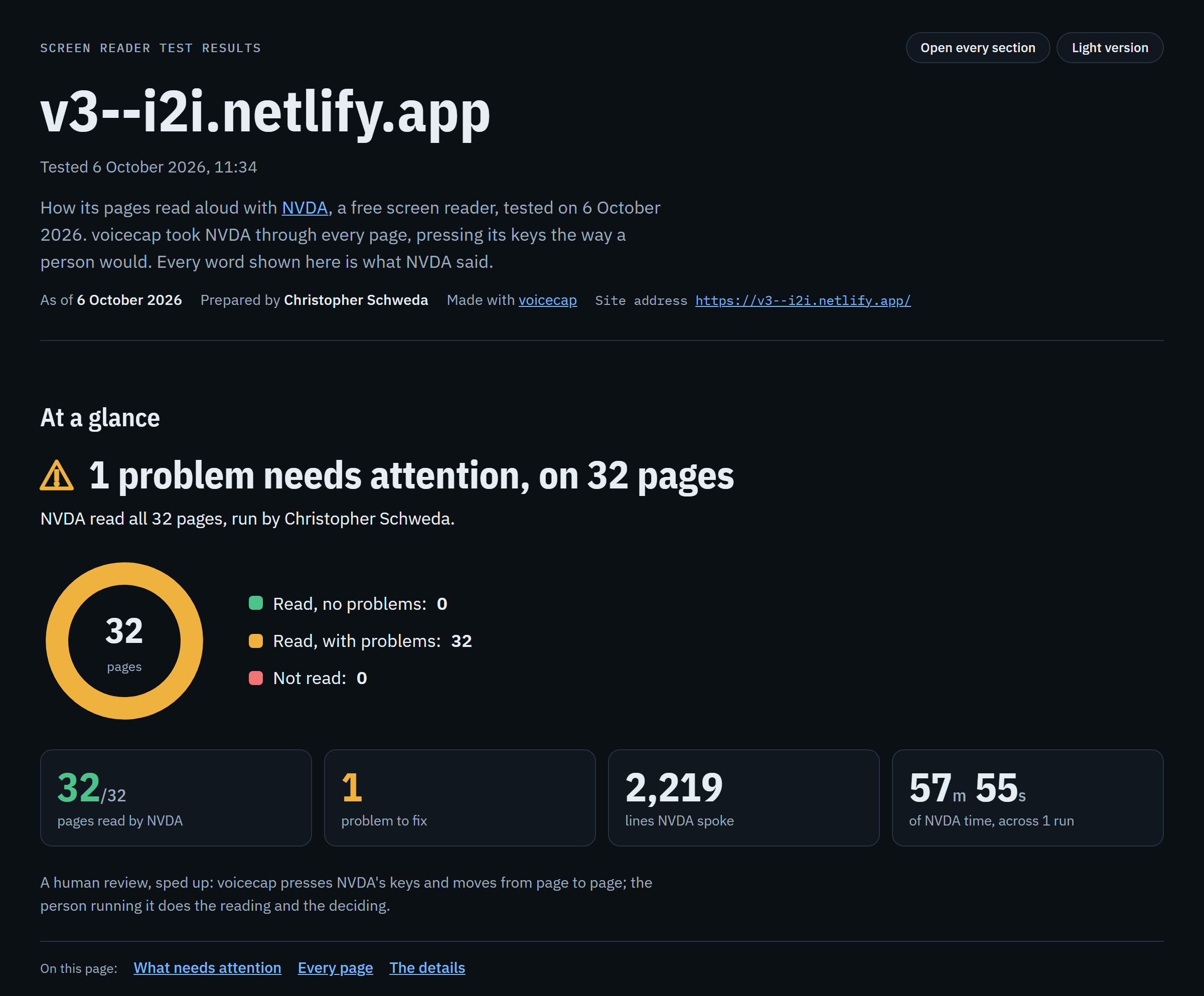
Here is the top of that report for the new version of i2i.illinois.gov, as NVDA read it on 6 October 2026. Every screenshot in this README is of that report, or of the website built from it. The page leads with the site's name, v3--i2i.netlify.app (the address NVDA read the new version at), and when it was tested. Under it is "At a glance", for a manager who reads nothing else: the verdict, in words and a sign, "1 problem needs attention, on 32 pages"; the result in one sentence, "NVDA read all 32 pages, run by Christopher Schweda."; a ring of the pages, all 32 of them in one part, "Read, with problems"; four big numbers (32 of 32 pages read, 1 problem to fix, 2,219 lines NVDA spoke, and 57 minutes 55 seconds of NVDA time); a line on what voicecap does and what the person running it does; and links to the page's sections. The problem comes next, then each page, with its screenshot and what NVDA said first, and last the details for reviewers and auditors.
Status: what works where.
- Windows: everything, including full audits with NVDA and Chrome, checked end to end with real NVDA 2026.2 and Chrome 153.
- Mac:
setup,doctor, andinitprepare and check a Mac for VoiceOver, down to a live test that starts it. Audits with VoiceOver come with voicecap's VoiceOver driver, in a later release; until then, run audits on a Windows computer.- Any computer, Linux included: reviews, reports,
share,site,walkthrough, manual NVDA sessions,list-urls,verify, and replay runs, which play back a recorded run (--replay-from). Hearing pages again, withreview --replay, needs Windows or a Mac.
An accessibility review has two halves. Automated checkers such as axe, Lighthouse, and Pa11y test a page's code against rules, and they're quick: they catch a missing label or missing alt text. What they can't tell you is what a page sounds like:
- whether its links make sense read aloud;
- whether its headings tell a screen reader user where they are;
- whether its buttons and fields are named in words that make sense when a screen reader says them.
That takes a person going through each page with a real screen reader. On a large site, or a dozen sites, it's weeks of work that's hard to write down and harder to repeat.
voicecap speeds up that second half. It presses NVDA's keys the way a person would, moves from page to page along the site's sitemap or a list of pages, and saves every word NVDA says. The person running it hears NVDA at work, reads the transcripts, records what they found, and fixes it.
How it's different:
- The real screen reader, never a simulation. Every line of a transcript is what NVDA said.
- Every page on the list, three ways. voicecap goes line by line, heading by heading, and control by control, as a blind visitor moves through a page. No page on the list is missed or done twice.
- A person's review, on the record. What the person found and fixed is recorded beside the transcripts, with their own hands-on NVDA sessions.
- A record anyone can check. Each transcript has a fingerprint and each finished run is sealed, so
voicecap verifyflags any recorded file that has changed (see Checking the record). - Results for people who never open a terminal. There's a plain-language web page and its Word copy, dated copies to send with their fingerprints, and a website that leads with each site's current report (see The shareable page).
- Repeatable. Comparing two runs shows what changed after an update. A walkthrough file repeats a run, with the same pages in the same order and the same passes, then says page by page how each page sounds against the original (see Repeating a run).
To see it at work before you use it on your own site, try the guided demo on a Windows PC (see Try it first).
These stories were written for this page. Each is a composite of the people voicecap is made for: how they'd describe using it, and why they'd choose it. They aren't quotes from real users, and none of them endorses voicecap. Each line below names one of them and what voicecap gives them. Open one to read their story.
A web coordinator with more than a dozen sites and a deadline: every page on the list is accounted for, and the work leaves a record.
"I look after more than a dozen websites, and every one has to meet the April 2027 ADA Title II deadline for accessible digital content. Our automated checks came back clean, but my manager wanted to know that a person had gone through each site with a real screen reader. voicecap takes NVDA through every page on the list from each site's sitemap. Then I read the transcripts and fix what I find, one site after another. When someone asks how we know, I send the report."
A front-end developer: the screen reader's own words, and a quick way to check a fix.
"When a page sounds wrong, I don't want to guess from the markup. The transcript shows me, line by line, what NVDA said and in what order. I fix the code, run that page again with --page, and compare it with the earlier run, naming that run with --compare, to see exactly which lines changed."
An accessibility specialist: it covers the whole list, so their time goes where it's needed.
"I judge the hard pages in my own hands-on sessions with NVDA, and voicecap keeps those beside its transcripts, with voicecap manual add. What it saves me is the key-pressing on the hundreds of pages in between. Its flags point me to what's worth a closer listen, like links that say only 'click here', which axe passes."
A manager responsible for compliance: results in plain language that show a person did the review.
"I'm never going to run a command. I need something I can read and forward: which pages were reviewed, by whom, with what screen reader, what was found, and what was fixed. The shareable page gives me that in plain language, and its Word copy goes in our files."
An outside auditor: evidence that can be checked, not just trusted.
"I'm paid to look for holes, so I don't take a report's word for it. I check the file's own fingerprint against the one in the sender's email. Inside it, the page checks every transcript against its sealed records, and failures are shown with their records, not smoothed over. To hear it for myself, I repeat the run from its walkthrough file on my own Windows PC with NVDA, and it tells me page by page whether anything sounds different."
A tester on a team that ships often: the same pages, the same keys, in the same order, every time.
"After each major update, I run the same list of pages again and compare it with the run before. The report marks the pages that changed and shows the lines that changed. When we need to know a page still sounds the way it did at launch, the walkthrough file from launch repeats that exact run."
A content editor: plain-text transcripts anyone on the team can read.
"I write the pages; I don't build them. Reading the transcripts was the first time I knew how my links sounded: 'click here', again and again, on one page. Those were mine to fix, and I fixed them without touching any code."
A project manager signing off on a vendor's redesign: a shared, specific record of what NVDA said on each page, and what was found.
"Before we accept a vendor's work, voicecap goes through the pages on our list on the staging site, and the vendor gets the shareable report: every page on the list, what NVDA said, and what needs fixing. When they say it's fixed, we run it again and compare."
A screen reader user on the accessibility team: the screen reader's exact words, ready to quote.
"I use NVDA every day. When I report a problem, developers want it written down exactly. voicecap writes down every word NVDA says on each page on the list, so my report can point at the line, not at my memory of it."
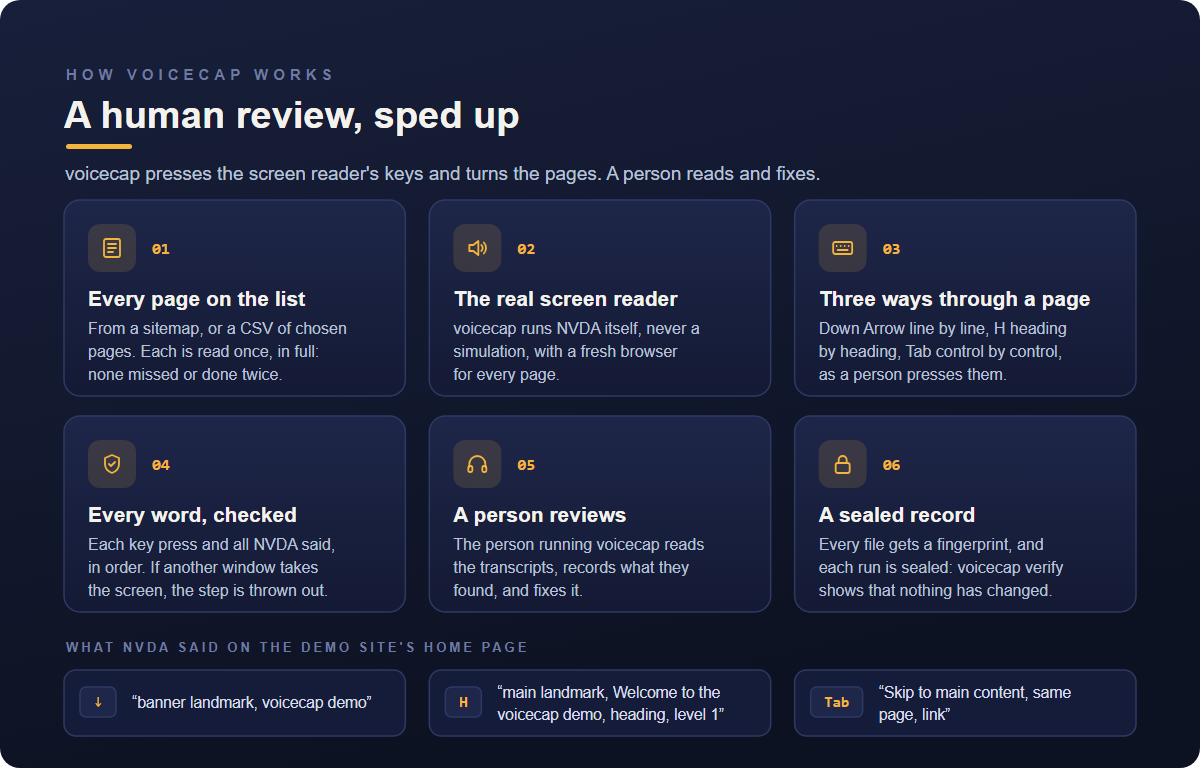
Automated checkers such as axe and Lighthouse read a page's code and test it against rules. voicecap is a human review, sped up: it takes a real screen reader through each page the way a person would and saves every word it says, while the person running it reads the transcripts and fixes what they find. It also has axe check each page before NVDA reads it (from voicecap 0.16.0), and shows what axe found on the page's card, beside what NVDA said, as evidence for the person's review and never its verdict (see axe).
- Every page on the list. voicecap works from the site's sitemap, or a list of chosen pages in a CSV or JSON file. Each page is read once, in full, or recorded with the reason it couldn't be. None is missed or done twice, an easy slip when clicking through a site by hand.
- The real screen reader. voicecap runs NVDA itself, never a simulation, with a fresh browser for every page, so no page's results depend on the pages before it.
- Three ways through each page. It presses NVDA's keys as a person would: Down Arrow to go line by line, H to go heading by heading, and Tab to go control by control.
- Every word, checked. It saves each key press and everything NVDA said, in order, waiting until NVDA has been quiet for a second so nothing is cut off. Before and after every key press, it checks that the page still has the screen. If another window took it, the step is thrown out and the page tried again, with NVDA and the browser started fresh.
- A person reviews. The person running voicecap hears NVDA at work, and says so when the run ends. NVDA speaks very fast during a run, so the transcripts are where its words are read: the person reads them, records what they found with
voicecap review, and fixes it.voicecap review --replayreads a page's saved words aloud, at a speed a person can follow. Flags point to moments worth a closer look, such as links that say only "click here". - A sealed record. Every file gets a fingerprint (SHA-256) and each run is sealed, so
voicecap verifycan show that nothing has changed since.
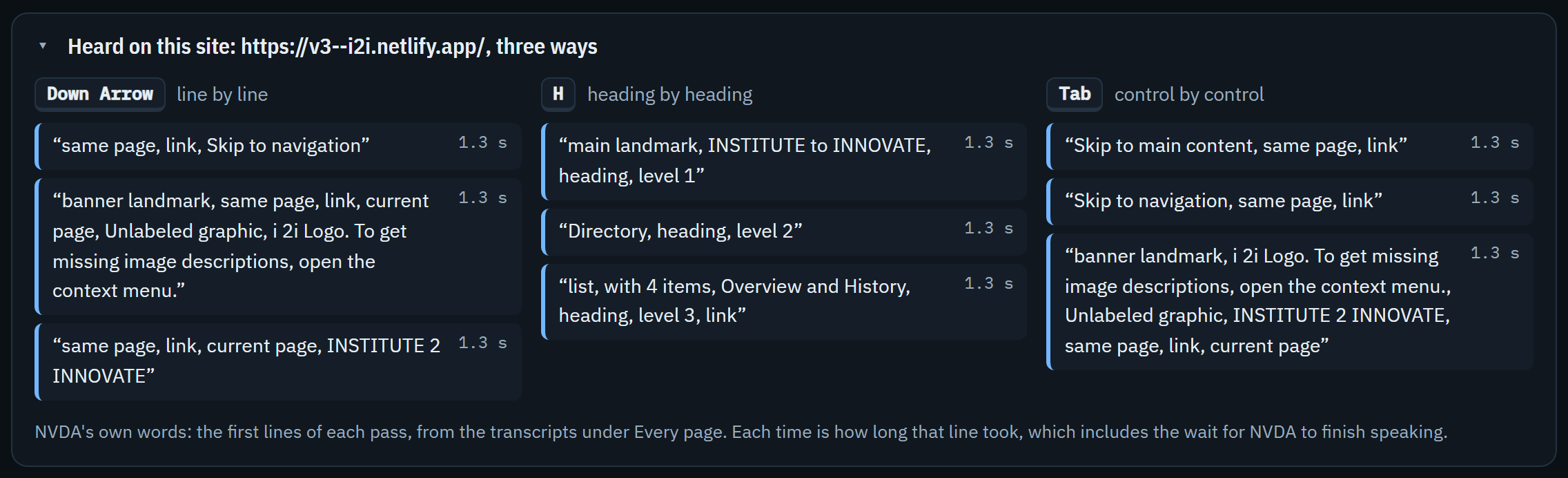
The first lines NVDA said on the home page of the new i2i site, in each pass:
read (Down Arrow)   same page, link, Skip to navigation
                    banner landmark, same page, link, current page, Unlabeled graphic, i 2i Logo. To get missing image descriptions, open the context menu.
                    same page, link, current page, INSTITUTE 2 INNOVATE
headings (H)        main landmark, INSTITUTE to INNOVATE, heading, level 1
                    Directory, heading, level 2
                    list, with 4 items, Overview and History, heading, level 3, link
tab (Tab)           Skip to main content, same page, link
                    Skip to navigation, same page, link
                    banner landmark, i 2i Logo. To get missing image descriptions, open the context menu., Unlabeled graphic, INSTITUTE 2 INNOVATE, same page, link, current page
The "Unlabeled graphic" in two of those lines is the one problem the report finds on the site: its logo (see The shareable page). The details of each pass are in What voicecap does on each page.
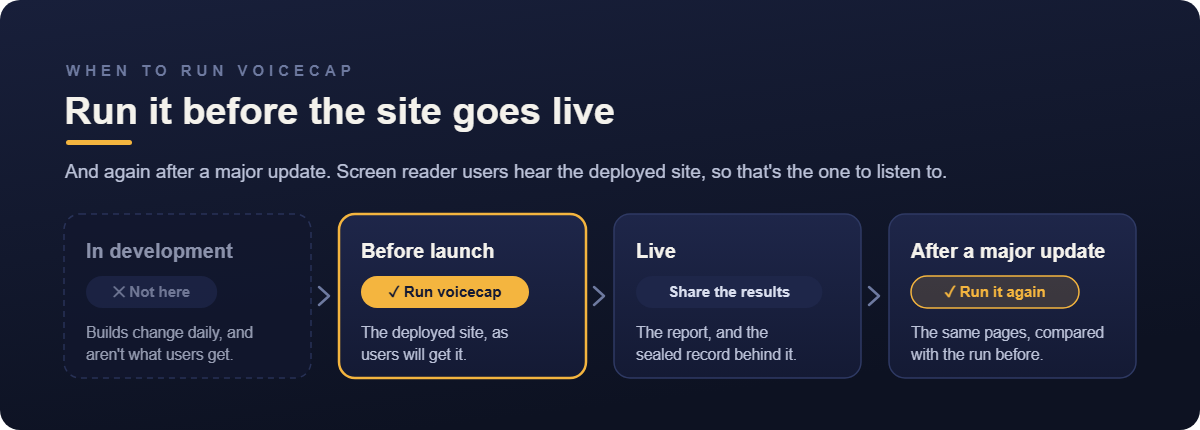
Run voicecap on the deployed site before it goes live, and again after a major update.
- Not on every build during development. Builds change daily, and a development copy isn't what users get. Screen reader users hear the deployed site, with its real content, so that's the one to listen to.
- Before launch, run the full listen-through on the site as it will go live, such as a staging copy of the production site. Fix what you find, then run the pages you fixed again.
- After a major update, run the same pages again with
--compare previousto see exactly what changed in what the screen reader says.
- Why voicecap, and who it's for
- How voicecap works
- When to run voicecap
- Quick start
- Try it first: npx @icjia/voicecap demo
- Windows setup (for someone new to Windows)
- Mac setup
- Commands and options
- Page sources
- What voicecap does on each page
- The transcripts folder
- The audit record
- Long runs, interruptions, and resuming
- Reviews: the audit trail
- Manual NVDA sessions
- Verifying transcript fidelity
- Reading the report
- The shareable page
- The website: voicecap site
- Repeating a run: the walkthrough file
- Heuristic flags
- Configuration
- Programmatic API
- Drivers
- Updating Guidepup
- Known limitations
- Future enhancements
- Development
- Credits
- License
voicecap needs Node.js 22.19 or later (24 recommended), and nothing else to start: run it with npx, as below. npx downloads voicecap the first time and reuses it; npx @icjia/voicecap@latest … picks up a newer version. pnpm is only for developing voicecap, or for the replay demo below.
Why voicecap is built the way it is, in three short answers:
- Why an npm package. voicecap runs on your own computer, where the screen reader is. It's one package for Windows and a Mac,
npxfetches the version you ask for, and every run records the version of voicecap that made it. - Why PowerShell, not Git Bash, on a PC. Git Bash rewrites any argument that starts with
/into a Windows path (--page /aboutarrives asC:/Program Files/Git/about). voicecap catches that and explains it, but it's an extra step. Git Bash's own window (mintty) also doesn't always let Node see a terminal. When it doesn't, voicecap leaves out what needs one: the live test thatinitandsetupoffer, and "Did you hear NVDA speaking as it read these pages?" at the end of a run.demowon't start at all. PowerShell has neither problem, on its own or in Windows Terminal (see Git Bash and paths that start with "/"). It has one catch of its own, fixed once: on a new PC it can refuse to runnpx(see If PowerShell says "running scripts is disabled"). - Why a command-line app, not a web app. voicecap has to start a real screen reader, press its keys on your computer, and capture what it says. A web page can't do any of that from inside the browser's sandbox. Running on your own computer also keeps every transcript in a folder you control. The web part is what voicecap makes: the shareable page.
Three steps take you from a new computer to a first run:
- Check your computer: in PowerShell on a PC, or Terminal on a Mac, run
npx @icjia/voicecap preflight. It never starts the screen reader, and it needs no site. It ends with a verdict, in words as well as color: "Ready", in green, means you can go on to step 3. "Not ready", in red, comes after a numbered list of exactly what to fix. See The checks, and the live test. If PowerShell refuses to runnpxat all, see If PowerShell says "running scripts is disabled". - Fix what it lists, then run
preflightagain, until it says Ready. Each problem comes with its own numbered steps.npx @icjia/voicecap setupinstalls what's missing and, on a Mac, walks you through the permissions. Windows setup and Mac setup, below, have the details. - Run voicecap:
npx @icjia/voicecap initasks a few questions, then prints the command for your first real run and starts it when you say yes. NVDA speaks and takes over the keyboard until the run ends, so keep your hands off. (On a Mac, voicecap can't run VoiceOver yet:initends with the command to run on a Windows computer.)
To try voicecap first, npx @icjia/voicecap demo is a guided first run on voicecap's own built-in demo site, so you need no site of your own (see Try it first).
The four steps on a Windows PC, what init shows on a ready computer, and the reviewer name
In PowerShell inside Windows Terminal (on a computer new to all this, start with Windows setup; if you use Git Bash, read Git Bash and paths that start with "/" first):
- Set up, once:
npx @icjia/voicecap setupinstalls voicecap's own copy of NVDA, and Playwright's Chromium if Google Chrome isn't installed, with no administrator rights. It ends by checking this computer. - Check:
npx @icjia/voicecap doctorchecks this computer and runs a 20-second live test with NVDA, then prints a report to paste into a bug report. - Compose the run:
npx @icjia/voicecap initchecks this computer, asks a few questions, and prints the run's command, with the offer to run it now. - Run: the command
initprinted, such asnpx @icjia/voicecap --site https://i2i.illinois.gov --sitemap https://i2i.illinois.gov/sitemap.xml --limit 5 --reviewer icjia. NVDA speaks and takes over the keyboard until the run ends (see Windows setup, step 6). To resume a run that stopped, run the same command again.
init on a ready computer, declining the live test:
PS> npx @icjia/voicecap init

voicecap preflight, 2026-09-28 11:10

This computer
  Computer        DESKTOP-4K2P1, user cschw
  Model           Dell Inc. OptiPlex 7010, Intel(R) Core(TM) i5-3470 CPU @ 3.20GHz, 16 GB memory, 120 GB free of 476 GB
  System          Windows 11 Pro 24H2 (10.0.26100), x64
  Node.js         22.19.0
  voicecap        0.4.0, with @guidepup/guidepup 0.34.0
  Screen reader   NVDA 2026.2 (Guidepup's build 0.2.1-2026.2)
  Browser         Chrome 153.0.8010.53
  Language        English (United States)
  Transcripts     C:\Users\cschw\code\voicecap-transcripts
  Guidepup files  C:\Users\cschw\AppData\Local\guidepup
  Browser path    C:\Program Files\Google\Chrome\Application\chrome.exe

Checks
  OK    Node.js 22.19.0
  OK    Guidepup's folder: C:\Users\cschw\AppData\Local\guidepup
  OK    NVDA 2026.2 (Guidepup's build 0.2.1-2026.2) is installed
  OK    No other voicecap is using NVDA
  OK    Your NVDA isn't running
  OK    Windows is unlocked
  OK    Browser: Chrome

Ready: this computer can run NVDA for voicecap.

The live test takes about 20 seconds. NVDA speaks and takes over the keyboard, so keep your hands off.
Test NVDA now? [y/N]: n

Website: i2i.illinois.gov
Checking https://i2i.illinois.gov…
  → https://i2i.illinois.gov (it answers)
The site names its canonical address: https://i2i.illinois.gov/. Reports will name it so.
Looking for the site's sitemap…
Where are the pages?
  1. The site's sitemap, listed in robots.txt: https://i2i.illinois.gov/sitemap-index.xml
  2. The site's sitemap at /sitemap.xml: https://i2i.illinois.gov/sitemap.xml
  3. A sitemap at another address
  4. A page list file (.csv or .json)
  5. One page
Choose [1]: 2
How many pages? A number, or Enter for all [all]: 5
Transcripts home [C:\Users\cschw\code\voicecap-transcripts]:
  → this run goes into C:\Users\cschw\code\voicecap-transcripts\i2i.illinois.gov\2026-09-28\
Reviewer, recorded with the run [icjia]:
Tip: set VOICECAP_REVIEWER to make your own name the default.

Your command:
  npx @icjia/voicecap --site https://i2i.illinois.gov --sitemap https://i2i.illinois.gov/sitemap.xml --limit 5 --reviewer icjia
Run the same command again later to resume where it stopped.

NVDA will speak and take over the keyboard until the run ends.
Run it now? [y/N]:
init offers every sitemap the site has: each one its robots.txt lists, then /sitemap.xml. A site with one sitemap shows just "The site's sitemap". "A sitemap at another address" asks for Sitemap (a full URL, or a name like sitemap.xml). A name is read on the site, and an address typed without https:// gets it added.
The site's name. init reads the site's home page when it checks the website. When the page names the site's own address as its canonical address, as i2i.illinois.gov's does above, init says so and goes on. When the website is at an IP address or a local address, such as http://localhost:3000, and its home page names none, init asks for the address people visit, and writes the answer into the command it prints as --canonical. When the home page names an address with a path, such as the demo's https://voicecap.icjia.app/demo-site/, the question ends Its home page names https://voicecap.icjia.app/demo-site/: press Enter to use that., and Enter takes it, or type the address in its place. A site that lives under a path needs its whole address, path and all: the host alone would put every page on the wrong path. The reports then name the site by it (see A site's name: its canonical address).
The reviewer is recorded with each session of the run, and the report shows it. Enter takes the quick default, icjia; type a person's name to record who ran it. The command ends with --reviewer, so it's easy to change for someone else. To make your own name the default, set VOICECAP_REVIEWER once: in PowerShell, setx VOICECAP_REVIEWER "Your Name", then open a new window (on a Mac, add export VOICECAP_REVIEWER="Your Name" to ~/.zshrc). voicecap review records the same name.
The four steps on a Mac, and what the checks and init end with
In Terminal, iTerm, or Visual Studio Code's terminal:
- Set up, once:
npx @icjia/voicecap setupinstalls Guidepup's VoiceOver files, and Playwright's Chromium if Google Chrome isn't installed. It changes two VoiceOver settings, walks you through the macOS permissions voicecap needs, and ends by checking this Mac (see Mac setup). - Check:
npx @icjia/voicecap doctorchecks this Mac and runs a 20-second live test that starts VoiceOver, then prints a report to paste into a bug report. - Compose the run:
npx @icjia/voicecap initchecks this Mac, asks the same questions as on Windows, and prints the run's command. - Run: on a Windows computer, for now. voicecap can't run VoiceOver yet: that comes with its VoiceOver driver, in a later release. (A run started on a Mac stops at once, with exit code 2.)
On a ready Mac, the checks end with this verdict:
Ready: this computer is set up for VoiceOver, but voicecap can't run VoiceOver yet: that comes with its VoiceOver driver.
Tip: turn on Do Not Disturb, so notifications don't interrupt VoiceOver.
And init ends with the command, and where to run it, in place of "Run it now?":
Your command:
  npx @icjia/voicecap --site https://i2i.illinois.gov --page https://i2i.illinois.gov/program-overview/
Run the same command again later to resume where it stopped.

voicecap can't run VoiceOver yet: that comes with its VoiceOver driver. For now, run this command on a Windows computer.
The replay driver plays back a run recorded with real NVDA, so the whole pipeline works on any computer, Linux included. With the test fixture in this repository:
git clone https://github.com/ICJIA/voicecap.git
cd voicecap
pnpm install
pnpm build
node dist/cli.js --site http://127.0.0.1:4747 --pages fixture/pages.json --replay-from fixture/replay-run
Then open transcripts/127.0.0.1_4747/report.html.
What the checks look at, what preflight prints and its exit codes, and the 20-second live test
preflight, init, doctor, and setup check this computer: preflight, init, and doctor first, setup after installing. A real run on Windows does too, before NVDA starts (see Checks before a run, and getting your screen reader back). In about three seconds, the checks show this computer's details and whether NVDA (on Windows) or VoiceOver (on a Mac) is ready. They only read, with two exceptions on a Mac: the Full Disk Access check creates and removes a small file in the folder where VoiceOver keeps its settings, and the System Events check makes macOS ask, the first time, whether your terminal app may control System Events. So on a Mac they start with Checking this Mac. If macOS asks for access to control "System Events", click Allow.
npx @icjia/voicecap preflight is the checks on their own, for finding out whether a computer is ready with nothing else happening. It shows this computer's details, each check passed or failed, and for each failure the numbered steps that fix it. It never starts NVDA or VoiceOver, never opens the browser, and never runs the live test, and it needs no site. doctor adds the live test to the same checks.
It ends with a verdict, in words as well as color: green or red where the output is a terminal, and plain when it isn't or when NO_COLOR is set. A ready computer exits with code 0:
✓ Ready: this computer can run voicecap.
Next: npx @icjia/voicecap doctor adds a 20-second live test with NVDA (hands off the keyboard and mouse), or npx @icjia/voicecap init sets up a run.
A computer that isn't ready exits with code 2, as init does, after the numbered fixes:
✗ Not ready: 2 things to fix.
Fix these, then run npx @icjia/voicecap preflight again.
On a Mac that passes every check, the verdict is ✓ Ready: this Mac passed every check., followed by a note that voicecap can't run VoiceOver audits yet, and that npx @icjia/voicecap doctor, a 20-second live test, shows VoiceOver working now. The exit code is still 0, so a script can tell that the checks passed. On Linux, which has no screen reader for voicecap to drive, it says so, with exit code 2.
A computer that isn't ready gets a numbered diagnosis of what's wrong and how to fix it (see the example under Mac setup), and preflight and init stop there, with exit code 2.
A ready computer can take the live test. It starts NVDA or VoiceOver for real, brings the browser to the front with a small check page, and checks that the screen reader can be heard, then puts everything back as it was, your own screen reader included. It takes about 20 seconds, after a warning to keep your hands off. init and setup offer it when you're at a terminal to answer; doctor runs it without asking; preflight never runs it. If it fails, voicecap says what's wrong and exits with code 2. To stop it early, click the terminal window first (the browser is in front, and would get the keystroke), then press Ctrl+C: voicecap stops the test and puts everything back the same way.
Installing it anyway, how the command init prints is quoted, and the ffmpeg-static notice
You don't have to: npx runs voicecap without installing it. npx @icjia/voicecap with nothing after it starts init too, in a terminal. Git Bash's own window (mintty) doesn't always let Node see a terminal, though, and there the bare command prints the usage error instead, so type npx @icjia/voicecap init.
To install it anyway: npm install -g @icjia/voicecap, and npm install -g @icjia/voicecap@latest to update. Then voicecap does what npx @icjia/voicecap does: voicecap init, voicecap setup, voicecap --site …. On Windows 11 this creates voicecap, voicecap.cmd, and voicecap.ps1 commands, for Git Bash, cmd, and PowerShell, with no administrator rights needed.
The command init prints always starts with npx @icjia/voicecap, so it works on any computer with Node.js. It's quoted for Git Bash, PowerShell, and a Mac's terminal; in cmd, its single quotes must become double quotes (init says so when it uses any), or answer "Run it now?" with y, which uses no shell.
npm may say it skipped ffmpeg-static's install script, or it may download ffmpeg (about 30 MB): @guidepup/setup can screen-record its own macOS setup with it, which voicecap never does. Either way, voicecap works the same.
The tour's seven steps, where its files go, and what it does on a Mac
npx @icjia/voicecap demo is a guided first run, about 9 minutes, against a small demo site that comes with voicecap. The tour's copy of the site runs only on this computer, and only while the tour needs it: nothing is downloaded, and nothing is sent anywhere. Its pages name their own address, voicecap.icjia.app/demo-site/, where ICJIA publishes the same pages (see The website), so the demo's report names the demo by that address, not by the one on your computer. The tour goes one step at a time, and each step waits for Enter. Ctrl+C at any of them stops the tour, with nothing left running.
- Welcome: what voicecap does, and what the tour will do.
- Checking this computer: the checks
initstarts with. On their own, they'renpx @icjia/voicecap preflight. - The live test: about 20 seconds of NVDA speaking. Keep your hands off the keyboard.
- Auditing the demo site: NVDA reads the demo's seven pages, hands off, for about 7 minutes. The tour shows the command it runs, such as
npx @icjia/voicecap --site http://127.0.0.1:4848 --sitemap sitemap.xml --out voicecap-demo --fresh. To stop early, click the terminal window first (the browser is in front), then press Ctrl+C. - The transcripts: where they are, and the first lines NVDA said on the demo's home page.
- The report: where it is, its flags, which are all on the "Common mistakes (on purpose)" page, and an offer to open it.
- Your own site:
npx @icjia/voicecap initsets up a run.
The demo's files go in a voicecap-demo folder in the current folder, never in your VOICECAP_TRANSCRIPTS audit record, and they're safe to delete. The one exception is a demo you put on the website: it's made in the home's folder and committed with the records, so deleting it and committing that, then pushing, takes the demo off the website at the next build (see Publishing it, and the demo). The demo site uses port 4848, or any free port when that one is taken. The tour needs a terminal: it doesn't run from a script. On Windows, run it in PowerShell or Windows Terminal, not Git Bash's own window (mintty), which doesn't always let Node see a terminal.
On a Mac, for now, the tour checks the Mac and runs the VoiceOver live test (steps 1 to 3). Step 4 says what the audit will do, and the tour ends with the Mac's next steps. The audit, the transcripts, and the report come with voicecap's VoiceOver driver, in a later release; a Windows PC runs the full tour.
Six steps for a new Windows PC, from installing Git and Node.js to what to do before a run
These steps assume Windows 11, a normal (non-administrator) account, and PowerShell inside Windows Terminal (its default profile).
-
Install Git and Node.js. Open Windows Terminal from the Start menu (it starts in PowerShell, its default profile), and run:
winget install --id Git.Git -e
winget install --id OpenJS.NodeJS.LTS -e
Node's installer is machine-wide and usually needs administrator rights once, so on a managed PC you may need IT to run it (Git may prompt too).
-
Close Windows Terminal and open it again, so both are on your PATH. Check with
node --version(22.19 or later),git --version, andnpx --version. If PowerShell refuses to runnpx, see If PowerShell says "running scripts is disabled". -
Only if you'll develop voicecap: install pnpm with
corepack enable pnpm(ornpm install -g pnpm). Running voicecap needs only Node andnpx. -
Install NVDA for voicecap:
npx @icjia/voicecap setup. This downloads (about 100 MB, from GitHub) the portable NVDA build that voicecap's pinned Guidepup expects into%LOCALAPPDATA%\guidepup. It's separate from any NVDA you already have installed, and needs no administrator rights. If Google Chrome isn't installed, setup also installs Playwright's Chromium for voicecap to use instead. Behind a proxy, setHTTPS_PROXYfirst (in PowerShell,$env:HTTPS_PROXY = "http://your-proxy:port"sets it for the current window).- If your Windows user folder's path has a space or one of
& ( , ; = ^(C:\Users\Jane Doe,C:\Users\R&D), Guidepup can't start NVDA from there. setup explains the fix: setGUIDEPUP_SCREEN_READERS_PATHto a plain folder such asC:\guidepup(mkdir "C:\guidepup", thensetx GUIDEPUP_SCREEN_READERS_PATH "C:\guidepup", the same in PowerShell and Git Bash), open a new terminal, and run setup again. - The first time NVDA starts, Windows may ask whether NVDA can communicate on networks. voicecap talks to NVDA only on this computer (127.0.0.1); it doesn't need network access.
- Then setup checks this computer. If it's ready, setup offers the live test (see The checks, and the live test); if it isn't, setup says what's wrong and exits with code 2.
- If your Windows user folder's path has a space or one of
-
Check everything:
npx @icjia/voicecap doctor. It checks the NVDA build, whether your own NVDA or another voicecap is running, Windows' lock state, and the browser, then runs the live test, which also checks that the browser comes to the front and that NVDA speaks English. It prints one report, with a plain-language fix for anything wrong, to paste into a bug report (see Other commands). -
Before a run:
- voicecap checks this computer first, and stops with exit code 2, before touching anything, if it isn't ready (see Checks before a run, and getting your screen reader back).
- Your own NVDA can stay on. voicecap warns you, shuts it down when it starts (Guidepup does this), and turns it back on afterwards, with your own settings.
- Don't use the computer during a run. NVDA's keystrokes go to whichever window is in front. voicecap brings its browser to the front for every page, checks it with NVDA+T, and throws away any step during which another window came forward, but each click elsewhere costs a page (it's recorded as failed). The only windows voicecap tries to close for you are Windows Search and the Start menu: they sometimes open by themselves, with no one at the computer, and then keep the browser from coming forward. If voicecap finds one of them in front as it brings its browser forward, it presses Escape once and tries again, and the run's event log says it pressed the key. NVDA speaks aloud throughout, and NVDA's Speech Viewer window opens beside the browser.
- Keep the computer unlocked. On a locked computer, NVDA can't press keys or speak, and voicecap stops with "Windows is locked". voicecap keeps Windows from sleeping or turning the screen off while it runs, but it can't stop a lock: Win+L, a screen saver set to lock, or a workplace lock policy. If you step away, leave it unlocked. A minimized Remote Desktop window (Windows stops drawing it) breaks a run too.
- Turn on Do Not Disturb (Settings → System → Notifications) so notifications don't get read into transcripts.
- Pause Windows Update restarts during long runs (Settings → Windows Update → Pause updates). If a restart happens anyway, voicecap resumes where it stopped.
On a new Windows PC, PowerShell can refuse to run npx (and npm) at all:
npx : File C:\Program Files\nodejs\npx.ps1 cannot be loaded because running scripts is disabled on this system.
Nothing is wrong with voicecap or Node.js. In PowerShell, npx runs as a PowerShell script (npx.ps1), and Windows starts out not letting PowerShell run any script. Two ways past it:
- Allow scripts for your own account, once. Run
Set-ExecutionPolicy -ExecutionPolicy RemoteSigned -Scope CurrentUser, and answerYif it asks. It needs no administrator rights, and it works at once, in the same window. From then on, your account can run scripts written on this computer. One downloaded from the internet still needs a signature. - Or change nothing, and type
npx.cmdwherever these steps saynpx, as innpx.cmd @icjia/voicecap preflight. Use this on a work PC where the first way is refused, or where your organization's settings override it. One catch: an address with&in it, such as--page "https://example.org/search?q=a&lang=en", doesn't survivenpx.cmd. For an address like that, use the first way, or put the address in a--pagesfile.
PowerShell doesn't rewrite arguments, so this note is only for people who use Git Bash. To open Git Bash in Windows Terminal, use the tab drop-down, the small down arrow (˅) next to the +: it lists "Git Bash" once Git is installed. Git Bash rewrites command-line arguments that start with / into Windows paths, so --page /about reaches voicecap as C:/Program Files/Git/about. voicecap detects this and stops with an explanation. Four ways around it:
- use full URLs:
--page https://dvfr.illinois.gov/about/(always works); - leave off the leading slash in patterns:
--include 'news/*'(patterns match with or without it); - give a sitemap by its name, without the slash:
--sitemap sitemap.xmlis the same file as/sitemap.xml; - turn the rewriting off for one command:
MSYS_NO_PATHCONV=1 npx @icjia/voicecap review --page /about ....
With the rewriting off, Git Bash also stops translating its own way of writing a Windows path, /c/Users/me (what ~ expands to), so voicecap reads that form itself on Windows: --out (site's too), site's --home, VOICECAP_TRANSCRIPTS, --pages, --walkthrough, --replay-from, and the files manual add, list-urls, and walkthrough take all accept it.
What setup does on a Mac, and init on a Mac that's missing one permission
npx @icjia/voicecap setup prepares a Mac for VoiceOver. It:
-
checks that voicecap's Guidepup can drive VoiceOver on this version of macOS (12 to 26), and if it can't, stops there, before downloading anything;
-
installs Guidepup's VoiceOver files (the settings Guidepup starts VoiceOver with) and, if Google Chrome isn't installed, Playwright's Chromium;
-
changes two VoiceOver settings itself, and says how to undo each:
Turned off VoiceOver's welcome screen (to undo: defaults delete com.apple.VoiceOverTraining doNotShowSplashScreen).
Turned on VoiceOver's own "allow AppleScript" setting (to undo: defaults delete com.apple.VoiceOver4/default SCREnableAppleScript).
The welcome screen would otherwise stop voicecap the moment VoiceOver starts. The AppleScript setting is VoiceOver's own switch for accepting AppleScript commands at all; Guidepup's own setup turns on the same one.
-
walks you through each permission that's still missing, one at a time (see Permissions and the terminal app);
-
checks this Mac, as
initdoes, and once it's ready, offers the live test.
Without a terminal to answer (a script, say), setup still installs everything and changes the two settings, then lists whatever's still missing, and exits with code 2 if the Mac isn't ready.
Here's init on a Mac that's missing one permission, which setup would walk you through:
$ npx @icjia/voicecap init

Checking this Mac. If macOS asks for access to control "System Events", click Allow.

voicecap preflight, 2026-09-28 11:10

This computer
  Computer        cschweda’s Mac mini, user cschweda
  Model           Mac mini (Mac16,10), Apple M4, 16 GB memory, 72 GB free of 228 GB
  System          macOS 26.6.2 (25G83), Apple silicon
  Terminal app    Visual Studio Code (macOS gives permissions to this app)
  Node.js         22.22.2
  voicecap        0.4.0, with @guidepup/guidepup 0.34.0
  Screen reader   VoiceOver 10 (build 993)
  Browser         Chromium 153.0.8010.12 (Playwright's)
  Language        English (United States)
  Transcripts     /Users/cschweda/webdev/voicecap-transcripts
  Guidepup files  /Users/cschweda/Library/Caches/guidepup
  Browser path    ~/Library/Caches/ms-playwright/chromium-1243/chrome-mac-arm64/Google Chrome for Testing.app/Contents/MacOS/Google Chrome for Testing

Checks
  OK    macOS 26 is supported
  OK    Node.js 22.22.2
  OK    Terminal app: Visual Studio Code
  OK    VoiceOver's files for Guidepup are installed
  OK    VoiceOver can be controlled by AppleScript
  OK    VoiceOver's welcome screen is off
  OK    Accessibility: Visual Studio Code is allowed
  FAIL  Full Disk Access: Visual Studio Code isn't allowed
  OK    Visual Studio Code can control System Events
  OK    No other voicecap is using VoiceOver
  OK    Browser: Chromium
  WARN  VoiceOver is on: voicecap will use it, then turn it back on with your settings

Not ready: 1 problem.

1. Full Disk Access for Visual Studio Code
   What's wrong: voicecap keeps its VoiceOver settings apart from yours by linking them into
   a folder macOS protects, and macOS blocks Visual Studio Code from that folder.
   How to fix:
     1. Open System Settings, then Privacy & Security, then Full Disk Access.
     2. Switch on Visual Studio Code. If it isn't listed, click + and choose it.
     3. When macOS asks, quit and reopen Visual Studio Code.
     4. Run npx @icjia/voicecap init again.
   Or run npx @icjia/voicecap setup, which walks you through it.
The five permissions voicecap needs, how setup walks you through them, and the Full Disk Access check
Every permission belongs to the app you run voicecap in (Terminal, iTerm, Visual Studio Code, or another editor's terminal), not to voicecap itself, because that's the app macOS sees asking. voicecap finds it by walking up its own parent processes to the outermost app, and calls it by the name System Settings lists, in the machine details ("Terminal app") and in every check and step. Switch to another terminal app and you'll need to grant these again; over SSH there's no app to find, and the check fails.
| Permission | Why voicecap needs it |
|---|---|
| VoiceOver Utility → General → "Allow VoiceOver to be controlled with AppleScript" | voicecap sends VoiceOver its commands through AppleScript, which VoiceOver accepts only once you allow it. |
| Privacy & Security → Accessibility | voicecap presses VoiceOver's keys through macOS's Accessibility features, which need your OK for your terminal app. |
| Privacy & Security → Automation → System Events | voicecap sends VoiceOver's keys through System Events. |
| Privacy & Security → Full Disk Access | voicecap keeps its VoiceOver settings apart from yours by linking them into a folder macOS protects, and macOS blocks your terminal app from that folder. |
| Privacy & Security → Automation → VoiceOver | voicecap drives VoiceOver through AppleScript. Only the live test can tell whether this one is missing, since that takes starting VoiceOver. |
setup walks through whichever of the first four are missing, in that order, one step each. It says what the permission is for, opens VoiceOver Utility or System Settings at the right page when there's one to open (or says it couldn't, and where to go), and says what to switch on, naming your terminal app. Then it waits for Enter (or s to skip) and checks again:
Step 2 of 4: Accessibility for Visual Studio Code
  voicecap presses VoiceOver's keys through macOS's Accessibility features, which need your OK for Visual Studio Code.
  Opening System Settings at Privacy & Security, Accessibility…
  Switch on Visual Studio Code. If it isn't listed, click + and choose it.
Press Enter when it's on, or type s to skip:
Full Disk Access comes last because it takes effect only once your terminal app quits and reopens, so its step ends with When Visual Studio Code reopens, run npx @icjia/voicecap setup again to finish. A rerun skips whatever's already fixed.
The Full Disk Access check looks at the folder Guidepup will actually use, so it can also say:
Full Disk Access: not needed on this Mac, where VoiceOver keeps your settings outside the protected folder;VoiceOver: not set up for this user yet, when VoiceOver has never been turned on for your user, so your settings don't exist yet. Press Command-F5 to turn VoiceOver on, press it again once VoiceOver starts speaking, then run setup again.
What the live test says and checks on a Mac, and what a pass looks like
Before it starts, voicecap says:
The live test takes about 20 seconds. VoiceOver speaks and takes over the keyboard, so keep your hands off.
If macOS asks whether Visual Studio Code can control VoiceOver, click Allow.
Click Allow if macOS asks: that's Automation for VoiceOver, which only starting VoiceOver for real can raise. The test starts VoiceOver through Guidepup with voicecap's own settings, brings the browser to the front with a small check page, and asks VoiceOver to describe what has the keyboard focus. A pass looks like this:
Checks
  OK    Visual Studio Code can control VoiceOver
  OK    VoiceOver started with voicecap's settings
  OK    The browser came to the front
  OK    VoiceOver hears the page ("127.0.0.1:57951 Address and search bar edit text has keyboard focus contents selected")
Then voicecap puts VoiceOver back the way it found it (see Checks before a run, and getting your screen reader back).
You type these commands the same way in PowerShell, in Git Bash, and in a Mac's terminal, except that Git Bash rewrites arguments that start with / (see Git Bash and paths that start with "/").
The command, every option, how patterns match, and the question voicecap asks at the end
npx @icjia/voicecap --site <url> (--sitemap <url> | --pages <file> | --page <url>...) [options]
npx @icjia/voicecap --walkthrough <file> [options]
--site is required, plus exactly one kind of page source: --sitemap, --pages, or one or more --page; giving none of them, or a mix, is an error. The second line is the other way to give the pages: a walkthrough file repeats a run, and needs no --site, since the site is the file's (see Repeating a run: the walkthrough file).
| Option | Meaning |
|---|---|
--site <url> |
The site. Pages must be on its origin. Required, except with --walkthrough, which takes the site from its file. |
--canonical <address> |
The address people visit, for the reports to name the site by, such as https://dvfr.illinois.gov. A bare name works (dvfr.illinois.gov), and the run keeps the address as a root with a / on the end. Default: the one the pages' canonical tags name, and none for a replay, which reads no tags. An IP address or a local address is refused, since neither is a site's name. The run records it (see A site's name: its canonical address). |
--sitemap <url> |
Take pages from a sitemap: a <urlset> or a <sitemapindex> (child sitemaps are read too; gzip is fine). Give its full URL, or its name or path on the site, from its root (sitemap.xml, /sitemaps/pages.xml). |
--pages <file> |
Take pages from a page list: .csv or .json (see Page sources). |
--page <url> |
Take this page: a full URL, or a path like /faq/, resolved against --site (repeatable). |
--walkthrough <file> |
Repeat a run from its walkthrough file (see Repeating a run: the walkthrough file): the same pages in the same order, with the same passes, step limits, capture mode, and readiness settings (this computer's readiness settings, when the file has none). Refused beside --sitemap, --pages, --page, --limit, --include, --exclude, --passes, --max-steps, and a --site that isn't the file's. |
--limit <n> |
Transcribe at most n pages (after include and exclude). |
--include <pattern> |
Only URL paths matching. Glob by default; re: for a regular expression. Repeatable. |
--exclude <pattern> |
Skip URL paths matching. Same syntax. Repeatable. |
--passes <list> |
Which passes to run: any of read,headings,tab (default: all three). |
--max-steps <n> |
Override every pass's step cap. |
--compare <run-id|previous> |
Compare with an earlier run in the report. previous is the most recent earlier completed run with the same page source. |
--fresh |
Start a new run even if an interrupted run with the same settings could be resumed. |
--out <dir> |
The transcripts home (default: VOICECAP_TRANSCRIPTS, else ./transcripts). |
--run-name <name> |
Add a name to the run's folder: --run-name exhaustive makes it 2026-09-26/1405_exhaustive, and the run's id 2026-09-26_1405_exhaustive. |
--reviewer <name> |
Who is running it, recorded with each session of the run and shown in the report. Default: VOICECAP_REVIEWER, then git config user.name, then reviewer in the config. With none, the run goes ahead and its record says no name was given. init always asks. |
--replay-from <dir> |
Use the replay driver: play back a run folder instead of running NVDA. |
Patterns. Globs match the URL's path: news/* matches /news/fy27-grants but not /news/ itself; news/** matches both, and deeper paths. The leading slash is optional in both the pattern and the path. re: patterns are regular expressions tested against the path plus the query string (with and without the leading slash), e.g. --exclude 're:\?page=\d+'. --include, then --exclude, then --limit apply, in that order.
The question at the end. When a session that read pages ends, voicecap asks at the terminal, once NVDA has stopped: "Did you hear NVDA speaking as it read these pages?" With it, voicecap says that NVDA speaks very fast during a run, so the words are hard to follow, and that the transcripts have every word. The answers are "Yes, the whole time", "Part of the time", and "No", typed as 1, 2, or 3. Enter picks No, so a run never says you heard it unless you said so. The session's record keeps the answer, with when voicecap asked and when it was answered, and the run's seal covers it (see What each run records).
- It's asked however the session ends: when the run completes; after Ctrl+C; when the run stops after too many failed pages in a row (exit code 2); and when an error ends it (the browser updating itself mid-run, say). After an error, a line before the question says why the session stopped, and the full explanation follows your answer.
- Only an answer typed after the question appears counts. Keys pressed while the run went on, a stray Enter say, are dropped before the question shows, so they can't answer it for you.
- Ctrl+C at the question, or closing the window, gives no answer. The record then has none.
- It isn't asked, and the record has no answer:
- without a terminal (a script, or CI), or when the output is redirected to a file (
voicecap … > log.txt), where no one would see the question; - in Git Bash's own window (mintty), which doesn't always let Node see a terminal: run voicecap in PowerShell or Windows Terminal to be asked;
- for a replay, or for a session that read no pages;
- by
voicecap demo.
- without a terminal (a script, or CI), or when the output is redirected to a file (
One line for each of the other commands, how they pick a site's folder, what share, site, and walkthrough take, and what doctor prints
voicecap list-urls --site <url> --sitemap <url> [--sample N] [--include p] [--exclude p] [--limit n] <output.csv|output.json>
voicecap review --page <url> --status <unreviewed|reviewed|issue|fixed> [--note "..."] [--reviewer <name>] [--run <run-id>] [--site <url>] [--out <dir>]
voicecap review --replay [--page <url> | --all] [--rate <words a minute>] [--reviewer <name>] [--site <url>] [--out <dir>]
voicecap manual add <file> --page <url> [--from <time>] [--to <time>] [--date <YYYY-MM-DD>] [--redact-typing] [--keep-raw] [--no-raw] [--reviewer <name>] [--site <url>] [--out <dir>]
voicecap report [--run <run-id>] [--compare <run-id|previous>] [--site <url>] [--out <dir>]
voicecap share [--site <url>] [--out <dir>] [--reviewer <name>]
voicecap walkthrough [--site <url>] [--run <id>] [--out <dir>] <file>
voicecap site [--home <dir>] [--out <dir>]
voicecap verify [--site <url>] [--out <dir>]
voicecap setup     # install and check what voicecap needs on this computer (Windows or a Mac)
voicecap preflight # check this computer is ready for a run, without starting the screen reader
voicecap doctor    # check this computer and print a summary to paste into a bug report
voicecap demo      # a guided first run against a demo site that comes with voicecap
Wherever a command takes a page, give a full URL or a root-relative path (/about). review, manual add, report, share, and walkthrough work in one site's folder in the transcripts home (see The audit record): give --site, or a full URL with --page, or, when the home has only one site's folder so far, nothing at all. With more than one and neither given, voicecap stops and names them.
--site takes the address voicecap read, or the site's canonical address, on these five commands and on verify (see A site's name: its canonical address). --site https://dvfr.illinois.gov finds the folder named for that address when the folder holds records, and otherwise the one folder that recorded it as the site's canonical address: by its newest completed run, such as a run on a copy of the site on the tester's own computer, or by its newest share, which records the address report.canonical gave. An address with a path, such as the demo's https://voicecap.icjia.app/demo-site/, is looked for the other way round: first a folder that recorded it, then the folder named for its host, which holds that host's own pages. When two folders recorded it, voicecap stops, names both, and asks for the address it read. With --run, walkthrough looks in every folder the address names, and takes the one that holds the run, so the command the shareable page and its Word copy show for a run finds it, even beside the live site's own folder. When none of them holds the run, it stops and names the folders it looked in. When several do, it takes the folder named for an address with no path, if that's one of them, and otherwise stops, names them, and asks for the address voicecap read. A run's own --site is still the address to read.
share takes three options: --site <url>, the site's address or its canonical address (default: the home's only site); --out <dir>, the transcripts home (default: VOICECAP_TRANSCRIPTS, else ./transcripts); and --reviewer <name>, who is sharing (default: VOICECAP_REVIEWER, then git config user.name, then reviewer in the config). With no name it stops, as review does: a share is recorded with who made it. What it makes and prints is under Sending it: voicecap share.
walkthrough takes the file to write, and three options: --site <url>, the site's address or its canonical address (default: the home's only site); --run <id>, the run to write it from (default: the site's latest completed run); and --out <dir>, the transcripts home (default: VOICECAP_TRANSCRIPTS, else ./transcripts). It never overwrites a file, and it needs no screen reader. What it writes is under Writing the file: voicecap walkthrough.
site takes two options: --home <dir>, the transcripts home (default: VOICECAP_TRANSCRIPTS, else ./transcripts); and --out <dir>, the folder to build the website in (default: _site in the home). Here --out isn't the home. In every other command that takes it, --out is the transcripts home, and site takes the home as --home. It reads every site's folder in the home, so it takes no --site, and it needs no screen reader. What it builds and prints is under The website: voicecap site.
setup and doctor work on Windows and on a Mac; Quick start says what each does there. doctor installs nothing and changes no settings. It runs the checks and, if they pass, the live test, without asking first, then prints one report to paste whole into a bug report: this computer's details, one line per check (OK, WARN, or FAIL), and a verdict. On Windows:
PS> npx @icjia/voicecap doctor

The live test takes about 20 seconds. NVDA speaks and takes over the keyboard, so keep your hands off.
voicecap doctor, 2026-09-28 11:10

This computer
  Computer        DESKTOP-4K2P1, user cschw
  Model           Dell Inc. OptiPlex 7010, Intel(R) Core(TM) i5-3470 CPU @ 3.20GHz, 16 GB memory, 120 GB free of 476 GB
  System          Windows 11 Pro 24H2 (10.0.26100), x64
  Node.js         22.19.0
  voicecap        0.4.0, with @guidepup/guidepup 0.34.0
  Screen reader   NVDA 2026.2 (Guidepup's build 0.2.1-2026.2)
  Browser         Chrome 153.0.8010.53
  Language        English (United States)
  Transcripts     C:\Users\cschw\code\voicecap-transcripts
  Guidepup files  C:\Users\cschw\AppData\Local\guidepup
  Browser path    C:\Program Files\Google\Chrome\Application\chrome.exe

Checks
  OK    Node.js 22.19.0
  OK    Guidepup's folder: C:\Users\cschw\AppData\Local\guidepup
  OK    NVDA 2026.2 (Guidepup's build 0.2.1-2026.2) is installed
  OK    No other voicecap is using NVDA
  OK    Your NVDA isn't running
  OK    Windows is unlocked
  OK    Browser: Chrome
  OK    NVDA speaks: "heading, level 1, voicecap doctor check" / "Doctor button, button" (1.3 s per step)
  OK    The browser came to the front (checked with NVDA+T)
  OK    NVDA's language: English (United States)

Ready: this computer can run NVDA for voicecap.
A problem reads the same way as the example under Mac setup: a numbered "Not ready" entry with what's wrong and how to fix it, usually ending with a nudge to run setup.
The checks a real run starts with, and how voicecap turns your own NVDA or VoiceOver back on
Before NVDA starts, a real run does the same quick checks as doctor (see The checks, and the live test). If the computer isn't ready, voicecap prints the same "Not ready" diagnosis as init and doctor, and stops with exit code 2 before anything else happens: no site folder, no lock file, no NVDA. If it's ready, voicecap logs one line plus any warnings, for example:
Checks passed: NVDA 2026.2 on Windows 11 Pro 24H2 (10.0.26100)
  WARN  Your NVDA is running: voicecap will use its own NVDA, then turn yours back on
A replay run (--replay-from) never touches NVDA, so it skips these checks.
If NVDA is already running under your own account, voicecap warns before it takes over:
========================================================================
WARNING: NVDA is running (process 4821). voicecap shuts it down now and starts its own copy (Guidepup's NVDA 0.2.1-2026.2). voicecap will turn your NVDA back on when it has finished.
========================================================================
Once voicecap is done — the run finished, was interrupted with Ctrl+C, or hit an error — it turns that copy on again, with your own settings, and says so:
Turned your NVDA back on (C:\Program Files\NVDA\nvda.exe).
If it can't, it says why and what to do instead, for example:
Warning: Couldn't turn your NVDA back on (PowerShell didn't start it). Start it the way you usually do: an installed NVDA starts with Ctrl+Alt+N.
On a Mac, the live test does the same for VoiceOver (real VoiceOver runs come with its driver). The checks warn first if VoiceOver is on, and afterwards the test leaves it as it found it: on, with your own settings, or off. Turning it back on is silent when it works; if it doesn't, voicecap says Couldn't turn VoiceOver back on: press Command-F5 (or Couldn't turn VoiceOver off: press Command-F5, if VoiceOver should have gone back off).
| Code | Meaning |
|---|---|
| 0 | The run (or command) completed. Heuristic flags never change this. |
| 1 | Invalid usage or config (including an unreadable page source). |
| 2 | The computer isn't ready (the checks or the live test failed), or the environment is unusable, e.g. NVDA won't start, or several pages in a row failed. review --replay also uses 2 when it finds no voice, or the voice stops working. |
| 3 | The run completed, but some pages failed. voicecap verify also uses 3, for something recorded that doesn't match. |
| 130 | Interrupted with Ctrl+C. State was saved; run the same command again to resume. review --replay also ends with 130 when Ctrl+C ends it: what it recorded stays recorded. |
voicecap reads <urlset> sitemaps and <sitemapindex> files, following child sitemaps (loops are ignored, gzip is fine). If a child sitemap can't be fetched, the run continues with the rest and the problem is recorded in run.json and the report. For sitemaps behind a proxy, set NODE_USE_ENV_PROXY=1 along with HTTPS_PROXY.
Give the sitemap's full URL, or just its name. For example, --site https://dvfr.illinois.gov --sitemap sitemap.xml reads https://dvfr.illinois.gov/sitemap.xml.
- A name or path is read on the site from its root, as
--pagepaths are, whatever path--sitehas. Sositemap.xmland/sitemap.xmlare the same file, and a sitemap further down is given as its path (/blog/sitemap.xml). - An address typed without
https://, such asdvfr.illinois.gov/sitemap.xml, is refused before anything is fetched: give its full URL instead. - A run records the sitemap's full URL, so resuming with the name or with the full URL finds the same run.
The CSV and JSON formats, with examples, and saving a CSV from Excel
For the routine case: a list you curate, such as about 10 routes for each of a site's main templates. The format is picked by file extension.
CSV needs a header row with a url column; label, template, and notes are optional:
url,label,template,notes
/,Home,home,
/grants/fy27-jag,FY27 JAG,grant,"Long page, check the table"
https://dvfr.illinois.gov/meetings/,,meetings,
Quoted fields, blank lines, a byte-order mark, and Windows (CRLF) line endings are all fine. In Excel, save as "CSV UTF-8 (Comma delimited)". Excel's plain "CSV (Comma delimited)" is Windows-1252, not UTF-8; voicecap reads that too but warns, because other tools may not.
JSON is an array of URL strings or of objects with a required url:
[
  "/",
  { "url": "/grants/fy27-jag", "label": "FY27 JAG", "template": "grant", "notes": "Long page" }
]
Entries may be absolute URLs or root-relative paths, resolved against --site. Malformed or missing URLs are reported with their line numbers, and the run continues with the valid entries. A CSV without a url column is an error.
For checking a single page, or just a few: repeat --page, once per page.
npx @icjia/voicecap --site https://dvfr.illinois.gov --page https://dvfr.illinois.gov/faq/ --page https://dvfr.illinois.gov/about/Each value is a full URL or a root-relative path (/faq/), resolved against --site, and goes through the same cleanup as a sitemap or page list (see below): off-origin, non-HTML, and duplicate pages are skipped and reported the same way, and --include, --exclude, and --limit still apply. Use full URLs, as above, in Git Bash: a value starting with / is rewritten into a Windows path before voicecap ever sees it (see "Git Bash and paths that start with "/"", earlier in this README).
For all three sources, and for the pages of a walkthrough file (see Repeating a run: the walkthrough file):
- Duplicates. Fragments (
#section) are dropped, and/aboutand/about/count as the same page (the form listed first is the one loaded). Different query strings are different pages. - Other origins are skipped and logged. If most URLs are on another origin, voicecap says so prominently: sitemaps that list
http://orwww.variants of the site are a common misconfiguration. - Non-HTML resources are skipped: by extension up front (PDF, DOCX, images, and so on), and any page whose response turns out not to be HTML.
- Redirects are followed and the final URL recorded. A redirect to another origin is recorded as skipped.
To curate a list from a big sitemap:
npx @icjia/voicecap list-urls --site https://dvfr.illinois.gov --sitemap https://dvfr.illinois.gov/sitemap.xml pages.csvThis writes url plus empty label, template, and notes columns, with the same filtering a run uses. Open it in a spreadsheet, delete rows, fill in labels and templates, save as CSV UTF-8, and run with --pages pages.csv.
npx @icjia/voicecap list-urls --site https://i2i.illinois.gov --sitemap sitemap.xml --sample 10 pages.csvWith --sample N, voicecap drafts a sample for you to curate: N pages per URL path pattern, with the pattern in the template column. The pattern is the page's parent path plus /* (/news/*, /researchhub/articles/*); top-level pages share /* and the home page is its own group. Pages are picked evenly spaced through each group, and voicecap prints what it chose and why. A run never samples on its own: the page list decides.
voicecap takes NVDA through each page three ways: line by line (Down Arrow), heading by heading (H), and control by control (Tab). The report's "Heard on this site" fold, in its details, shows the first three lines NVDA said in each way on the home page of the new i2i site, and how long each line took: 1.3 seconds. The same lines are in text, under How voicecap works. Each page's card shows the first three lines of its own read pass, under "Heard first" (see The shareable page). From voicecap 0.16.0, voicecap also has axe-core check each page on its first load, before the first key of the first pass, and each card shows what axe found in a fold after "Heard first" (see axe, below).
How each page is loaded, and how voicecap captures everything NVDA says
For each page, voicecap runs up to three passes in a real browser with NVDA running. Before each pass it loads the page fresh, in a new browser with a new profile (so no page's speech depends on the pages before it: no "visited" links, cookies, or saved state), and waits until it's ready (network idle, plus an optional readySelector and settle delay for sites like Nuxt that keep rendering after load). Then it brings the browser window to the front and checks with NVDA+T (report title) that NVDA sees it there: keystrokes go to whichever window is in front, so if the browser can't be brought forward, the page is recorded as an error rather than transcribing the wrong window. (Windows Search and the Start menu sometimes open by themselves, and keep the browser from coming forward. When voicecap finds one of them in front, it presses Escape once to close it and tries again, within the tries it makes at bringing the browser forward. It presses Escape only after finding one of those two in front.) Finally it moves NVDA to the top of the page, in browse mode.
voicecap captures everything NVDA says after each keystroke: it waits until NVDA has been quiet for a second, so a step takes about 1.3 seconds. That's the right trade for an audit trail. A step during which another window came to the front is thrown away and the page recorded as failed, so another window's speech never ends up in a transcript.
How the read pass walks a page, and how it decides it has reached the end
Walks the page line by line in browse mode (Down Arrow) to the end. NVDA has no end-of-document announcement: on the last line, Down Arrow simply says the last line again. So voicecap:
- jumps to the bottom (Ctrl+End) and records the last line;
- returns to the top (Ctrl+Home) and reads down;
- stops when that line is spoken and the next step repeats it, then presses Down once more to confirm (
read.endConfirmations).
Two identical lines in a row mid-page, such as back-to-back "Read more" links, don't stop it, and neither does a last line that also appears earlier. (A run of three or more identical lines mid-page that also matches the last line can still end it early; raise read.endConfirmations if your pages have those.) When NVDA moves onto the last line it also announces containers it enters (like "content info landmark"), but it leaves them out when it repeats the line; voicecap matches the repeat against the end of what Ctrl+End said, so this doesn't matter. The pass also stops if the same speech repeats repeatLimit times in a row (a safety net) or at the step cap (default 400), and records which condition stopped it.
A page's last line can change as it's read. A script that shows a "Scroll to top" button once the page is scrolled down puts a new last line at the very end: Ctrl+End, pressed at the top, said "link, Contact", and NVDA ends on "button, Scroll to top", which it repeats. So when the same speech has repeated repeatLimit times and the pass is about to stop at the safety net, it presses Ctrl+End once more, as a step of its own (a second [to bottom] line at the end of the transcript). If that says the repeated line, the end moved as the page was read, and the read has reached it: the pass ends "end reached", and the run of that line at the end raises neither read-not-finished nor repeated-phrase. If it says anything else, the pass stops at the safety net, as before. voicecap looks once, and only then: never earlier, since lines that repeat mid-page (a run of "Read more" links) would skip the rest of the page if it jumped to the end. The step cap comes first: a pass with no step left stops at the cap without looking.
From the top, moves heading to heading (H) until NVDA says "no next heading".
Starts with nothing focused and presses Tab, recording what NVDA says at each focus stop and the focused element as the browser sees it: tag, role, accessible name, link target, and whether it's inside the main landmark. It stops when focus leaves the page for the browser's own interface (Chrome's toolbar; detected by the browser, not from speech), at the repeat safety net (a one-element focus trap), or at the step cap. If the page had already focused something before the first Tab, the pass records a warning.
The first Tab goes to the browser directly; the rest go through NVDA. In browse mode NVDA handles Tab itself, moving to the first focusable element after its cursor, and its cursor starts on the first line of the page, which is usually the skip link. Sent through NVDA, the first Tab would skip the skip link.
When axe-core checks a page, how it does it, what's kept, and what it can't see
From voicecap 0.16.0, each page is also checked with axe-core, the open-source checker that Lighthouse's accessibility audits are built on. It isn't a pass: it presses no key. axe is an automated checker: it tests a page's code against rules, and finds what code can find, such as a button with no name. A person's review finds the rest. What axe finds is evidence beside what NVDA said, and never a verdict: the report's verdict, its ring, its numbers, and "What needs attention" are the same with and without it.
- When. Once a page, on its first load: once the page is ready and NVDA is at its top, and before the first key of the first pass, whichever pass that is (a run of
--passes headings,tabchecks each page too). The loads for the passes after it aren't checked. Neither is a page that's skipped (a response that isn't HTML, or a redirect to another origin) or one that answered with an HTTP error. - How. voicecap runs axe-core's own script (
axe.min.jsfrom the installedaxe-corepackage, unchanged, with its license notice) in the page the browser already holds. It goes through the browser's DevTools connection, in an isolated world of its own on the page's main frame: a world that shares the page's document, but none of its scripts' globals. So nothing is added to the page's own world, and the page's own scripts can't change axe or the built-ins it uses: a page that replacesArray.prototype.map, or names a globalaxe, is checked like any other. (A page can still keep axe waiting, as "A check that runs long" says, and a frame of the page's own origin could answer the messages axe sends to frames.) The script isn't a<script>added to the page, so a page's Content Security Policy, or its Trusted Types, doesn't stop it. axe moves no focus, scrolls nothing, and adds nothing to the page. - Which rules. The ones for WCAG 2.0 and 2.1 at levels A and AA, WCAG 2.2 at level AA, and axe's best practices (the tags
wcag2a,wcag2aa,wcag21a,wcag21aa,wcag22aa, andbest-practice, which voicecap's own tests run on its pages too). voicecap asks for the rules a page broke, which a card calls issues, and for the ones axe couldn't decide, which axe calls "incomplete" and a card calls "needs review". A rule that passed, or didn't apply, is only counted. - The limit. axe gets 20 seconds. At the limit voicecap stops waiting, records the reason
timed out after 20s, and reads the page as usual, on a load of its own (see the next point). The 20 seconds count toward the page's time (timeouts.pageMs: see Configuration), as opening the page and every step do, and so does that load. - A check that runs long. The page's first key waits for axe's check, so a check that ends within its 20 seconds only delays it. A check still going at the limit can't be stopped, and axe doesn't work in one stretch. Measured on a local page of rows, each a link and grey text: about 30,000 elements took axe 34 seconds, in two stretches of about 17 seconds with a fifth of a second between them. axe shares the page's thread with the focus check that comes before every key, so a key let through in a gap leaves the next key's focus check waiting for the whole next stretch: on about 39,000 elements, that wait outlasted a step's 30 seconds, and the page would have failed on every attempt. So when a check runs out of time, voicecap opens the page again before the first key of the first pass, in a fresh browser, as it does for every pass, and closing the old browser ends the check with it: on those 39,000 elements, the old browser closed in under a second, and the new page's focus checks didn't wait. That load is the one NVDA reads, and it's opened as any load is: a page that won't open then is tried again, as any page that won't open is, and one that ends at another address only says so in a warning, as a later pass's load does. axe doesn't check it again, so the page's record keeps the reason.
- Frames and preloading. axe checks the page's main frame. It doesn't look inside a page's iframes, and it skips those hidden from screen readers: each of the others shows up under "needs review" (the rule
frame-tested, "Frames should be tested with axe-core"). axe waits up to half a second for the frames on show, all at once and beside its own work, so they add at most half a second to the check, however many there are. By default axe also preloads what a few of its rules need, for up to 10 seconds: it may request a stylesheet again when it can't read the stylesheet's rules from the page, and it waits on audio and video that play by themselves. All of it is inside the 20 seconds. - What's kept.
pages/<slug>/axe.json, in the page's folder, and a record of it in the page's entry inrun.json, sealed with the run (see What each run records). axe's own results repeat every element that passed, so the file keeps only what each rule found: at most 50 elements a rule, each with its selectors, its HTML cut at 300 characters, and axe's words on how to fix it. - Never a failure. A check that fails, or runs out of time, is recorded as the reason (the first line of what went wrong, cut at 300 characters), with no file, and the page is read as usual. While the check runs, only a browser that's gone fails the attempt, as at any step: voicecap restarts NVDA and the browser, and tries the page again. That attempt's record keeps the command
openPageand no step, as one that failed to open the page does, so the shareable page words it "…while opening the page for the read pass", and only the page'serrorsline names axe ("Could not check the page with axe for the read pass: …"). - Which drivers. Only the
guidepupdriver checks pages. The replay driver opens no browser, and the AT Driver stub is only a stub, so a run with a driver that can't check a page records no axe results, and its cards say so. - No setting. There's no option to turn axe off, or to change its rules or its limit, and a walkthrough file and a resume are as they were.
voicecap prints one line per page with an estimate of the time left:
[27/100] /grants/fy27-jag — read: 212 steps (end reached), headings: 9, tab: 34 — 5m 48s — about 7h 10m left
The folder tree, how pages are named, and what the TXT and JSON transcripts, the event log, the screenshots, axe's results, the environment record, and the hashes hold
Everything goes in the transcripts home: --out <dir>, else the VOICECAP_TRANSCRIPTS environment variable, else ./transcripts in the current folder. Inside it, each site you run voicecap against gets its own folder:
voicecap-transcripts/                  ← the transcripts home
  .gitattributes  .gitignore           ← written once, at the top (see "The audit record")
  netlify.toml  .nvmrc                 ← written once by `voicecap site`, for Netlify (see "The website")
  _site/                               ← the website `voicecap site` builds, made again by every build and kept out of Git
  dvfr.illinois.gov/                   ← one folder per site: its host name, plus _port if the URL has one
    2026-09-26/                        ← one folder per day with a run or manual session
      1405/                            ← a run: its local time, plus --run-name if given
        run.json                       ← run metadata, environment, file hashes, resume state, and seal
        events.jsonl                   ← the run's event log: a line for each thing that happened, added to as the run goes
        report.html                    ← snapshot of the report when the run completed
        pages/<page-slug>/
          read.txt  read.json  headings.txt  headings.json  tab.txt  tab.json
          screenshot.jpg               ← the page as it loaded, before the screen reader read it
          axe.json                     ← what axe-core found on the page as it loaded (from 0.16.0)
        attempts/<page-slug>/1/        ← an earlier attempt at a retried or resumed page, kept
        compare/<base-run>/            ← diffs, when the run used --compare
      1415_manual_faq/                 ← a manual NVDA session on /faq/
        session.json  session.txt  raw/nvda-log.txt
    reviews.json                       ← append-only review history, by page; persists across runs
    report.html  latest.txt            ← live report, and the id of the most recently completed run
    share/current.html                 ← the shareable page, written again with report.html
    share/current.docx                 ← its Word copy, written with it
    share/<site>_<date>.html  .docx    ← the page and its Word copy that `voicecap share` made to send: never written again
    share/<site>_<date>_<run>_walkthrough.json  ← each run's walkthrough file, made with them: never written again
    share/shares.json                  ← what `voicecap share` sent: sealed, chained, only added to
    compare/<base>__<run>/             ← diffs made by `voicecap report --compare`
    .voicecap.lock                     ← only while a run writes here
  i2i.illinois.gov/
    2026-09-27/
      1044_before-redesign/            ← a run made with --run-name before-redesign
- Runs never overwrite each other, and a run folder is never modified after the run completes. Two runs started in the same minute get
-2,-3, and so on. - Page slugs are a readable part of the path plus a short hash of the URL (
grants-fy27-jag-1a2b3c4d5e), safe on Windows and short enough to avoid path-length problems. The home page ishome. The full URL is inside every JSON file. - TXT transcripts start with a header block (every line begins
#): the page, the run, the stop reason, and the environment (see "Environment record," below), so each file stands alone as evidence. After one blank line comes one line per step, everything NVDA said in response to one keystroke. Setup steps are labeled ([to bottom] …,[to top] …; a read pass that looked at the page's end again, as "read" describes, has a second[to bottom]line at its end), and a step where NVDA said nothing is written[no speech], so line N of the body is always step N. - JSON transcripts hold one record per step (number, command, spoken text, duration, time since the pass started, and for the tab pass the focus state and focused element) plus the page, pass, step count, stop reason, duration, timestamp, errors, warnings, and the environment record.
- The event log,
events.jsonl(from voicecap 0.11.0), has a line for each thing that happened in the run, to the millisecond, written as it happens. - A screenshot,
screenshot.jpg(from voicecap 0.11.0), is the page as it loaded, before the screen reader read it, kept beside the page's transcripts. Both are described under What each run records. - axe's results,
axe.json(from voicecap 0.16.0), are what axe-core found on the page as it loaded, kept beside the page's transcripts and screenshot. They're described under What each run records, and the check that makes them under axe. - Environment record.
run.jsonrecords, and every transcript repeats: page source (sitemap URL, page list file with its SHA-256, or walkthrough file with its SHA-256 and the run it was made from), driver and version, NVDA version (and Guidepup's build id), NVDA language, capture mode, browser and version, OS, voicecap version, a hash of the effective config (this computer's, for a repeat), run timestamp, and NVDA's speech, document formatting, browse mode, and keyboard settings. It also holds the computer's details (see What each run records), whichrun.jsonand the JSON transcripts keep, and the TXT header leaves out. - Hashes.
run.jsonrecords the SHA-256 of every transcript file (integrity) and of each pass's TXT body without the header (content). "Changed since review" and--compareuse the content hashes, because headers include timestamps and run ids. It records the event log's SHA-256 too, in itsfiles, set at the end of each session. A page's record has the SHA-256 of its screenshot and of its axe results, kept apart from the page's transcript files, so neither ever marks a page "changed since review". The run's seal covers them all, andvoicecap verifychecks each file (see Checking the record).
voicecap can keep a permanent, non-destructive record of every run and every manual session, for audit and legal purposes: one private Git repository, pushed often, where the runs for any site can be counted and every file can be trusted not to have changed. Point every voicecap command at one folder outside your site's own repository — the transcripts home — and give that folder to Git on its own.
The home's folders are shown under The transcripts folder. A site's folder is its host name, lowercased, plus _<port> when the URL has one, with anything other than a-z 0-9 . - replaced by _ (https://dvfr.illinois.gov → dvfr.illinois.gov; http://127.0.0.1:4747 → 127.0.0.1_4747). review, manual add, report, share, and walkthrough work in one site's folder at a time (see Other commands for how they pick it).
A site's folder is named for the address voicecap read, whatever the site's canonical address is. What readers meet, the shareable page, its Word copy, the dated copies, and the website, names the site by its canonical address instead (see A site's name: its canonical address).
The home's top can also hold your own files and folders, notes for example. A folder there is a site's folder only when it holds a date folder, reviews.json, latest.txt, or report.html; any other is left alone, and review, manual add, report, share, walkthrough, verify, and site never take it for a site.
Page titles, the site's canonical address, a screenshot of each page, what axe found on each, the event log, every failed attempt and its code, the reviewer and whether NVDA was heard, and the computer's details
Beyond its transcripts, each run's run.json records:
-
Each page's title, as the browser reports it. A page with no title, or one that never loaded, has none (
null), and so does every page of a replayed run. -
The site's canonical address, when the run learned one: the root
--canonicalgave, or the one the pages' tags name (canonicalinrun.json, set when the run completes, so its seal covers it). Each page's record keeps the address its own tag gave, as the browser resolved it, ornullfor a page with no tag and a page that wasn't read (see A site's name: its canonical address). A run from before voicecap 0.10.0 has neither. -
A screenshot of each page (from 0.11.0): the page as it looked once it had loaded, before the screen reader read it, kept in the page's folder as
screenshot.jpg.- How it's taken. The browser takes it through its own DevTools connection, so taking it never brings the window forward or takes focus, and it shows the page alone, never the desktop or another window. It's the part of the page the window shows, at half its size (about 640 pixels wide), as a JPEG.
- What the page's record keeps (
screenshot): the file's size and SHA-256, the picture's size in pixels, and when it was recorded. A picture that couldn't be taken is recorded as the reason, with no file, and never fails the page. A page that wasn't read has none, and neither does a replay, which opens no browser.
-
What axe found on each page (from 0.16.0): axe-core's check of the page as it first loaded, before the screen reader read it, kept in the page's folder as
axe.json(see axe for how the check is made).- What the file holds. Only what each rule found, so it stays small: the version of axe-core, the rules it ran (their tags), the page's address after any redirects, and how many rules found violations, needed review (axe's "incomplete"), passed, and didn't apply. Then, for each rule that found violations and each that needs review: its id, its impact, axe's words for it, the address of axe's page on it, and its tags; and for each element, its selectors, its HTML cut at 300 characters (counted in UTF-16 code units, and never in the middle of a character), and axe's words on how to fix it. A rule keeps at most 50 elements, and says how many more there were. The rules that passed, or didn't apply, are only counted. The keys are sorted, so the same results always give the same bytes.
- What the page's record keeps (
axe): the file's size and SHA-256, axe's version, the same counts, how many of the violations are of each impact (critical, serious, moderate, and minor), and when it was recorded. A check that couldn't be made is recorded as the reason, with no file, and never fails the page. A page that wasn't read (skipped, or answered with an HTTP error) has none, and so does a page of a run whose driver can't check a page, such as a replay. Like a screenshot's, the record is kept apart from the page'sfiles, so a review never copies it.
-
The run's event log (from 0.11.0),
events.jsonl, besiderun.json: a JSON line for each thing that happened, with its time to the millisecond. voicecap writes each line as it happens, so a closed window, or a power cut, still leaves everything up to that moment, and a resumed run adds its own events after the earlier sessions'. It holds:- each session starting, and ending, with why;
- the NVDA lock taken and released;
- voicecap's NVDA started and stopped, and each time voicecap restarts it, with the reason;
- the computer's own NVDA shut down while voicecap runs, and started again;
- each browser launched and closed, and a browser handing over to a new copy of itself to finish an update;
- each attempt at a page starting, and finishing or failing;
- the computer found locked;
- another window taking the screen, with the program that did and the window's title;
- voicecap pressing Escape to close Windows Search or the Start menu, which had come in front of the browser (
foreground-escape): the program, by its name, never its window's title. It records the key sent: the next try at the page shows whether the program closed.
A process's id is recorded when voicecap could find it. At the end of each session, the log's SHA-256 and size go into
run.json'sfiles, so the run's seal covers it. A window's title can hold private text, such as an email's subject. It stays inevents.jsonl: a failed attempt's record keeps only the program's name, and the shareable page and its Word copy show only that (see The shareable page). -
Every failed attempt at a page, in every session of the run, including those a later attempt made good. Each is written to
run.jsonas it happens, before the screen reader and browser are started again, so Ctrl+C, a closed window, or a crash doesn't lose it, and a later session adds its own after it. Each attempt's record keeps:- its number, counted across the sessions, and when it started and ended (local time, to the millisecond);
- the pass, the step, and the command it sent (
nextLine, say, oropenPagefor a page that didn't open, which is also how a browser that's gone while axe checks the page is recorded: there's no step, and only the page'serrorsline names axe); - the error's message, and why it failed, as one of these codes:
foreground: another window came to the front. The attempt's record also keepsprogram, the name of the program that did, such as "Microsoft Teams", ornullwhen Windows didn't say (or voicecap's own browser was back in front when it looked). It never keeps the window's title;locked: the computer locked;screen-reader-stopped: the screen reader didn't start, or stopped;browser: the browser didn't start, changed, closed, or crashed;http: the website answered with an HTTP error;unreachable: the website couldn't be reached;open-timeout: the page didn't open in time;step-timeout: a step took too long;page-timeout: the whole page took too long;unexpected: an error voicecap didn't expect, which may be a fault in voicecap itself. Its record also keeps the error's stack, with the home folder replaced by%USERPROFILE%(or~);
- whether the screen reader and browser were started again for the next attempt.
-
Each session's reviewer, and whether NVDA was heard. That's the answer to "Did you hear NVDA speaking as it read these pages?" The session's record keeps the answer (
listener), when voicecap asked and when it was answered, and how many pages the session went through (see Run an audit). -
The computer's details, in each session's environment record, and never the computer's maker, model, or name, or the account's name:
- the operating system: its edition, version, build, and architecture;
- the processor: its name, base speed, physical cores, and logical processors;
- memory, and the display: its resolution and refresh rate, and on Windows its scaling;
- the browser window's fixed size: 1280 × 960 (none for a replay, which opens no browser);
- the time zone and its offset, and the display language;
- the versions of Node.js, voicecap, Guidepup, and Playwright.
Once the run completes, its seal covers all of this. A run made before voicecap 0.11.0 has no event log, screenshots, or program, and one made before 0.16.0 has no axe results: the shareable page says so where it would show them, and voicecap verify passes on them.
- A completed run is never modified again.
run.jsonrecords every transcript file's SHA-256 as it's written, and once the run completes, the whole record is sealed (see "Checking the record," below). - The event log is only added to. voicecap never edits or removes a line of it: a resumed run adds its events after the earlier ones, and a line cut short by a closed window is left as it is. The log's SHA-256 is in the run's record, which the seal covers.
- Reviews are append-only. A correction is a new entry in
reviews.json, never an edit to an earlier one. - Shares are append-only too. A share is a new entry in
share/shares.json, andvoicecap sharenever overwrites a copy: a name that's taken means the next number (see Sending it:voicecap share). - A retried or resumed page keeps its earlier attempt, moved to
attempts/<slug>/<n>/instead of being overwritten. Reports and comparisons ignore it. - voicecap 0.2.0's layout is left alone. If a home still has its
runs/ormanual/folders, they're never read or moved; a run just says once that it saw them.
Two checks look at the record. voicecap verify checks the files in the transcripts home against their seals and fingerprints. The shareable page checks itself too, in the browser, with no network: its "Check the fingerprints" button checks every transcript, every screenshot, and every axe result the page shows against the fingerprint in its run's sealed record, and checks each run's seal and each review's (see The shareable page). On the i2i report's page, the result reads, in green: "Checked just now, in this browser. 96 of 96 transcripts match their fingerprints, and 32 of 32 screenshots match their fingerprints, and the run's seal checks out." Under it, a fold lists every file checked, and says how many matched. A page that shows screenshots, or axe results, counts each in a clause of its own. This one counts its screenshots, and a page with axe results adds, after them and before the seal's clause, "and 9 of 9 axe results match their fingerprints". The i2i report is of a run from before 0.16.0, so its page has no axe results to check.
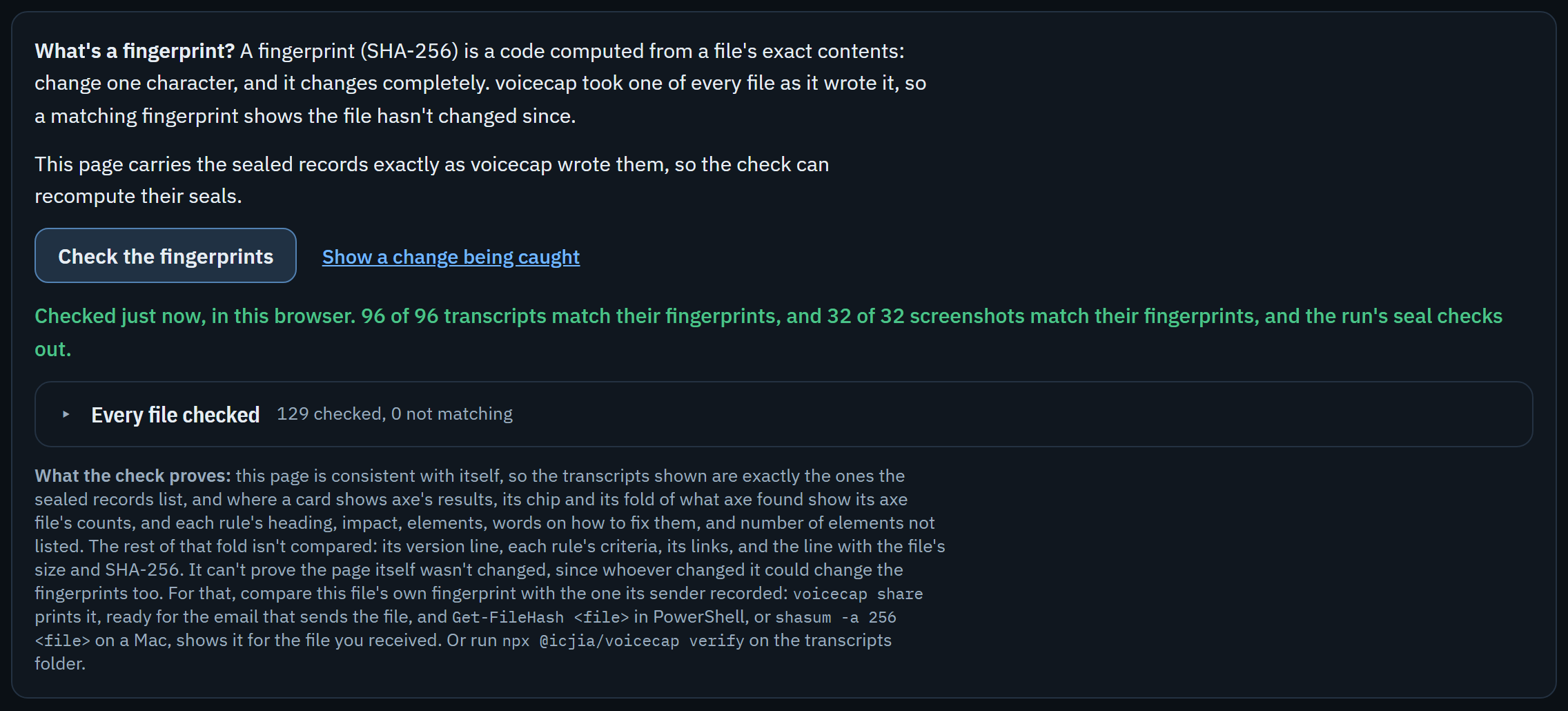
How seals and the review chain work, what voicecap verify checks, and what it can't catch
voicecap verify [--site <url>] [--out <dir>]Every record voicecap finishes writing is sealed: a completed run's run.json, each manual session's session.json, each review entry, and each entry in share/shares.json carry a seal, a SHA-256 of the record itself. Review entries, and share entries, also chain to the one before them (seq, prev). A reordered review entry, or a deleted entry that a later entry follows, breaks the chain; an edited one no longer matches its own seal, including the newest entry, which no later entry points to yet.
verify checks every site folder in the home, or one with --site (the address voicecap read, or the site's canonical address): each run's seal and the SHA-256 of every file it recorded; each manual session's seal, its transcript, and its raw copy when one was kept; the whole review chain; and what was shared (see below). It prints one line per problem it finds, then a summary for each site, and exits 0 when everything matches and 3 when something doesn't. An incomplete run (still running, or interrupted) is listed, not counted as a problem, and a missing raw NVDA log isn't either: .gitignore keeps those out of Git on purpose (see below), so a clone of the home never has them.
What it checks of a run's files, from 0.11.0: each page's screenshot.jpg and the run's events.jsonl, as well as the transcripts; and from 0.16.0, each page's axe.json, when the page's axe record has its fingerprint (a record of why axe couldn't check a page lists no file). A file the record lists is a problem when it's missing or has changed since it was recorded. So is an events.jsonl that a completed run doesn't record, such as one put in its folder afterward, and any other file in the run's pages/ folder that it doesn't record, an axe.json among them. A run from before 0.11.0 has no such files, and one from before 0.16.0 has no axe.json: both pass.
What it checks of the shares: share/shares.json's seals and chain; the site each entry records (from 0.10.0), which has to be the root of a web address, such as https://dvfr.illinois.gov/, as voicecap writes one; the result each entry records (from 0.12.3), which has to be four whole numbers that fit together, as voicecap writes them (a line such as share 5 (…) lists its result in a form voicecap can't read says otherwise); each copy the record names, which is a problem when it's missing, or has changed since it was recorded; and any other file or folder in share/ that nothing records, such as a dated copy that shares.json doesn't name. It passes over current.html and current.docx (voicecap writes them again from the records, so verify checks the records), names that start with a dot, the files an operating system adds, and Word's lock files (~$…, which Word keeps beside a document it has open: a sent copy that someone is reading has one). When it says a copy is not recorded in shares.json, move the copy out of share/ if you kept it by hand, or delete it if a share was interrupted and it was never sent.
The summary line says what it checked: dvfr.illinois.gov: 3 runs (1 incomplete), 2 manual sessions, 4 reviews, 1 share checked: everything matches. When something doesn't match, the line ends with the number of problems in place of "everything matches".
verify doesn't check the regenerated views (a site's report.html, latest.txt, share/current.html, share/current.docx, and compare/), a run's own report.html and compare/ diffs, or kept earlier attempts.
What it can't catch on its own: someone who edits a record and recomputes its seal, and every later seal and prev; and someone who deletes the newest review entries, the newest share with its copies, or a whole run or manual session, which leaves nothing for verify to find: only Git history shows it. Git history pushed to a protected branch catches both, since rewriting commits that are already pushed takes a force-push, and a branch protected against force-pushes refuses it — which is why the setup below has you protect the branch and push often.
What .gitignore keeps out of Git, and why
voicecap writes .gitattributes and .gitignore at the home's top the first time it needs them (a run, a review, a share, a manual session, or a build of the website), and never overwrites them, so your own edits or additions stay. Since voicecap writes its own only where there's none, don't start a home's .gitignore yourself: add to the one voicecap wrote. .gitattributes (* -text) keeps Git from changing line endings on checkout, which would otherwise make the recorded hashes stop matching the files. .gitignore keeps out:
.voicecap.lock, the marker a run holds while it's writing.- Manual sessions' raw NVDA logs (
**/*_manual_*/raw/). At Input/output level, NVDA's log records every keystroke, including passwords typed into forms — not something to put in Git. The raw copy's SHA-256 stays insession.jsoneither way, so a home missing a raw copy isn't somethingverifywill flag. - The shareable page and its Word copy (
**/share/current.*). voicecap writes them again after every run and review, so a copy in Git each time would only make the record bigger; they're made from the records, which are in Git. The dated copies thatvoicecap sharemakes (the page, its Word copy, and each run's walkthrough file), andshares.json, go into Git with the rest of the record: they're what was shared, and what the website is built from. A home whose.gitignorevoicecap wrote before 0.6.0 doesn't have this line: add it by hand. - Temporary files a crash can leave behind (
.*.tmp). voicecap writes each file under a temporary name first, then renames it into place. - Word's lock files (
~$*). Word keeps one beside a document it has open (a sent copy someone is reading, say), named with~$first, and a commit made then would take it. voicecap never changes a.gitignoreit wrote before, so the owner of a home set up before this line was added can add~$*by hand. - The website (
_site/).voicecap sitebuilds it from the records, and builds it again every time, so a copy in Git would only make the record bigger, and could be committed with the records by mistake. Netlify builds its own copy. A home whose.gitignorevoicecap wrote with 0.8.0 or earlier doesn't have this line. Whenvoicecap sitebuilds into the home's_site/and the line isn't there, it warns, with the line to add, and never changes the file: add_site/by hand, on a line of its own with nothing before it (Git reads a space at a line's start as part of the name). - Files the operating system adds to folders you open:
.DS_Store(macOS),Thumbs.dbanddesktop.ini(Windows).
Never commit an unredacted raw NVDA log. See Manual NVDA sessions.
Making the private repository on Windows or a Mac, saving runs to it, and protecting the branch
Windows, in PowerShell:
mkdir C:\Users\cschw\code\voicecap-transcripts
cd C:\Users\cschw\code\voicecap-transcripts
git init
gh repo create voicecap-transcripts --private --source .
setx VOICECAP_TRANSCRIPTS 'C:\Users\cschw\code\voicecap-transcripts'
gh repo create --private --source . is one way to make the private repository; it adds the origin remote. Leave off --push — there's nothing to push yet. setx only takes effect in a new terminal. In Git Bash, the same lines work, except that the first two become mkdir -p /c/Users/cschw/code/voicecap-transcripts && cd /c/Users/cschw/code/voicecap-transcripts.
macOS:
mkdir -p ~/webdev/voicecap-transcripts && cd ~/webdev/voicecap-transcripts && git init
gh repo create voicecap-transcripts --private --source .
If the repository already exists, made on another computer, clone it instead: gh repo clone voicecap-transcripts ~/webdev/voicecap-transcripts. Then add this line to ~/.zshrc, which also takes effect in a new terminal:
export VOICECAP_TRANSCRIPTS=~/webdev/voicecap-transcriptsAfter runs, reviews, or manual sessions, the same in PowerShell, Git Bash, and a Mac's terminal:
git add -A
git commit -m "voicecap runs"
git push -u origin HEAD
After the first push, plain git push is enough. git commit -S signs the commit, if you want proof of who committed. With the record on two computers, git pull before recording reviews, and push after: reviews recorded on both before they're synced break the review chain, and verify reports it.
Once, after the first push: on GitHub, protect the default branch against force pushes and deletion, in the repository's Settings → Rules → Rulesets, or Settings → Branches → Branch protection rules. Whether a private repository can use these depends on your GitHub plan.
Keep the repository private: manual sessions can carry reviewer names, notes, and typed text, and a run's event log can carry the title of a window that took the screen, such as an email's subject.
Measured run times, and how voicecap resumes, retries failed pages, and handles Ctrl+C and crashes
Measured run times (Windows 11, NVDA 2026.2, Chrome 153): each step takes 1.3 seconds (voicecap waits for a second of silence after every keystroke), and each page adds about 17 seconds, about 6 per pass, to load the page in a fresh browser, bring it to the front, and move NVDA to the top. So a page takes about 1.3 s × its steps + 17 s:
| Pages | Steps per page (all three passes) | Time per page | 100 pages | 2,000 pages |
|---|---|---|---|---|
| Five sampled pages of i2i.illinois.gov (measured) | 46–68 | 78–106 s, 92 s on average | about 2½ hours | about 2 days |
| A long page | 250 | about 6 minutes | about 9½ hours | about 8 days |
Count a page's steps as its lines in browse mode, plus its headings, plus its focusable elements. These times were measured before voicecap checked each page with axe (from 0.16.0, see axe), which adds little to a page of ordinary size: on a small site of 9 pages, run with real NVDA on 9 October 2026, each check took about 0.15 seconds, and the run took 26 minutes 40 seconds against 26 minutes 27 seconds for the same site before axe. A page with tens of thousands of elements takes longer, up to axe's 20-second limit. Interruptions are normal: reboots, Windows Update, power cuts.
- Resuming. At the start of a run voicecap stores the page list and a hash of the settings that matter (site, page source, passes, filters, limit, driver, capture mode, step caps, NVDA settings, browser, readiness).
run.jsonis rewritten after every page (atomically: a temporary file is flushed to disk and renamed, with retries while Windows holds the file). Running the same command again resumes the most recent incomplete run with the same settings, skipping pages already done (failed pages are retried). Otherwise voicecap starts a new run and says why.--freshalways starts a new run. A run that voicecap 0.7.0 or earlier left incomplete isn't resumed, since those versions didn't record the readiness settings: voicecap starts a new run and says so, until a new run with the same other settings completes. - Sitemap runs resume with the page list stored when they started, so a sitemap that changed in the meantime (a new news item, say) doesn't block resuming. A page list file, and a walkthrough file, is identified by its contents, so editing it starts a new run.
- A failing page never stops the run: it's recorded, reported, and the run moves on.
- Up to 5 tries (
pageAttempts). voicecap tries the page again after a timeout (steps and whole pages have timeouts), when NVDA or the browser stops responding, or when another window takes the foreground. Each retry starts NVDA and the browser fresh. - Every attempt is kept under
attempts/, and the page's record names each failed attempt's reason, so a page that needed three tries says so. - Too many failures in a row: after
maxConsecutiveFailurespages in a row (default 5) fail every try, voicecap stops with exit code 2 instead of marking every remaining page failed. Fix the problem and rerun to resume. If the fix is a change to the readiness settings (readinessin the config, see Configuration), the rerun starts a new run instead: a run resumes only with the same settings, and those are among them.
- Up to 5 tries (
- Restarts. NVDA and the browser are restarted every
restartEverypages (default 50). - If NVDA dies (it crashes, or someone closes it), or Guidepup loses its connection to it, the step in progress fails rather than being recorded as silence, and voicecap restarts NVDA and the browser and tries the page again, up to
pageAttemptstimes in all. - If the browser updates itself during a run (Chrome does, in the background), the page being opened when the new version starts fails, and voicecap stops with exit code 2 when it restarts the browser for the next page, so the version recorded with the transcripts stays true. Run the same command again to resume with the new version recorded; the failed page is retried. (On the last page, the run completes instead, with that page failed: exit code 3.)
- Ctrl+C saves state and shuts down NVDA and the browser. When the session read pages, voicecap then asks whether you heard NVDA speaking (see "The question at the end" under Run an audit), and it exits with code 130 once you've answered. The page in progress is redone on resume. Press Ctrl+C a second time to exit immediately; at the question, Ctrl+C gives no answer, and voicecap exits. The browser is in front while voicecap works, so click the terminal window first, or the keystroke goes to the browser.
- One run per output folder at a time (a lock file, taken over if the process that held it is gone).
- HTTP errors are page problems. A page that answers 404 gets a single try, since trying again can't help. A 5xx is tried again, up to
pageAttemptstimes. Either is recorded as failed, but it doesn't count toward stopping the run and doesn't restart NVDA; only timeouts and driver errors do. When a run resumes, pages never tried come first and pages that failed earlier are retried last, so a resumed run always makes progress. - Avoid synced folders (OneDrive, Dropbox) for the output: sync clients and antivirus scans can hold files open. voicecap retries, but a folder they keep locked can still stop a run. If Git on Windows complains about long paths in
transcripts/, rungit config core.longpaths true.
Recording what you found with voicecap review, what a review settles on the shareable page, how the history is kept, and hearing pages again with --replay
A reviewer reads a page's transcripts and catches what automated checkers such as axe can't: reading order that is technically right but confusing, alt text that is present but unhelpful, a page that is hard to use. voicecap review records what they found:
npx @icjia/voicecap review --page https://dvfr.illinois.gov/grants/fy27-jag --status issue --note "Table headers not announced"
npx @icjia/voicecap review --page https://dvfr.illinois.gov/grants/fy27-jag --status fixed --note "Headers added in #412"
Each page has a full, append-only history in its site's reviews.json (see The audit record). Every entry records the status (unreviewed, reviewed with no issues, issue found, fixed), the reviewer, a timestamp, the note, the run reviewed (by default the latest run with transcripts for the page; --run picks another), and the SHA-256 hashes of that run's transcripts for the page. Entries are never edited or deleted: a correction is a new entry, and the latest entry is the page's current status. Each entry is sealed and chained to the one before it, for voicecap verify to check (see Checking the record for what it can and can't catch). voicecap refuses to overwrite a reviews.json it can't read.
The reviewer name comes from --reviewer, then the VOICECAP_REVIEWER environment variable, then git config user.name, then reviewer in the config. voicecap won't record a review without one. Runs record the same name with each session (--reviewer on the run, which init asks for), but go ahead without one.
A page is changed since review when its transcripts in the run shown differ from the ones recorded with its latest review.
A review settles a page's flags, on the shareable page (see The shareable page). When the latest review of a page with flags is reviewed ("Reviewed, no issues"), and its transcripts haven't changed since, the shareable page counts its flags as decided: it takes the page off "What needs attention" and out of the verdict's count of problems, and the page's card under "Every page" says Checked by <name>, <date>: not an issue in place of "Reviewed, no issues". If the transcripts change after the review, the page is changed since review: its flags count again, and "What's still to do" says to review it again (Review <page> again in voicecap review: it reads differently since its review.), unless another task there already names it, such as the decision its flags need, or an issue to fix. An issue entry puts the page on a card of its own, with the reviewer's note, until a fixed entry clears it. A read that stopped before the page's end is never settled by a review. The transcripts stop short of what wasn't read, so the page stays on the list until a later run reads it to its end, and "What's still to do" says to run it again. A page whose only flag is such a read keeps "Reviewed, no issues", with no "Checked by" line.
NVDA speaks very fast during a run, so its words are hard to follow as they go by, and the transcripts are where they're read. voicecap review --replay is a review session in which you hear each page again, at a speed you can follow, and decide as you go:
npx @icjia/voicecap review --replay
npx @icjia/voicecap review --replay --page /about --rate 160
voicecap reads each page's saved transcript aloud in the computer's own voice (Windows' built-in voice, or say on a Mac), at a normal speed. These are the saved words, not NVDA reading the page again, so it needs no NVDA, browser, or network, and it works at any time. (It isn't --replay-from, which plays a whole recorded run back instead of running NVDA: see Drivers.) It's still your review: voicecap plays what NVDA said, and you hear it, read it, and decide.
Which pages. By default, the pages that NVDA read and that "What needs attention" names on the shareable page: the ring's "Read, with problems" (see The shareable page). They are the pages with flags no one has decided on, pages that read differently since their review, pages with an open issue, and pages whose read stopped short, in the latest run's page order. --page <url> plays one page instead, and --all plays every page with transcripts; the two can't be given together. A page plays from the transcripts the shareable page shows for it. One that has none to hear is left out, and named before the first page (with --page, voicecap stops and says why), and when no page is left, voicecap says so and starts no voice. --site and --out pick the site and the transcripts home as review does (see Other commands).
What you see. voicecap shows Starting the computer's voice. while the voice starts, which can take a few seconds. Then it shows the keys in one line, names each page, and shows each line as it's read, numbered by step: the body of its TXT transcript, under the header, has a line for each step, so line 4 is the body's fourth line (see The transcripts folder). A ⚑ at the end of a line means that line raised a flag. The mark says what the rule found on the line, for the rules that look for items, such as ⚑ unlabeled graphic or ⚑ read more, and gives the rule's name for the others, such as ⚑ headings (see Heuristic flags). Played with --page /, the home page of the new i2i site starts like this, after the line of keys:
Page 1 of 1: / (2 flags)
Read transcript, 31 lines:
   2  [to top] out of list, Skip links, navigation landmark, same page, link, Skip to main content
   3  same page, link, Skip to navigation
   4  banner landmark, same page, link, current page, Unlabeled graphic, i 2i Logo. To get missing image descriptions, open the context menu.  ⚑ unlabeled graphic
The read transcript plays the steps that carry the page's content, as the flags read them: it starts at the line Ctrl+Home said (line 2 here), and leaves out the lines Ctrl+End said (the second one too, when the read looked at the page's end again) and the repeats at the page's end.
What you hear. The voice says voicecap's own lines too, each as it shows it, so you can follow the session by ear alone, with your own NVDA muted: the keys, once, before the first page, in words; each page's line, and each transcript's name as it starts; each notice, such as No flagged line after this one. or Speed: 200 words a minute.; the question, and the note's prompt; a short line once your answer is taken, such as Recorded: issue found. or Skipped.; and after the last page, how many decisions it recorded, with a reminder to turn your NVDA's speech back on when it was running. A key you press while the voice says one of these stops it, and then does what it does there: on a page, it acts as it would on the line playing, except that while a page's line or a transcript's name is said, before its first line, Right Arrow goes to that first line, and N looks for a flagged line from it on, so neither passes over it unheard; at the question, a digit answers, and any other key is left out while the question goes on; at the note, the key you type is the note's first. Left Arrow and Right Arrow move among the transcript's lines only. Some lines are only shown: the two lines about your own NVDA, which your NVDA reads; an error, since the voice may be what failed; and the last lines of a session you end with Ctrl+C.
The keys. These work while a page plays:
| Key | What it does |
|---|---|
| Space | Pauses the voice. Press it again to go on, from the start of the line. |
| Left Arrow | Goes a line back. While the voice plays, it passes over the lines where NVDA said nothing ([no speech]), and when no line before has words, it says the line again. |
| Right Arrow | Goes a line ahead, passing over the lines where NVDA said nothing as Left Arrow does. When no line after has words, it asks what you decided. |
| N | Jumps to the next line that raised a flag. |
| H | Plays the headings transcript, from its start. |
| T | Plays the Tab transcript, from its start. |
| R | Plays the read transcript, from its start. |
+ or = |
Makes the voice faster, 20 words a minute at a time, for the rest of the session. (= needs no Shift.) |
- or _ |
Makes it slower, in the same steps. |
| Enter | Stops the page, and asks what you decided. |
| Ctrl+C | Ends the session. What was recorded stays recorded. |
While it's paused, Left Arrow, Right Arrow, N, H, T, and R move to their line and show it without saying it, so you can step through a page's lines in silence, a [no speech] line included (a transcript's name, and any notice, are still said). Space then says the line, from its start.
What you decide. When a transcript ends, or you press Enter, voicecap asks:
What did you decide? 1 Reviewed, no issues 2 Issue found 3 Fixed 4 Skip
A decision is one key, 1 to 4. No other key answers it, Enter alone included, so a stray key never records a decision. For 2 and 3, voicecap asks for a note: type it and press Enter, or press Enter alone for none. Escape, at the note, goes back to the question with nothing recorded, so a wrong digit can be taken back. Ctrl+C at the note ends the session, and the note typed so far is lost, with nothing recorded for that page. Skip (4) records nothing. Keys left over before a page starts are dropped, and so are the keys pressed in the half second after an answer (an Enter pressed after the digit, out of habit, is one), or after the Enter that starts the session when your own NVDA is running (a second Enter, pressed while nothing is heard yet: see below), so a key meant for one page can't end the next one unheard.
What's recorded. Each decision is recorded at once, as voicecap review records one: who decided, when, the run, and the fingerprints of that run's transcripts of the page, sealed and chained like every review entry. The run is the one whose transcripts played: the latest run that counts and read the page, the one the shareable page shows it from, so there's no --run. --replay takes no --status or --note either: it asks for each decision itself. The reviewer's name comes from --reviewer, then VOICECAP_REVIEWER, then git config user.name, then reviewer in the config, and with none, voicecap stops before it starts the voice. When the session ends, voicecap writes the report again, once, if it recorded a decision, and says how many it recorded. The transcripts are only read: what's written is the review entries, as review writes them, and the report.
The speed. --rate <wpm> sets the voice's speed in words a minute: a whole number from 60 to 540. The default is 180, a normal speed. + and - change it as you go, and a speed you set carries on to the next page.
It needs a terminal. voicecap takes each key as you press it, and shows each line as it's read, so --replay stops, with exit code 1, when it's run from a script or with its output redirected to a file. In Git Bash's own window (mintty), which doesn't always let Node see a terminal, run it in PowerShell or Windows Terminal.
If your own NVDA is running, it reads each line voicecap shows, over the voice. On Windows, voicecap looks for a running NVDA before the first page. When it finds one, it says so, and waits for you to press Enter:
NVDA is running, and it will read these lines too, over the replay's voice.
Mute it (NVDA+S changes its speech mode) or quit it, then press Enter.
voicecap never stops, starts, or changes your NVDA: that's for you to do, and when the session ends, voicecap reminds you to turn its speech back on. When it can't tell whether NVDA is running (its check hasn't answered in 5 seconds), it starts without the message.
Where it runs. On Windows and on a Mac, each with its own voice. On another computer, when no voice is found, or the voice stops working, --replay says so, with exit code 2. With no voice, it stops before anything is recorded; a voice that stops working ends the session, and what was recorded stays recorded. Ctrl+C ends a session with exit code 130 (see Exit codes).
voicecap manual add imports a hands-on NVDA session for a page into its site's folder in the transcripts home, under <date>/<time>_manual_<page-slug>/ (see The audit record). voicecap recognizes two kinds of input.
In NVDA, open NVDA menu → Tools → Speech Viewer, use the page, then copy the Speech Viewer text into a file:
npx @icjia/voicecap manual add speech.txt --page https://dvfr.illinois.gov/grants/fy27-jagSpeech Viewer has no timestamps or keystrokes: each line is one utterance, and its items are separated by two spaces (voicecap converts them to ", " like a run's transcripts).
Turning on NVDA's log, importing it, and importing just part of it
The log records each keystroke and what NVDA said, with times:
- NVDA menu → Preferences → Settings → General → Logging level → Input/output. Press OK.
- Test the page.
- Copy the log: NVDA menu → Tools → View log, or copy
%TEMP%\nvda.log(nvda-old.logholds the previous NVDA session). - Set the logging level back to its previous value ("Info" by default) when you're done.
npx @icjia/voicecap manual add nvda.log --page https://dvfr.illinois.gov/grants/fy27-jag --redact-typing
npx @icjia/voicecap manual add nvda.log --page https://dvfr.illinois.gov/about/ --from 14:05 --to 14:20
voicecap keeps only the keystrokes (Input: …) and speech (Speaking […]) and discards everything else. Log times have no date: the session date comes from --date, or else the file's modification date (voicecap prints it so you can confirm), and sessions that cross midnight are handled. --from and --to import part of a log, as in the second example, so one log can cover several pages.
- a clean
.txttranscript (for logs: each keystroke followed by what NVDA said in response); - a
.jsonfile with the entries (time, key or speech, text) and the page, input format, session start and end, NVDA version, import date, and reviewer; - the unmodified original in
raw/, named so it doesn't end in.log(many repositories ignore*.log, which would silently leave the evidence uncommitted), with its SHA-256 in the JSON.--no-rawskips the copy but keeps the hash.
Sessions are named by their date and time, so several sessions per page can coexist.
Typed text in NVDA's log, what --redact-typing does, and what it can miss
Input/output logs record every keystroke, including text typed into form and password fields. voicecap warns on every log import, and warns again if it finds typing in form fields and you didn't ask to redact it.
--redact-typing replaces keys typed while focus is in an editable field, and NVDA's spoken echo of them, with [typed text redacted]. With --redact-typing the raw log is not kept (only its SHA-256, with a note that it was withheld for privacy); --keep-raw keeps it anyway, with a warning.
The redaction is a heuristic, and it has limits. It relies on NVDA announcing an editable role (English phrasing such as "edit" or "password edit") when focus moves to the field, so it can miss:
- fields reached without that announcement (by mouse, or in apps NVDA reads differently);
- pasted text that NVDA reads back;
- error messages that quote what you typed, and autocomplete suggestions;
- input methods (IME) and typing in other applications.
It errs on the side of hiding things. After focus leaves a field by mouse click, speech stays redacted until the next focus key (Tab, Escape, …), which can hide ordinary page speech. Enter counts as leaving a field, so further typing in a multi-line field after Enter is only caught when NVDA logs it as a typed word. With --from/--to, redaction still follows focus from the start of the log, so a field entered before the window is handled.
Check the clean transcript before committing it, and never commit an unredacted raw log.
How to compare a run's transcript with a Speech Viewer capture, and what to normalize first
This is a different question from voicecap verify (see The audit record), which checks that a recorded file hasn't changed since voicecap wrote it. To check that a run's transcript really is everything NVDA said, compare it with a Speech Viewer capture of the same page:
- Open Speech Viewer, load the page, press Ctrl+Home, then Down Arrow until the end, and save the Speech Viewer text.
- Compare it with
read.txt(skip the header block and the[to bottom]lines). Normalize first:- Separators. Speech Viewer separates items with two spaces and utterances with new lines; transcripts separate items with ", " and put all the utterances of one keystroke on one line, joined with ". ".
- Symbols. Speech Viewer shows the text before NVDA turns symbols into words; transcripts have the words NVDA speaks. So Speech Viewer's
© 2026and•arecopyright 2026andbulletin a transcript (NVDA's English symbol names, at its default symbol level). - Empty items. Transcripts keep NVDA's empty text items (
edit, , buttonfor an empty field); Speech Viewer shows them as extra spaces.
fixture/manual/speech-viewer.txt is a real capture of the fixture's home page, and the fixture tests compare it with the fixture run's read transcript this way. On Windows, pnpm test:nvda repeats the whole check against live NVDA.
What the report shows, when it's regenerated, and how --compare marks changes
Open a site's report.html in a browser: transcripts/dvfr.illinois.gov/report.html, say, or the path a run prints when it completes. It's a single self-contained file (no external assets) and is itself accessible. Its subtitle names the site by its canonical name, linked to its address, when the run recorded one, and by the address voicecap read when it didn't (see A site's name: its canonical address).
- Summary: the page source (curated list, full sitemap, or walkthrough file), driver and capture mode, and counts: pages, transcribed, reviewed, changed since review, manually tested, open issues, errors, skipped URLs. Banners mark replayed output ("not a live NVDA session"), incomplete runs, and environment changes.
- Pages table: one row per page with its template, run status, step counts and stop reasons per pass, heuristic flags, current review status (with reviewer and date), number of review entries, a "changed since review" marker, manual sessions, and links to every transcript. With
--compare, a column marks changed pages and links to the text diffs. - Filters (flagged, review status, template, changed since review, manually tested) are ordinary form controls; the number of pages shown is announced. Without JavaScript the full table is still there.
- Skipped URLs, Review history (every entry for every page), Manual NVDA sessions, and the Environment record follow.
A completed run, review, manual add, and voicecap report regenerate it. Each run's folder keeps its own report.html snapshot from when it completed. voicecap report --run <id> renders a specific run, including an incomplete one (clearly marked). This report doesn't show what axe found on each page: that is on the shareable page's cards, and in each page's axe.json (see axe).
Compare. --compare previous (or a run id) compares the pages both runs contain, marks changed pages, and links to line diffs of the transcripts (not the header blocks). Pages that appear in only one run are listed. If the two runs' environments differ (NVDA, browser, voicecap, NVDA settings, capture mode), the report says so prominently, because some changes may come from the tooling rather than the site.
The shareable page puts what a manager needs first and the evidence last: "At a glance", then what needs attention, then every page, and, last, the details for reviewers and auditors (see "Its sections, in order", below). It folds its detail under lines that say what's inside. This is one of its sections, "What needs attention", with its card open. The i2i report has one problem, on all 32 of its pages: the i2i logo, which NVDA reads as "Unlabeled graphic" (the unlabeled rule: see Heuristic flags) next to its alt text, "i 2i Logo". Its card quotes what NVDA said, in the header on all 32 pages and in the main content on 1; says the likely cause (Chrome counts that alt text as missing, and NVDA says what Chrome reports) and why it matters; gives the fix in the code, once for the header (alt="", since the logo is inside a link that says "INSTITUTE 2 INNOVATE") and once for the main content (a name in words), each with what NVDA should say then; gives the path forward; and ends with its 32 pages, behind a fold that names their count, each linked to its card under "Every page".
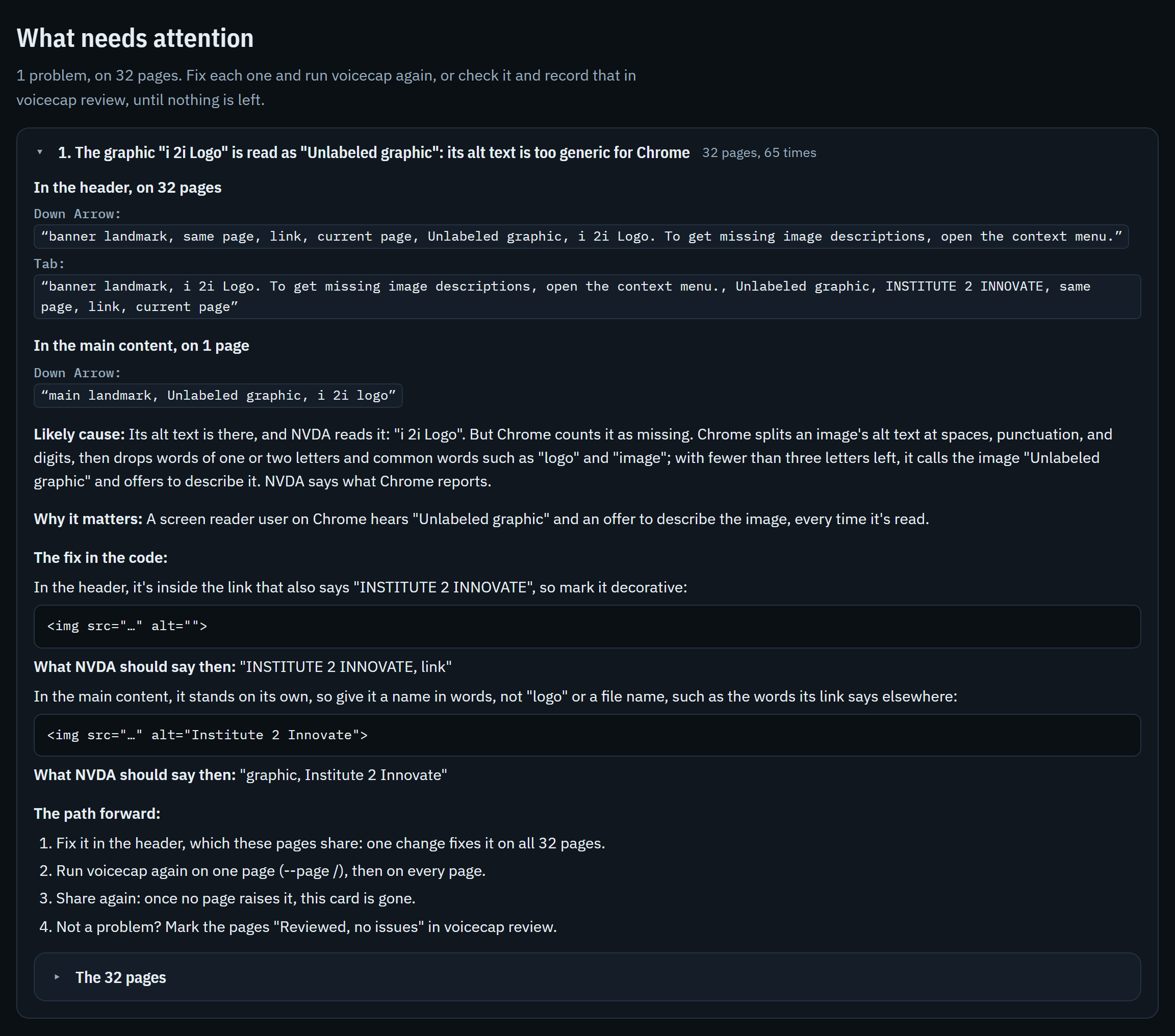
What the page is, how voicecap writes it, which runs count, its sections, the fingerprint check, and what to know before you send it
share/current.html, in a site's folder, is the shareable page: made for people who will never open the transcripts home, a manager, say, or an auditor. It's one file, and it opens in any browser, offline. It shows where the site stands, from its sealed runs, and the person's review: what they heard, found, and fixed. It explains every problem that came up during the runs, with its record, word for word, and it can check its own fingerprints, in the browser, with no network. Beside it is share/current.docx, its Word copy (see The Word copy).
voicecap writes it whenever it rewrites the site's report.html: when a run completes, and after voicecap review, voicecap manual add, and voicecap report, which also prints Shareable page: <path> and then Word copy: <path>, each only when its file was written. (The programmatic API's generateReport, addReview, and addManualSession write the page and its Word copy too.) It's rewritten each time, so current.html isn't the file to send: voicecap share makes a dated copy of the page, and of its Word copy, to send (see Sending it: voicecap share). A page that can't be written is a warning, never a failed run, review, or report.
- One self-contained file. Its styles, fonts, and data are inside it, and nothing is loaded from outside. (A card's fold of what axe found links to axe's own page on each rule, which a reader opens on another site.) It's dark at first, with a button for a light version, and it prints light. On a page shorter than the window, its footer sits at the window's bottom, and on a longer one it comes after the content; the run report, the website, and the demo site's pages do the same. Its detail is folded under lines that say what's inside. Each fold opens with a click, scripts or not; "Open every section", at the top, opens them all; and so does printing. Like the report, it's itself accessible: voicecap's tests run axe on it, in both themes, with every fold shut and every fold open.
- Only completed, sealed, live runs count. Its pages are those of the latest run that counts whose pages came from a sitemap or a page list. A later run given its pages with
--pageis a spot check: its transcripts are shown for the pages it read, and its failures are said, but it doesn't change which pages are in scope. Each page shows its newest transcripts from any run that counts.- A run repeated from a walkthrough file counts as what its original was. A repeat of a sitemap or page-list run is a list run, in scope like a page list, and a repeat of a
--pagerun is a spot check, like--page. The file says what its original's pages came from (from). So a walkthrough file trimmed by hand, from a sitemap run, still counts as a list: its pages, the subset, are the scope, and the pages taken out go in "No longer listed" (see Repeating a run: the walkthrough file). - A page whose latest attempt failed shows the failure beside its last good transcripts, and is a task under "What's still to do".
- A page the latest run's list no longer has goes in a small table, "No longer listed".
- A replayed run (
--replay-from), a run that was interrupted or never finished, a completed run with no seal, and a run whoserun.jsoncan't be read never count toward a result. The page lists each one it left out, with why, and with no run that counts, it says so.
- A run repeated from a walkthrough file counts as what its original was. A repeat of a sitemap or page-list run is a list run, in scope like a page list, and a repeat of a
- A person's review, first. The sentence under the verdict leads with what the person did: that they heard NVDA speaking as it read the pages (their answer to the question at the end, under Run an audit), what they found, and what they fixed (see Reviews: the audit trail). It says a person heard, reviewed, or fixed something only where the records say so, and what's left appears as tasks, under "What's still to do", in the details.
- Nothing left blank. Where a run didn't record something the page shows, it says so, as in "Not recorded: this run used voicecap 0.5.0".
Its sections, in order:
-
At a glance: what a manager needs first, all of it computed from the records, in this order:
- The verdict: one large line, in words and a sign that only repeats them. It goes by the first of these that is true: in red, after a ⚠, when NVDA read fewer pages than are in scope, whether it couldn't read a page or skipped it; in amber, after a ⚠, when every page was read and some cards are left,
1 problem needs attention, on 32 pages; and in green, after a ✓, when every page was read and no card is left,Nothing needs attention. Red counts the problems in the same words, and with no card left it saysNothing needs attention on the pages read. The verdict counts every card of "What needs attention", as that section, the Word copy, and the website's card do. The sign is drawn by the page's style, so a screen reader hears the words alone. - The result in one sentence, which leads with the person's review ("NVDA read all 32 pages, run by Christopher Schweda."). It doesn't count the problems that need attention: the verdict does.
- The ring of the pages: a ring chart of the pages in scope, with their number in its middle, in three parts, each saying whether NVDA read the page: "Read, no problems" (read, and on no card), "Read, with problems" (read, and on a card), and "Not read" (no transcripts). A legend gives each part's words and its pages, a part with none included, which a screen reader hears as a list named by the number of pages in the ring ("7 pages"). When every page is in one part, the ring is whole.
- Four big numbers: the pages NVDA read, out of those in scope; the problems to fix, which is the number of cards; the lines NVDA spoke; and NVDA time.
- The method: "A human review, sped up: voicecap presses NVDA's keys and moves from page to page; the person running it does the reading and the deciding."
- On this page: links to "What needs attention" (when there's a card), "Every page", and "The details".
When no run counts, or the run that counts listed no page, there are no pages to count: it has no verdict, ring, or numbers, only the sentence (when no run counts, it says so), the method, and the links.
- The verdict: one large line, in words and a sign that only repeats them. It goes by the first of these that is true: in red, after a ⚠, when NVDA read fewer pages than are in scope, whether it couldn't read a page or skipped it; in amber, after a ⚠, when every page was read and some cards are left,
-
What needs attention, there only when a card is: a card for each problem, across every page it's on, with the problem on the most pages first. A card says what NVDA says and where (the part of the page NVDA named, such as the header), with NVDA's own words quoted from the transcripts; the likely cause; why it matters; the fix in the code; what NVDA should say then; and the path forward. Its pages come last, each linked to its card under "Every page". With more than 5 cards, each folds behind its title, and a card's pages fold when there are more than 3.
- The problems it finds: a graphic with no alt text, or whose alt text Chrome counts as too generic; a button, a form field, or any other item with no name; a link with no name, or with text that doesn't say where it goes ("Read more"); a page whose first heading isn't level 1 (likely a missing
<h1>), or that has no headings at all; a missing skip link; Tab reaching nothing; a phrase said many times in a row; and a rule of your own (flags.custom), named by its description. Also on the list are a read that stopped before the page's end, a page that couldn't be read, an issue a reviewer found, and a page that reads differently since its review. Those four, and a rule of your own, have no fix in the code to suggest: their cards say what happened, why it matters, and the path forward. - Alt text that's there, and still read as "Unlabeled graphic": Chrome splits an image's alt text at spaces, punctuation, and digits, drops words of one or two letters and common words such as "logo" and "image", and treats the image as having no name when fewer than three letters are left. The card says so, and says NVDA is reading what Chrome reports (Chromium's source,
ax_image_annotator.ccandax_image_stopwords.cc, checked 6 October 2026). - A fix comes from what NVDA said, never from the page's code: voicecap keeps no page's HTML. A card's fix is the usual fix for the case NVDA's words show, so it's a suggestion, and the person reviewing decides whether it fits.
- What clears a problem: a card is gone when no page is left on it. A flag clears for a page when a later run of the page doesn't raise it, or when the page is marked "Reviewed, no issues" after the run that raised it (see Reviews: the audit trail); it comes back if the page's transcripts change after that review. A page that couldn't be read, or whose read stopped before the page's end, clears only when a later run reads it to its end: a review doesn't clear it. An issue clears when it's marked "Fixed". With no card left, the section isn't there: At a glance's verdict says "Nothing needs attention", and its links leave the section out. When some pages were skipped, which are on no card and weren't read, the verdict says "Nothing needs attention on the pages read", in red, and the sentence under it says how many were skipped.
- The problems it finds: a graphic with no alt text, or whose alt text Chrome counts as too generic; a button, a form field, or any other item with no name; a link with no name, or with text that doesn't say where it goes ("Read more"); a page whose first heading isn't level 1 (likely a missing
-
Every page: a card for each page, in the latest run's order, two a row where each card gets at least 420 pixels (a laptop's or a desktop's window), and one a row on a phone's window and on portrait paper. A card has the page's screenshot, its number and address, its title as the browser reported it, and chips for its result, its flags, the person's review, and, last, what axe found (
axe: 3 issues, in the warning color, oraxe: no issues, in a muted one; a page with no result from axe has no such chip). Under them is "Heard first": the first three lines NVDA said as it read the page, in quotes, word for word. A step where NVDA said nothing isn't in quotes: it shows as the marker the transcript writes,[no speech], since those aren't words NVDA said. Then come what each pass captured (the lines read, the headings, the Tab stops, and the time), a bar for each line NVDA spoke in the read pass, then "What axe found", a fold that starts shut, described below, and, last, "The full transcript", a fold that starts shut: a transcript for each pass the run recorded (read, headings, and Tab), word for word, each with its line count, size, and fingerprint. Every card's fold reads alike on screen, so each names its page for a screen reader alone ("The full transcript of /privacy/: read, headings, and Tab transcripts"). A page with no screenshot says why where the picture would be (its run was made before 0.11.0, say, or the browser couldn't take one). A screenshot that's missing, or isn't the file its run recorded, isn't shown, and the page says so. A page with no transcripts, one that was never read, say, has no "Heard first" and no fold, and a page whose transcripts can't be read here has its fold, with a line that says so. With more than 12 pages, the cards with nothing to note fold behind one line, each still holding its own folds, and the pages that need attention always show. What axe found isn't one of the things that need attention, so a card whose only note is that folds with the rest. Each page's words are in its card, and "Check the fingerprints" checks them there.Two of the i2i report's 32 page cards, for /privacy/ and /program-approach/, as a wide window shows them, two a row:
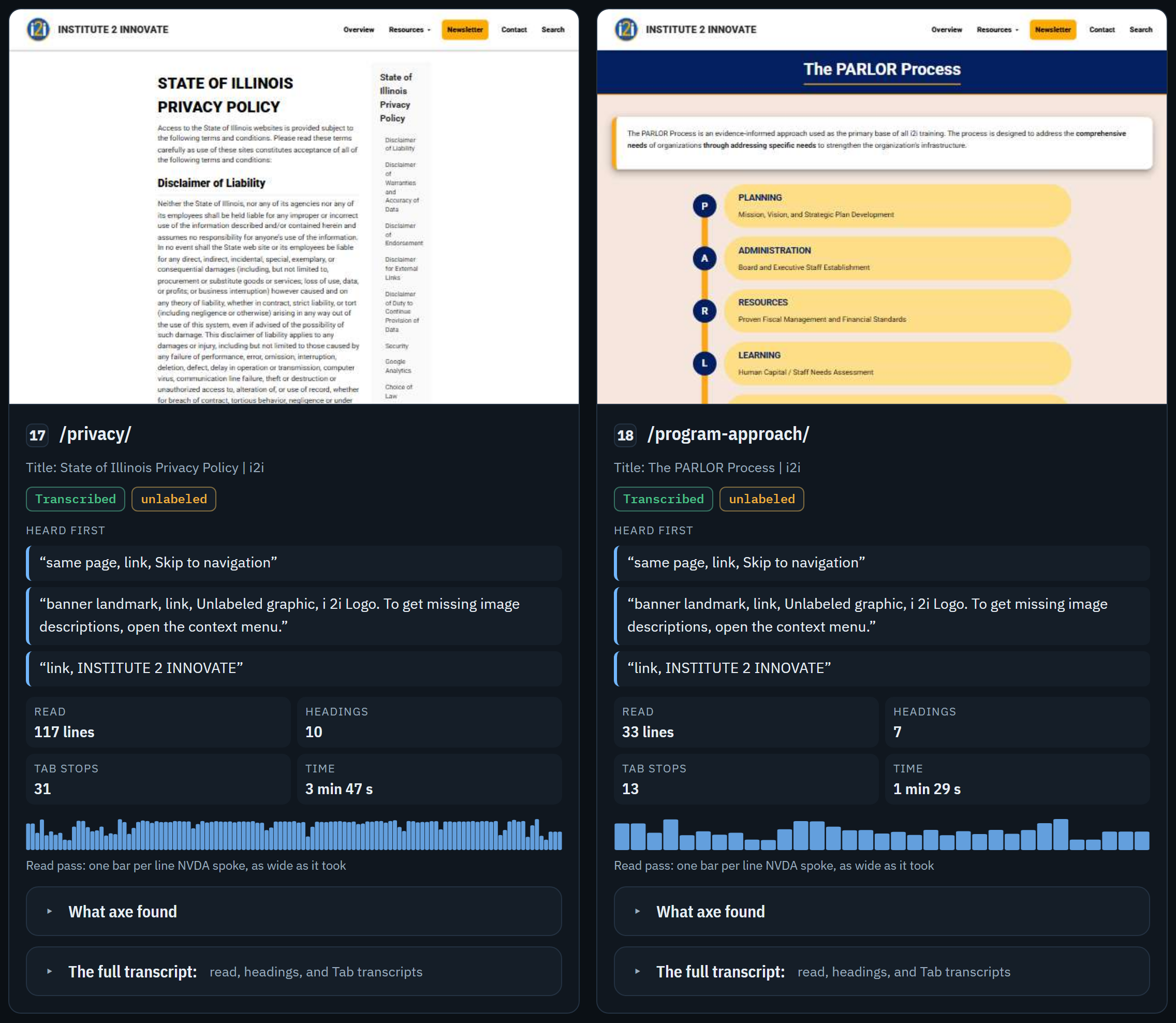
What axe found, in a card (from voicecap 0.16.0). The fold is between a card's bar and its full transcript, and it starts shut. It's apart from voicecap's own result: the verdict, the ring, the numbers, and "What needs attention" are the same with and without it. A screen reader hears it with its page's address ("What axe found on /about/"), so no two sound alike. Inside it, in order:
- What axe is, in one line: "axe is an automated checker: it tests a page's code against rules, and finds what code can find. A person's review finds the rest."
- The version of axe-core and the rules it ran, such as "WCAG 2.0 and 2.1 at levels A and AA, WCAG 2.2 at level AA, and best practices".
- The counts, each in a box: the issues (the rules the page broke), how many of them are critical, serious, moderate, and minor, what needs review, and the rules that passed.
- The issues, most severe first, under a heading, or "axe found no issues on this page." Each issue has axe's own words for the rule as its heading; its impact; the WCAG success criteria it tests ("WCAG 2.0 AA 1.4.3"), or "best practice"; its elements, each with its selector and its HTML in the fixed-width font; axe's words on how to fix them, said once for the rule when every element listed has the same words, and with each element when they differ; "and 350 more elements" when the file counts elements it doesn't keep; and a link to axe's own page on the rule, at dequeuniversity.com.
- What needs review, under its own heading, with the line "axe couldn't decide these, so each needs a person to check it." Each is laid out as an issue is, and a page's iframes are among them (see axe).
- The file's size and SHA-256, as each transcript has them:
axe.json: 3,250 bytes, SHA-256 ….
A rule's name and the words on how to fix it are axe's own, shown as axe's. A card with no axe result says why, in the fold: "Not recorded: this run used voicecap 0.11.0." for a run from before 0.16.0, as in the i2i report; "axe couldn't check this page: ."; "Not checked: this run's driver doesn't check pages with axe."; "Not checked: axe didn't check this page, since it wasn't read."; and, for an
axe.jsonthat isn't as the run recorded it, one that is but isn't axe's results as voicecap keeps them, or a record voicecap can't read, a line that says "Not shown", and why. So a report whose runs are from before 0.16.0 shows each page's "What axe found" with the reason it isn't recorded, and shows axe's results after the site's next run, once that's shared. -
The details, for reviewers and auditors: "How the test was run, what it covered, and the evidence behind it." Each part has a heading of its own, in this order:
-
What's still to do: the tasks that are left: an issue to fix, or to record the fix of; a page to read again (one the latest run couldn't read, or whose read stopped before the page's end); a skipped page to check, which may not belong on the list; a flagged page to decide about; and a page to review again, because it reads differently since its review. Or that nothing is left.
-
How complete the test was: the pages read, out of those in scope; the problems during the runs, in one line; whether any was an unexpected error, which could mean a problem in voicecap itself; the pages that couldn't be read after every attempt, and those skipped; and, when there's a run before, one line on what changed since it, "Since the last run on 6 October: …".
-
When and how: the date, who ran it, and the screen reader, browser, and operating system.
-
What changed since the last run: the pages that sound different from the run before (the latest earlier run that counts, with the same page source), line by line, with the changed words marked. Pages that sound the same are counted, not listed.
-
Problems during the runs: every failed attempt in the runs the page draws on, including those a later attempt made good. Each has its kind: another window took the screen, the computer locked, NVDA stopped, the browser stopped, the website answered with an error or couldn't be reached, a step took too long, or an unexpected error, which may be a fault in voicecap itself. Each says what voicecap did, whether it happened again (by what came after it: a run before it that read the page shows only that the page could be read), and what it means for the results. Then comes the record of it, word for word, with the home folder replaced by
%USERPROFILE%(or~), and the event log's lines from that attempt. For another window taking the screen, the page also says which program came to the front, by its name, or that voicecap couldn't tell, and the section's opening line names each program, with how often. It never shows the window's title. -
What these results cover: the pages and passes, and the technical limits.
-
Flags by rule and The human review: two bars. The first counts how many times each rule was raised, across pages and passes. The second counts the transcripts reviewed and the issues fixed, each out of its total.
-
The evidence behind these results: the fingerprint check, then each run the page draws on, with its facts, which say how many times NVDA was restarted and why, and five parts. The first is the run's event log, minute by minute, from voicecap 0.11.0: for each session, a chart with a lane for the lock, voicecap's NVDA, the pages, and the computer's own NVDA, and a fold with every event to the millisecond (see What each run records). The second, NVDA's own log, checked against the transcripts, comes next: no version of voicecap records it yet, so it says "Not recorded". The others are its test environment, the fingerprint of every file, the run's event log, each page's screenshot, and each page's axe results included, and, last, its walkthrough file to download, with the command that repeats the run (see Repeating a run: the walkthrough file). A run whose event log isn't as its record says, or that has none, says so in the log's place. A session the log has no line of, as in a run begun with voicecap 0.10.0 and finished with 0.11.0, says so in its own place, with the version it used, and the run's facts say which sessions NVDA's restarts were counted in.
The i2i report's run, with its fold open down to the end of its minute by minute. A lane with nothing in it isn't drawn, so this run's chart has three:
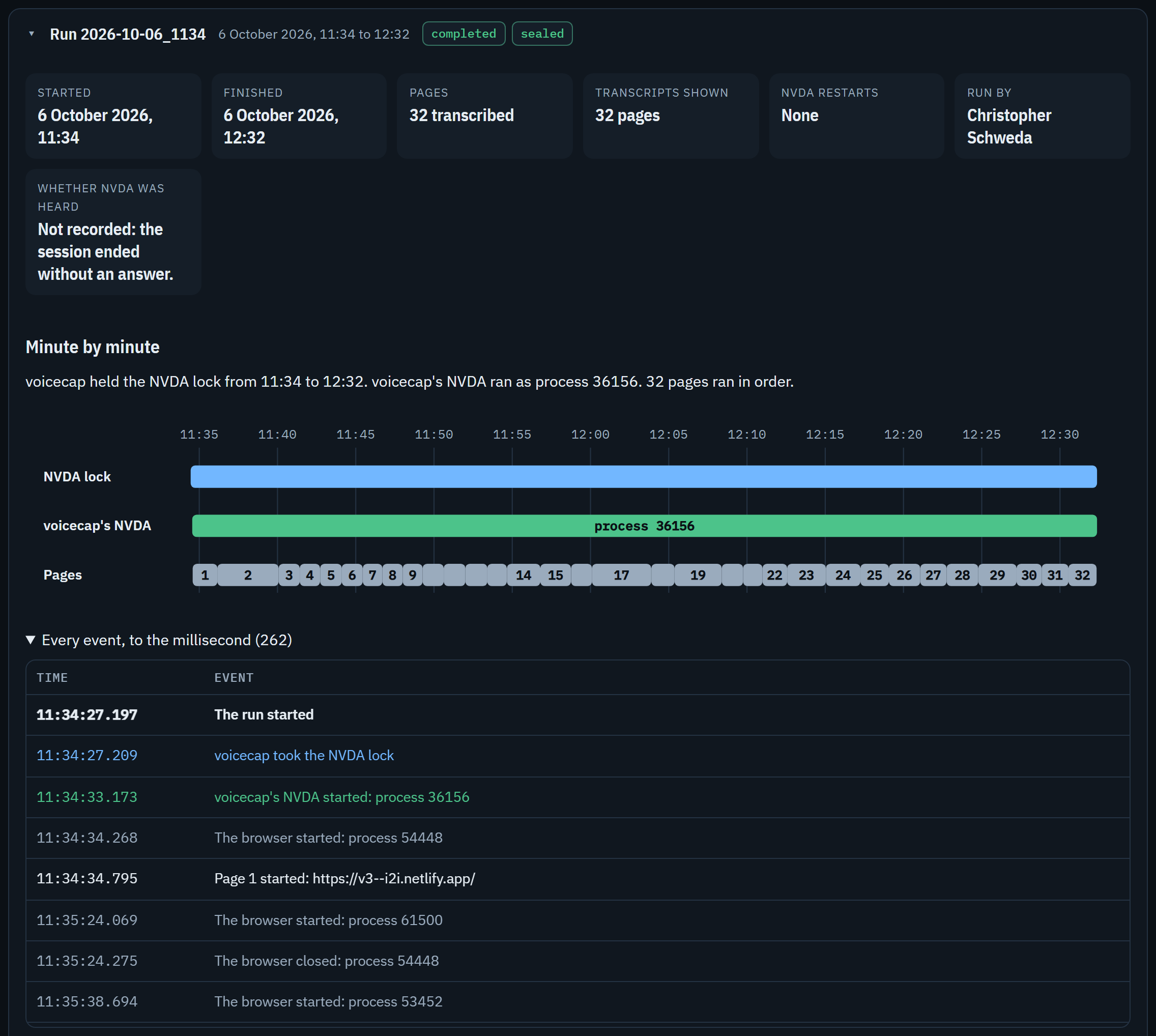
-
How voicecap works: the lead and a line on axe's check of each page (that, from voicecap 0.16.0, each page is also checked with axe, an automated checker, before NVDA reads it, and what axe finds is evidence beside the person's review, never its verdict: true of a report whose runs are older too, whose cards say axe's results weren't recorded), the six steps, the first lines NVDA said on the site's home page, in a fold that starts shut, and when to run voicecap.
-
How voicecap came to be: it opens with why voicecap was needed, then why it exists, then its timeline and a few things worth knowing.
A site where no run counts yet has the six parts that aren't counts: it leaves out the first three, and the two bars.
-
-
The footer: what voicecap is, with its link; when the page was made, and the time zone its times are in; and the names of the page's file and of its Word copy.
The fingerprint check. "Check the fingerprints", in the evidence, checks every transcript the page shows, every screenshot, and every axe result, against the fingerprint in its run's sealed record, each run's seal, and each review's seal and the review chain, all in the browser. It also checks that the text each transcript shows, in its page's card, is the file the page carries, so the transcripts shown are exactly the ones the sealed records list. For axe's results it checks that each card's fold shows its file: the counts, the number on the card's chip, each rule's heading and impact, each element's selector and HTML, axe's words on how to fix them, and the number in a rule's "and N more elements" line. It doesn't compare the rest of the fold: the version line, each rule's criteria (the rest of its impact line), and the links, which are drawn from the same file, and the line with the file's size and SHA-256, which comes from the run's record. The page's own "What the check proves" names both. "Show a change being caught" repeats the check on a copy with one character changed, in memory only (the first character of the first transcript, and of the first axe file too, when the page has one), so a reader can see a mismatch named. The check shows that the page agrees with itself. It can't show that the page itself wasn't changed, since whoever changed it could change the fingerprints too. For that, compare the file's own fingerprint with the one its sender recorded: voicecap share prints it, ready for the email that sends the file, and Get-FileHash <file> in PowerShell, or shasum -a 256 <file> on a Mac, shows it for the file you received. Or run voicecap verify on the transcripts home, which checks the originals. voicecap verify leaves current.html and current.docx alone, since voicecap makes them again from the records each time, and verify checks the records. It does check the dated copies that voicecap share made, against what shares.json recorded of them (see Checking the record).
Before you send it: the page carries its runs' sealed records exactly as voicecap wrote them, for the fingerprint check, and those can include file paths with your account name in them (a page list's, say), which the page itself never shows. It also carries the text of each page's axe.json, which holds the selectors and the HTML (cut at 300 characters) of the elements axe found, and shows them in the card's fold. The walkthrough files it offers hold no folder names: a page list's file is kept by its name only. Each walkthrough file carries the pages' labels, templates, and notes from your page list, as the records do. Everything on the website is public to anyone with its address, so all of this holds there too, for every page, Word copy, and walkthrough file that has been shared (see The website: voicecap site).
The event log, and private text. events.jsonl keeps the title of each window that took the screen, which can hold private text, such as an email's subject. The page and its Word copy never show a title: they show the program's name, and the log's other events in words. The page carries no copy of the log, only the fingerprint its run's sealed record has for it.
The site's name, the page's headline, is its canonical name, such as dvfr.illinois.gov. Under it, the page says when the site was tested, such as "Tested 29 September 2026, 14:02": the day and time the latest run began (see A site's name: its canonical address). report.siteName in the config (see Configuration) adds a line of its own under the name, such as the site's full title. Without it the page has no such line, and the home page's title is no longer a headline. The setting names every site the config is used with, so give each site its own config when they need different names.
The shareable page, its Word copy, the dated copies, and the website name a site by its canonical address: the address people visit, such as https://dvfr.illinois.gov/. Its canonical name is that address's host, dvfr.illinois.gov. The page and its Word copy lead with it, and with when the site was tested. A site that voicecap read on a copy on the tester's own computer is named the same way once its canonical address is known, so nothing a reader meets leads with an IP address or localhost, which mean nothing to a reader. The fold below says how voicecap learns the address.
How a site gets its canonical address, where its name shows, what keeps the address voicecap read, and what a site with none is called
How a site gets one, from the strongest way to the weakest:
report.canonicalin the config (see Configuration). It names the site whenever the page, its Word copy, or a share is made, and it beats the address any run recorded, past or to come. So it names every site the config is used with: keep one config per site, as withreport.siteName. A command reads the config in the folder it runs from, so a config withreport.canonicalgoes in a folder of its own, never in the transcripts home, which holds many sites.--canonical <address>on a run (see Run an audit). The session that completes the run records it. It isn't one of the settings a run resumes by, so adding it when you run again doesn't start a new run.voicecap initasks for it when it's needed, and puts it in the command it prints (see Quick start).- The site's own pages. A run reads each page's
<link rel="canonical">tag when it loads the page, and records the root that most of the inner pages' tags name (an inner page is any page but the home page). The home page's tag counts only when no inner page gives one. A tag counts only when it names the page it's on: its path has to end with the page's own path. A tag for another page, a local address, or an address that isn't on the web is ignored. A copy of a site keeps the tags of the site it copies, so a run on a copy learns the real address. - None of these. The site is named by the address voicecap read: its host, and its port if it has one. For a copy at an IP address or a local address, such as
127.0.0.1orlocalhost, that's no name at all, sovoicecap sharewon't share it: it stops before it writes anything, and says how to name the site (see Sending it:voicecap share). Give such a site its address with--canonicalon the next run, or withreport.canonicalfor the runs already made.
An address is kept as its root: a scheme, a host, and a path that ends in /. dvfr.illinois.gov becomes https://dvfr.illinois.gov/, and a site that lives under a path keeps it: the demo's is https://voicecap.icjia.app/demo-site/. An IP address or a local address, such as http://localhost:3000, is refused, since neither is a site's name, and so is a host with an empty label, such as https://.example.com, which isn't a web address.
Where the name shows:
- the page's headline and title, and every page address it shows, which is the page on the canonical address: the demo's
/before-you-start/isvoicecap.icjia.app/demo-site/before-you-start/. A page whose path already starts with the root's path keeps it, so a site that lives under a path isn't doubled when it's read itself, or on a copy with the same paths: with the roothttps://icjia.illinois.gov/researchhub/,/researchhub/x/isicjia.illinois.gov/researchhub/x/; - the Word copy, in the same places;
- the commands they show, such as
voicecap walkthrough --site <canonical address> --run <id> …, since--sitetakes it, andwalkthroughfinds the run in whichever folder that address names holds it (see Other commands); - the names of the dated copies and of the walkthrough files (see Sending it:
voicecap share); - the website's headings and lists (see The website:
voicecap site); - the run report's subtitle (see Reading the report).
What keeps the address voicecap read. The records are as they were written: the run's site, the site's folder, the walkthrough file, the terminal's output, a problem's record word for word, and the data the page carries for its fingerprint check. An element's HTML in a card's fold of what axe found is quoted as the page had it, so it can hold an address as the page wrote it (a link's, say). When the address voicecap read isn't the canonical one, the page's evidence says so, and names no address: "These runs read a copy of the site on the computer that ran them." for a copy at localhost or another of the computer's own addresses (127.0.0.1, say), and "These runs read a copy of the site at another address." for any other, such as a server on the network. The site itself over http in place of https, or with or without www., is the site, and gets no such sentence.
Older records. A run from before 0.10.0 recorded no canonical address, and a share from before it recorded no site. Their site is named by the address voicecap read, or by report.canonical when it's set, and nothing already written is changed. A site such a run read at an IP address or a local address needs report.canonical before it can be shared again, and the website warns of each one it heads by such a folder name (see The website: voicecap site).
What the Word copy holds, how it differs from the page, and what happens when Word has it open
share/current.docx, beside the page, is the page's Word copy. voicecap writes it with the page, from the same records, so it has the same sections and the same numbers. It's made for paper and for Word's navigation pane.
- A title, the site's name, and when it was tested first. It opens with "Screen reader test results", then the site's canonical name, then the line
report.siteNamesets, when there is one, then "Tested 29 September 2026, 14:02. This copy was made 30 September 2026." Then come how the pages were read and who prepared it, and the site's address last. A reader meets what the document is, which site it's about, and when it was tested before any web address. - The same sections, in the same order. The first page has the top and "At a glance": the verdict, with its sign (✓ or ⚠) before it, the sentence, the ring as a table ("Part" and "Pages", a row for each of its three parts), the four big numbers as a table ("Number" and "What it counts"), and the line on the method. Then come "What needs attention" (only when there's a card), "Every page", and "The details, for reviewers and auditors", and last a heading, "About this report", over the footer's lines: what voicecap is, when the report was made, and the names of the file and of its web page. The page's footer names its Word copy the same way, so each copy tells its reader where the other is. The page's links, "On this page", aren't in it: its headings, and Word's navigation pane, do that.
- Every page, with its transcripts. Each page has a heading with its number and address (or its label, then its address), its screenshot, one paragraph of its title, status, flags, and review, and what each pass captured, a "Heard first" list of the first three lines NVDA said, what axe found on it, and each of its transcripts under a heading of its own that has the page's address in it ("Read transcript of /about/, 18 lines"), then the transcript's fingerprint and its lines, word for word, in the fixed-width font. The address is in each heading because a page has a transcript for each pass the run recorded (read, headings, and Tab), and someone going by headings would meet the same names again and again.
- What axe found, written out. After "Heard first", each page has "What axe found" in bold, then the fold's parts in its order and words: what axe is, the version and the rules, the counts (as one sentence, "Issues: 3; Critical: 1; Serious: 1; …", where the page has a box for each), the issues under a bold "Issues, most severe first" (or "axe found no issues on this page."), what needs review under a bold "Needs review", when there is any, and the file's size and SHA-256. Each issue is a paragraph: axe's words for the rule in bold, then its impact and the WCAG criteria it tests, axe's words on how to fix its elements (once, when they all share them), its elements as a list (each with its selector and its HTML in the fixed-width font), and "and N more elements" when the file counts more than it keeps. The bold labels, each issue's bold line, and the line under "Needs review" are kept with what follows them, so none ends a printed page alone. There's no chip: the counts are in the words. A page with no axe result has the reason the page's fold gives. The Word copy links to axe's own page on each rule, at dequeuniversity.com, and to nothing else that axe supplies.
- Nothing is folded. What the page keeps behind a fold is open in the Word copy, written out in full.
- Tables where the page has charts. The page's ring is a table of its three parts and their pages, its four big numbers are a table, and the details' two bars (flags by rule, and the human review) are tables of counts and shares, with the same numbers in them. Each session's chart, minute by minute, is the sentences that sum it up and a table of every event.
- Screenshots are pictures. Each page's screenshot is under its heading in "Every page", 400 pixels wide, with its alt text, as on the page. A page with no screenshot has the line that says why, as on the page.
- Made for paper and for Word's navigation pane. Every section is a heading in one of Word's own heading styles, so View → Navigation Pane lists each one: the page's sections are headings 1, each page and each part of the details is a heading 2 under them, each transcript is a heading 3 under its page, and what is inside a part of the details goes down to heading 4. Every page of paper ends with the site's name, the date, and its page number, and a table's header row repeats at the top of each page the table runs onto. It uses Calibri and Consolas, which Word has, in place of the page's IBM Plex.
- No fingerprint check of its own. A Word document can't check itself. Where the page has its check, the Word copy says what a reader can do instead: compare the file's own fingerprint with the one its sender recorded (
voicecap shareprints it), or runvoicecap verifyon the transcripts folder. It also says that the page can check the transcripts it shows. - No download, but how to get each run's walkthrough file. A Word document can't carry the file, as the page does. Where the page has its download, the Word copy says to get the file from the web page, or with
voicecap walkthrough --site <site> --run <id> <file>, and then gives the command that repeats the run. A run whose file can't be made says why.
On Windows, voicecap can't replace current.docx while Word has it open. A run, review, or report still finishes, in about a second, with the page written, and a warning says the Word copy wasn't updated: current.docx couldn't be replaced (with the error's code in parentheses, such as EPERM), as happens while it's open in Word. The warning says to close it, then gives the exact command to run. The command names the site and the transcripts home, so it works in a home of several sites, and in a home you gave with --out: npx @icjia/voicecap report --site https://dvfr.illinois.gov --out 'C:\Users\cschw\code\voicecap-transcripts'. Like the page, a Word copy that can't be made or written is a warning, never a failed run, review, or report, and neither file stops the other being written.
The dated copies and each run's walkthrough file, what share prints, the line for the email, and when it stops
current.html and current.docx change with every run, review, and report, so they aren't what to send. voicecap share makes copies of its own: the page and its Word copy, to send, and the walkthrough file of each run the page draws on. It records them all in shares.json (see What was sent). The page it sends is the one described above, so read "Before you send it" there first.
npx @icjia/voicecap share [--site <url>] [--out <dir>] [--reviewer <name>]The copies are dated. The page and its Word copy are named for the site's canonical name and the day, such as dvfr.illinois.gov_2026-10-02.html and dvfr.illinois.gov_2026-10-02.docx, and they go in the site's share/ folder. The name is the canonical address's host, and its port if it has one, made safe for a file name as a site's folder is (see A site's name: its canonical address). A site with no canonical address, read at a name people visit, is named by that name, as its folder is, which is how copies shared before 0.10.0 were named. One read at an IP address or a local address isn't shared (see below). A second share the same day takes -2 (dvfr.illinois.gov_2026-10-02-2.html), then -3, and so on. A copy is never overwritten, and a name that shares.json records is never used again, even when the copy with that name has been deleted. Each copy's footer names the other by its dated name.
Each run's walkthrough file goes beside them, the oldest run first. It's the file the page offers to download, byte for byte, named for the share and the run, such as dvfr.illinois.gov_2026-10-02_2026-09-26_1405_walkthrough.json. It's recorded with its run, and never overwritten, as the other copies are. A run whose file can't be made gets a warning, such as Warning: Run 2026-09-26_1405's walkthrough file can't be made, so it isn't shared: <why>, and the share goes on without it. The website offers these files (see The website: voicecap site).
It prints what it made: each file's path, size, and SHA-256, then the line to paste into the email that sends the page and its Word copy (the fingerprints are shortened here: a real one is 64 characters):
PS> npx @icjia/voicecap share
Shared dvfr.illinois.gov, as of 2 October 2026: entry 1 in C:\Users\cschw\code\voicecap-transcripts\dvfr.illinois.gov\share\shares.json.
  C:\Users\cschw\code\voicecap-transcripts\dvfr.illinois.gov\share\dvfr.illinois.gov_2026-10-02.html
    1.2 MB (1,234,567 bytes), SHA-256 9f2c…e41a
  C:\Users\cschw\code\voicecap-transcripts\dvfr.illinois.gov\share\dvfr.illinois.gov_2026-10-02.docx
    310 KB (317,440 bytes), SHA-256 61b7…03d5
  C:\Users\cschw\code\voicecap-transcripts\dvfr.illinois.gov\share\dvfr.illinois.gov_2026-10-02_2026-09-26_1405_walkthrough.json
    4 KB (3,894 bytes), SHA-256 c04e…77b9
To paste into the email that sends the page and its Word copy:
  Fingerprints (SHA-256): dvfr.illinois.gov_2026-10-02.html 9f2c…e41a; dvfr.illinois.gov_2026-10-02.docx 61b7…03d5. To check a file you received: Get-FileHash <file> in PowerShell, or shasum -a 256 <file> on a Mac. PowerShell shows the same letters in capitals.
The line for the email names the page and its Word copy, each with its fingerprint, and says how to check a file you received. The walkthrough files aren't in it: they aren't what's emailed. The fingerprints are in lower case, as the copies and shares.json have them, and PowerShell shows the same letters in capitals, so the line ends by saying so. The copies' own fingerprint checks tell a reader to run the same two commands.
Sizes are in KB, with thousands separators, while the rounded size is under 1,024 KB, and in MB with one decimal from there. Each comes with its exact bytes. A copy over 20 MB gets a warning after the line for the email, such as Warning: dvfr.illinois.gov_2026-10-02.docx is 23.4 MB, over 20 MB: too big for most email.
It needs a name, and a run that counts. It takes the name of who is sharing as review does: --reviewer, then VOICECAP_REVIEWER, then git config user.name, then reviewer in the config. With none, it stops. It also stops when no completed, sealed, live run is there to show (a replayed, interrupted, or unsealed run doesn't count: see The shareable page), and when it can't read shares.json. In each case it writes nothing and exits with code 1, and it never overwrites a shares.json it can't use.
It needs the site's name, too. A share is recorded for good, and the website publishes each site's newest three, so voicecap share won't name a site by an IP address or a local address. When a site has no canonical address (see A site's name: its canonical address) and voicecap read it at such an address, as on a copy at localhost, the share stops before it writes anything, exits with code 1, and says how to name it:
Error: voicecap won't share a site by an IP address or a local address (127.0.0.1:4848). Give it the address people visit: set report.canonical in a voicecap config in a folder of the site's own, and share from that folder; or run it again with --canonical <address>.
For the runs already made, put a voicecap.config.json with report.canonical in a folder of the site's own, outside the transcripts home, and run share from that folder, with --out naming the transcripts home (and --site, when the home holds more than one site): the steps under Publishing it, and the demo do this for the demo. For the runs to come, add --canonical <address> to the run's command. A site that voicecap read at a name people visit, such as https://dvfr.illinois.gov, is named by it, and needs neither.
share/shares.json, beside the copies, records each share. An entry holds:
seqandprev: its number in the chain, and the seal of the entry before it (nullfor the first);at, when the copies were made, in local time, andby, who shared;site, from 0.10.0: the root of the site the copies name, which their file names are made from. That's the canonical address, such ashttps://dvfr.illinois.gov/, or, for a site with none, the address voicecap read, which is then a name people visit: a site read at an IP address or a local address with no canonical address isn't shared. A share made before 0.10.0 has none;runs: the ids of the runs the copies drew on, oldest first;result, from 0.12.3: what the copies say of the site, in four counts.pagesis the pages in scope,readhow many of them NVDA read,problemsthe problems that need attention (a card for each, under "What needs attention"), andproblemPageshow many different pages they're on. The website's card shows it (see The website). A share made before 0.12.3 has none;files: the page, then its Word copy, then each run's walkthrough file (the oldest run first), each with itsname,bytes, andsha256, and a walkthrough file'srun, the id of its run;seal: a SHA-256 of the entry itself.
A share made by voicecap 0.8.0 or earlier lists only the page and its Word copy. Entries are sealed and chained as reviews.json's are, and they're never edited or deleted: a new share is a new entry (see Checking the record). voicecap refuses to overwrite a shares.json it can't read.
The dated copies, the walkthrough files, and shares.json go into Git with the rest of the record: they're what was shared, and the record of it. current.html and current.docx stay out, since every run writes them again (see What .gitignore keeps out, and why). voicecap verify checks shares.json and each copy it records, and names a copy that nothing records.
voicecap site builds a website of the reports voicecap has shared: each site's current report, with the two before it, and the demo's. It gives people one address to open, in place of a file to send. Around the reports are three more pages: "Can I trust this?", for a manager who shouldn't have to take one person's tool on trust (see Can I trust this?); "Technical details", how voicecap works, for auditors and developers (see Technical details); and "What's New", every release of voicecap, from its CHANGELOG (see What's New). Netlify can build it from the transcripts home's repository every time the repository is pushed. voicecap's own repository stays code only.
npx @icjia/voicecap site [--home <dir>] [--out <dir>]--home is the transcripts home, and --out is the folder to build the site in: _site in the home, by default. Here --out isn't the home, as it is in the other commands (see Other commands). The command needs no screen reader.
It builds four pages. Each is one self-contained file, under a Content Security Policy of its own, which it has at each of its two addresses: its .html one, and the one without .html that Netlify serves a page at too (the front page's are /index.html and /):
| Page | File | Addresses |
|---|---|---|
| The front page, "Screen reader test results": the reports | index.html |
/ and /index.html |
| Can I trust this? | trust.html |
/trust and /trust.html |
| Technical details | technical-details.html |
/technical-details and /technical-details.html |
| What's New | whats-new.html |
/whats-new and /whats-new.html |
All four share a look and two bars. Each shared report keeps the look it was shared with: the website changes only its own pages.
The look is that of ICJIA's audit tool, audit.icjia.app: a near-black page with its main part in one centered column; a small, spaced-out line, the kicker, over a very heavy headline, then a quieter lead; cards with thin borders and rounded corners; a line between the parts of a page; and big numbers in a fixed-width font. The colors are the audit tool's: near-black (#0a0a0a) with white headlines and a blue for links, a green for what's good, an amber for what needs attention, a red for what wasn't read, and a cyan for the words that matter in a kicker. A page opens dark, and the theme button switches it to the audit tool's light colors, which print uses too. The words are in the system's own fonts, and the big numbers, commands, and fingerprints in its fixed-width one. No page of the website embeds a font, so each loads nothing, and its policy allows no font from anywhere (font-src 'none': see The files it writes, and the headers). The shared reports embed IBM Plex, and keep it.
The four pages have the same two bars, as the audit tool's pages do:
- The top bar scrolls with the page. At its left is the website's name, "ICJIA Screen Reader Tests", a link to the front page. At its right is a navigation, named "This website" for a screen reader, with three links, "Can I trust this?", "What's New", and "Technical details", and last the theme button.
- The bottom bar ends the page: one row of six items. Five are links, each an icon and its words: "GitHub", to voicecap's repository; "Changelog", to its CHANGELOG on GitHub; "What's New"; "Can I trust this?"; and "Technical details". The sixth is the version of the voicecap that built the website, such as
v0.15.0, which a screen reader hears as "voicecap version 0.15.0". The icons are hidden from a screen reader, and so are the lines between the items: it hears a list of six.
A link to the page the reader is on is marked as the current page for a screen reader. On the trust page, What's New, and Technical details it's also drawn in bold and underlined more heavily than the other links, so the eye tells it by more than its color; on the front page it's the website's name, which is drawn as it always is. On a narrow window, the website's name takes a line of its own, the top bar's links wrap under it, and the bottom bar's row wraps.
The theme button is an icon, a sun while the page is dark and a moon while it's light. Its words, for a screen reader, are "Switch to the light theme" or "Switch to the dark theme". It's hidden until the page's script shows it, so without JavaScript there's no button that does nothing. A reader's choice is kept in their browser, under the name the reports keep theirs, so it carries between the website and its reports.
The front page opens with the What's New banner, the first thing under the top bar, as the audit tool's front page opens with its own. Under the banner is a kicker, "ICJIA · Built for Title II of the ADA · WCAG · Illinois IITAA", with the three names in cyan, over the page's heading, "Screen reader test results", and its lead. A screen reader hears the kicker's parts set apart by commas, and no dots. Then comes "On this page", a row of links to the views that are there.
The What's New banner is a card: "What's new", the newest release's version as a green pill, its headline, and "Released 8 October 2026 · See all updates", where "See all updates" is a link to What's New. The release is the newest in voicecap's CHANGELOG (see What's New). The banner has no heading of its own, so the page's headings are the same as they would be without it: the first is still its heading, "Screen reader test results". The banner can't be dismissed: it's short, and always current. Only a build whose CHANGELOG is missing, or records no release, has no banner, and its front page then opens with the kicker.
The views, up to three, each linked from "On this page":
- The demo: voicecap's report on its own small demo site, as an example of what it makes. It's there only when the home has a share of the demo (see Publishing it, and the demo). Its lead links to the demo's own pages, the ones NVDA read. Every build publishes them in
demo-site/, so on ICJIA's site they're at voicecap.icjia.app/demo-site/, the demo's canonical address. - The sites: each site, headed by its canonical name (such as
dvfr.illinois.gov, from its newest share), with its newest three reports, the newest first. Folders whose shares name one site are one site, with their reports together. A site whose shares name no canonical address is headed by its folder's name (see A site's name: its canonical address). When that name is an IP address or a local address, as for a copy's folder shared before 0.10.0, the build still publishes the site, and warns, such as127.0.0.1_4848: headed by its folder's name, an IP address or a local address. Share it again with its canonical address (see report.canonical) to name it.A new share names it, and from then on the site is headed by its canonical name. - Every report, by date: every site's reports, the newest first, each with its site's name and a link to its page. It's there only when two sites or more have reports: with one, it would be that site's own list again. The demo isn't in it: it's an example, not a site.
Each view's heading is a card: a large picture in a circle, which only repeats the heading's words (a globe for "The sites", a calendar for "Every report, by date", and a play button for "The demo"), then the heading, in large type. At the end of the first two's line is how many they hold, as a big number with its word, such as "2 sites" and "6 reports".
A site is headed by its name, in large type after a browser window's picture, with a link to the site itself, "Visit the site", at the end of the line. It goes to the address that names the site: its canonical address, from its newest share, such as https://sfs.icjia.illinois.gov/. A site headed by its folder's name has no such link, since its newest share records no canonical address: share it again (no new run is needed) to give it one. It opens the site in a new tab, so a reader can switch between the report and the site itself. A screen reader hears the site's name and the new tab after the link's words, such as "Visit the site at sfs.icjia.illinois.gov, in a new tab".
A site leads with its current report, its newest: when it was shared; what it found, in the report's own words; who prepared it; and two links, to open its page and to download its Word copy. A manager who opens the site finds what they came for first.
What it found is the first thing a manager asks: did the site pass? The card says it from what the share recorded of its copies (result, in What was sent), in two lines: the verdict, as a pill with a sign before it that only repeats the words; then how many pages NVDA read, as a bar in the verdict's color, as long as their share of the pages, with the words beside it:
- ✓
Nothing needs attention, in green, thenNVDA read all 9 pages.beside a full bar; - ⚠
1 problem needs attention, on 32 pages, in amber, thenNVDA read all 32 pages.; - ⚠
2 problems need attention, on 2 pages, in red, when NVDA didn't read every page, thenNVDA read 7 of the 9 pages.beside a bar seven-ninths full.
The sign is drawn by the page's style, and the bar is a picture that screen readers skip, so a screen reader hears the words alone. A report shared before 0.12.3 recorded no result, and its card says nothing of one: share it again (no new run is needed) to give its card one. Each site's section has an address of its own, the page's with #site- and the site's name after it, such as voicecap.icjia.app/#site-sfs.icjia.illinois.gov. It always leads with the site's newest report, so it's the one link to send. Under it, the site's earlier reports, two at most, are a line each, with the same two links, under their heading and how many they are. A screen reader hears each link with the site's name and the report's date after its words, such as "Open the report of dvfr.illinois.gov, 3 October 2026, 14:05", so no two links on the page sound alike.
Every file, with its fingerprint, is in a fold, closed, under the site's reports: "Files and fingerprints, to check a copy". It's for whoever checks a copy. For each report, it lists the page, the Word copy, and the walkthrough file of each run the report draws on, each with its size and its SHA-256 fingerprint, as shares.json recorded them. To check a copy against its fingerprint, run Get-FileHash <file> in PowerShell, or shasum -a 256 <file> on a Mac. A report shared before voicecap shared walkthrough files says that none was shared with it.
Here is the top of the front page for the i2i report, in the dark theme it opens in, then in the light one a reader can pick with the theme button. Under the top bar are the What's New banner, then the kicker, the heading and its lead, then "On this page", which has one link, "The sites" (it links to "The demo" too, when the home has a share of the demo, and to "Every report, by date" when two sites or more have reports). Under it, the card "The sites" has "1 site" at its end, and then comes v3--i2i.netlify.app, with "Visit the site" at the end of its line. Its current report was shared on 6 October 2026 at 15:00 by Christopher Schweda. It says what the run found, "⚠ 1 problem needs attention, on 32 pages", then "NVDA read all 32 pages." beside a full amber bar (the problem is the logo NVDA read as "Unlabeled graphic", which the site has fixed since), and has its two buttons, "Open the report" and "Download the Word copy". Under it are its two earlier reports, shared at 14:00 and 13:00, a line each, and last the fold of files and fingerprints, closed. (Those times are fixed: the script that makes these pictures shares the report three times that day, at the same times each run, so all eleven pictures come out the same each time. They aren't when the report was really shared.)
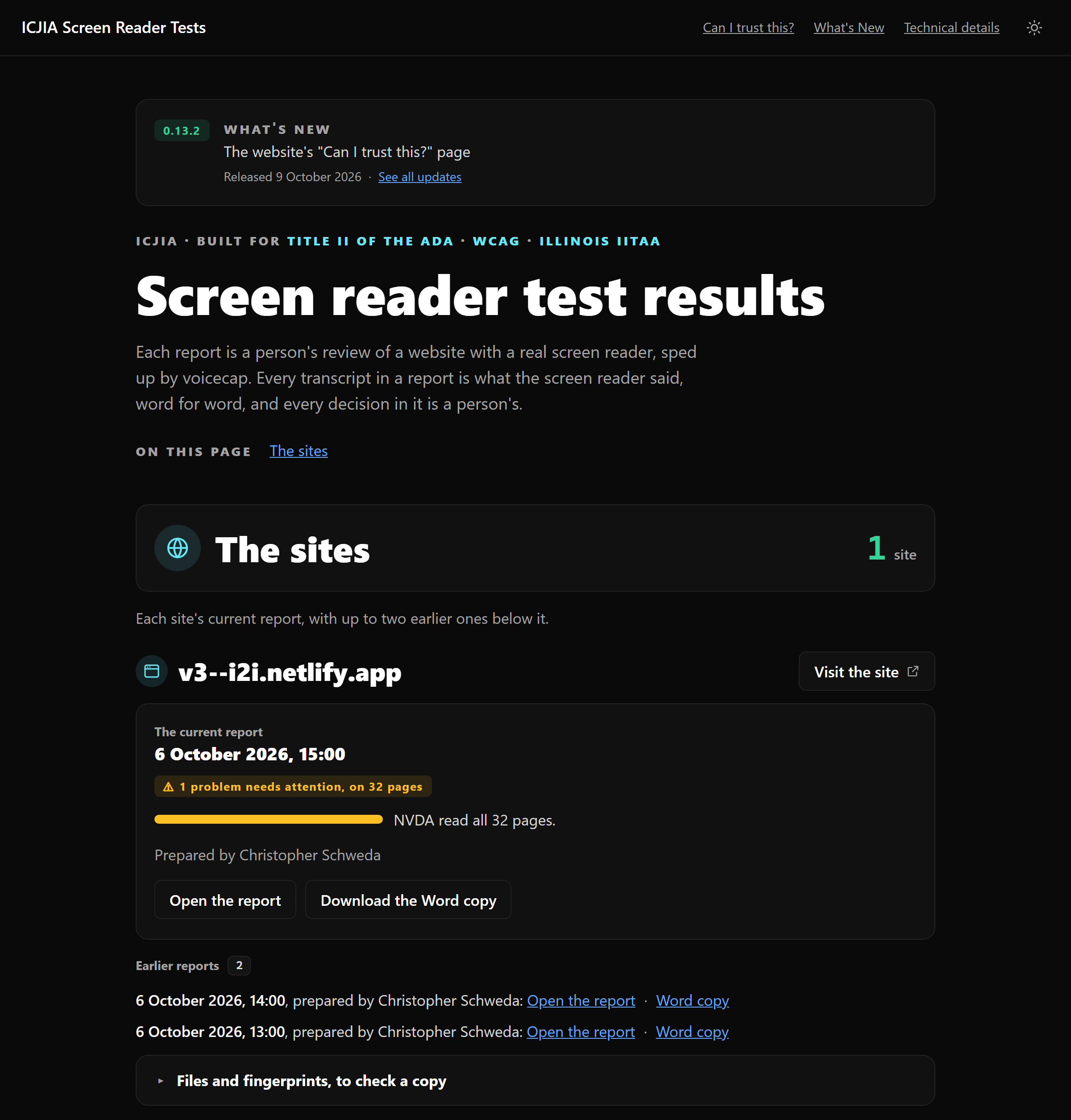
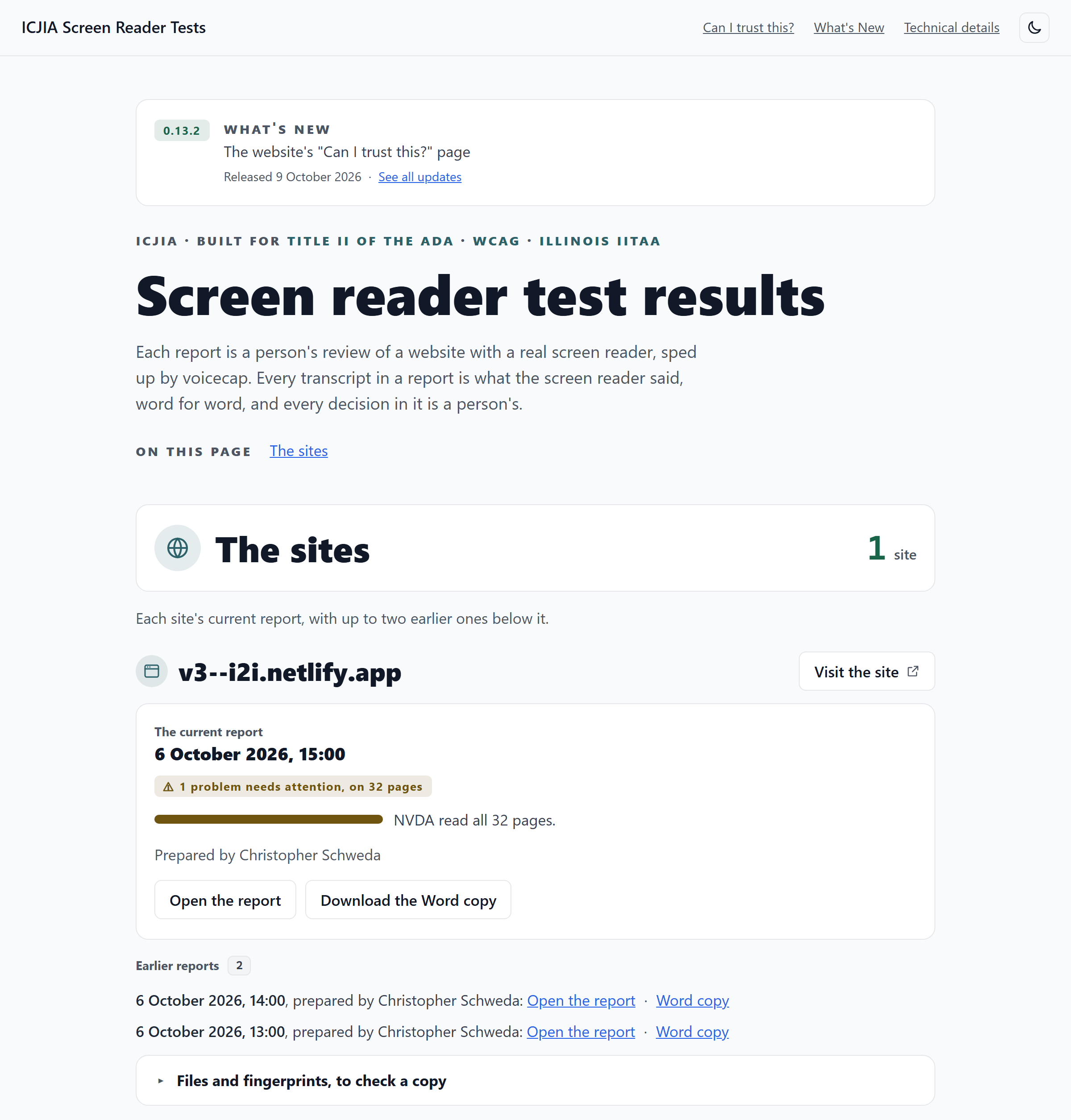
What the pictures say of voicecap is the script's own. The script that makes the README's pictures gives the website example facts, as it gives the report's shares fixed times: an example release, 0.13.2, released on 9 October 2026, which is the banner's release, the first card of What's New, and the version that the trust page's stamp and Technical details say they're from; 5,000 tests, passed on Windows; 480 public changes since 26 September 2026; and the releases the CHANGELOG records up to 0.13.1, with the example as the newest, which makes 21. The example has three points of its own, written as the CHANGELOG's are. None of it is any release's. So the pictures come out the same each time, and a release made later changes nothing in them. What the website counts of the records is counted from the report the script shares, as it is on any website.
Each of the website's four pages follows the shareable page's rules. Each is one self-contained file, with one style block and one script, dark at first, with the theme button for a light version, and light in print. Each has its headings in order, its landmarks, a skip link, and visible keyboard focus, and is complete without JavaScript. voicecap's tests run axe on each, in both themes, at a computer's width, at a phone's, and at 320 pixels, and check that nothing is wider than a window 320 pixels wide, where WCAG's reflow rule is measured. A reader's choice of theme carries between the website and its reports.
Everything on the website is public to anyone with its address. Anyone can open each report, and download each Word copy and walkthrough file. robots.txt and a header ask search engines to keep the site out of their results, but that's a request, not a lock. Keep the transcripts repository private: the website holds only what was shared, and the repository holds much more. Read "Before you send it", under The shareable page, and share only what you'd put on a public page.
The site shows each site's newest three shares, as long as their records are intact. The current report is what matters, and a long list of older ones would bury it. A share is never deleted: its entry and its files stay in the transcripts home, and voicecap verify still checks them. Only the website leaves an older one out. Its files aren't published, and the address of its page sends a reader on to the site's current report, so a link to it in an email still leads somewhere (see _redirects, under The files it writes, and the headers). voicecap has no command that takes a report off the site.
A manager shouldn't have to take one person's tool on trust. So the website has a page, trust.html, which the site serves at /trust too. Its link, "Can I trust this?", is in both bars of each of the website's own pages. It says plainly who built voicecap, and shows how what voicecap records can be checked and how voicecap tests itself, so a reader can check every claim on it without taking anyone's word for it, the builder's included. It has the website's look and follows the website's rules for a page (see The website). A link at its top, "Back to the test results", opens the front page, which has the reports.
Here is the top of the page, in the dark theme it opens in. Under the top bar and the way back, its kicker, "voicecap · a human review, sped up", is over a heading of two lines: "Built to be checked." and, in green, "See for yourself." Under the lead is the stamp, in an amber box. At its left, small, is where the page's counts come from: the version of voicecap that built the website, the day it was released, and this website's records. At its right, big, is the records' date, when the newest report on the website was shared. Then come four big numbers, each in a card, with a line that says what it counts and a link to where the page shows it.
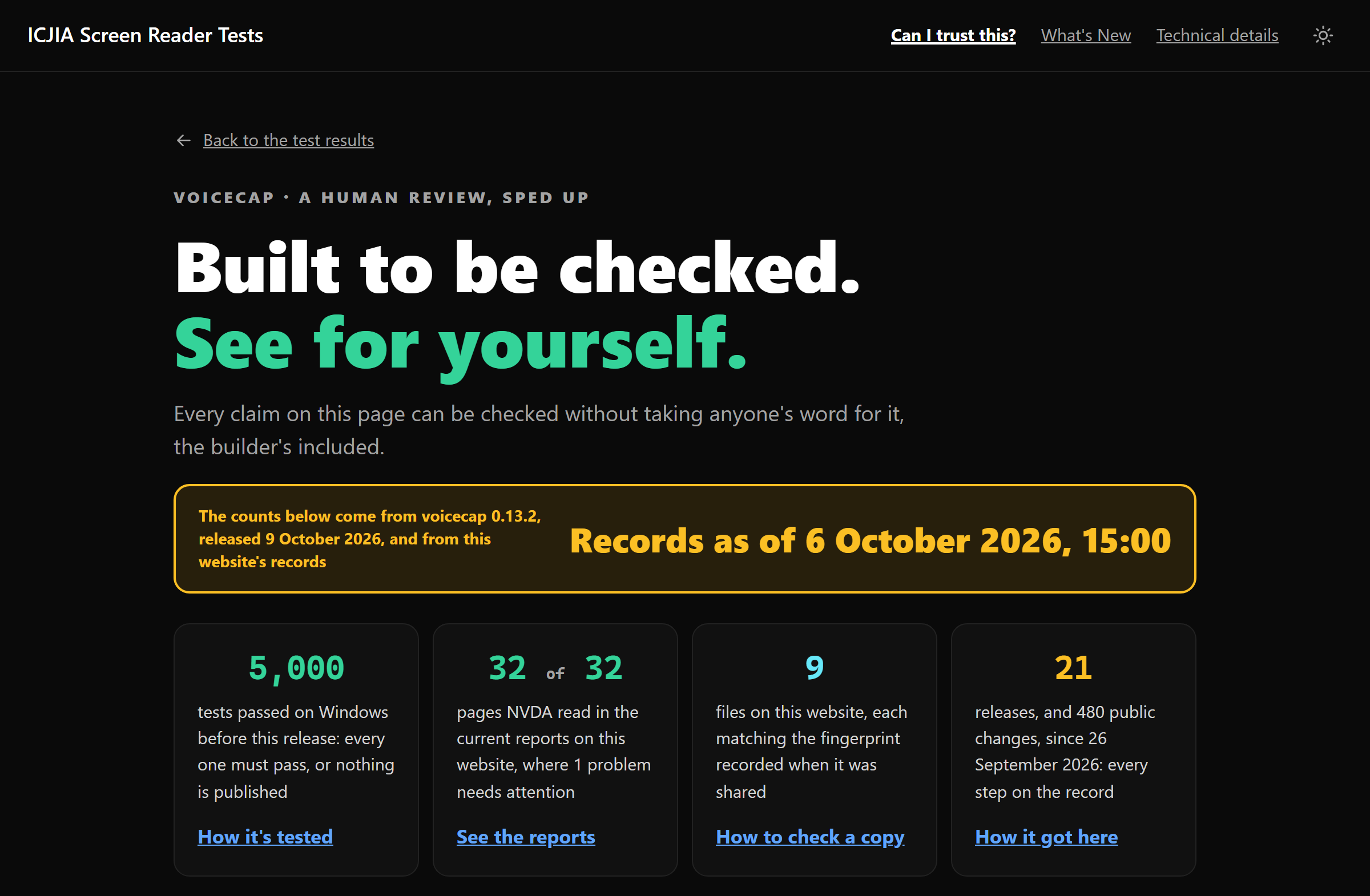
The numbers about voicecap in this picture are the script's own, the example facts that the front page's pictures describe: the 5,000 tests, passed on Windows, the 480 public changes since 26 September 2026, and the 21 releases, with the example, 0.13.2, as the newest. What the page counts of the records is counted from the report the script shares, as it is on any website: the 32 pages NVDA read, where 1 problem needs attention, and the 9 files of the report's three shares. The date at the right of the stamp is the last share's, which is fixed too.
What the page shows, where each number comes from, and what it says when a fact isn't there
What it shows, from the top:
- The head and four big numbers, as in the picture: the kicker over the heading in two lines, the lead, the stamp, and the four big numbers, in the colors the audit tool's tiles have (green, green, cyan, and amber): the tests that passed for this release (its link goes to "How it's tested"); the pages NVDA read, of the pages in scope, in the current reports on this website, and how many problems need attention in them ("See the reports"); the files on the website, each matching the fingerprint recorded when it was shared ("How to check a copy", which goes to the steps for it, below); and the releases, with the public changes (commits) since the first ("How it got here").
- What it does, and that the screen reader is the real one. voicecap has one job, to hear a website the way a screen reader user hears it. It drives NVDA, not a simulation of it, to read each page three ways (line by line, heading by heading, and control by control), and saves every word. A person then reads what NVDA said, and decides what each page needs: it's a human review, sped up.
- The law, in three cards: Title II of the ADA, IITAA (the Illinois Information Technology Accessibility Act), and WCAG. Each card's heading links to its source: ada.gov's page on the rule, the state's page on accessibility, and W3C's page on WCAG.
- How every word can be checked, in six points: each transcript, screenshot, and axe result has a SHA-256 fingerprint, each run's record is sealed, and each share and review is chained to the one before it;
voicecap verifychecks a whole record; each report checks its own fingerprints in a browser; of the files shared with its reports, the website publishes only those that still match their recorded fingerprints, and says how many; how to check a copy you downloaded, withGet-FileHash <file>in PowerShell, orshasum -a 256 <file>on a Mac, against the fingerprint the front page lists for the file; and each walkthrough file a report offers repeats its run. Five of the six link to where they're shown or described. The one on the files the website publishes has no link. - How voicecap is tested. Before the release goes out: the lint and the type checks, then its own run of every test (how many passed, how many were skipped, in how many files, and on which system), then a check that the package installs and runs. On every change: the same tests on each system and Node version in CI's matrix, and a run of the command line with its replay driver. The shareable page (the report you open from the website) and the website itself are checked with axe, in a real browser, in both themes and at a phone's width. A run with real NVDA at a PC comes before any release that changes how voicecap drives NVDA.
- What it doesn't do. It doesn't decide what's accessible: a person does. It uses NVDA only, for now. A transcript shows what NVDA said, not what every screen reader would say. A checker such as axe finds what code can find, and a person's review finds the rest.
- "One person built this," answered. "Built by Christopher Schweda at ICJIA," then six cards: the code is public, on GitHub, under the MIT license; voicecap records the real screen reader; every word is on the record; anyone can check the fingerprints; the tests, with their count; and a public, dated record of every change.
- How it got here: the newest five releases, each with its version as a green pill, its day, and the first line of its CHANGELOG entry. Under them, when there are more than five, is "See all N releases", a link to What's New, which has every one, then "The full CHANGELOG", a link to it on GitHub. Nothing follows: the bottom bar, on each of the website's own pages, has GitHub, the CHANGELOG, and the version.
Every number and date about voicecap on the page is generated, and none is typed in, with two exceptions (below). Each comes from one of two places:
- From the release.
publish.shwritesdist/release-facts.jsoninto the package once the tests have passed and the build is done (see Publishing to npm). It holds the counts ofpublish.sh's own run of every test (how many passed, how many were skipped, and in how many files) and the system that ran them (Windows, macOS, or Linux); how many commits are behind the release, and the date of the first, from Git; and the systems and Node versions in the matrix of CI's workflow,.github/workflows/ci.yml. A run with a test that failed writes nothing, so a release's counts are always those of a run that passed. - From the package and the records, at every build of the website. voicecap's version is its
package.json's. Its release date, and every release with the first line of its entry, are itsCHANGELOG.md's, which comes with the package. The records give the sites and reports the website shows; the pages NVDA read in each site's current report, and the problems that need attention in them, from what each share recorded (result, see What was sent:shares.json); the files the website publishes, each counted once, and the ones it leaves out; and when the newest report was shared.
So the page is a function of the package and the records: the same records and the same voicecap write the same page, as for the site's page. A patch release, and what it added, show at the website's next build, with no report shared again. A new minor version shows once the build command in the home's netlify.toml names it (see netlify.toml, under The files it writes, and the headers).
A fact that isn't there says so in its place, and the page never makes one up. A build of voicecap that wasn't released (a developer's, say) has no release-facts.json, so its tests, its commits, and CI's matrix say not recorded in this build of voicecap, and a big number that isn't there is a dash, which a screen reader hears as "not recorded". A release-facts.json that isn't in the form publish.sh writes (a schema that isn't 1, a count that isn't a whole number, or a date that isn't one) counts as none: it's never taken in part. Nothing seals the file, so one edited by hand and kept in that form would be read as it is. It comes inside the package npm serves, and npm checks the package's integrity when it installs it, so a website built with voicecap from npm, as Netlify builds one, reads the file as it was published. voicecap itself doesn't check that. A website with no site's report yet says no site's report has been shared yet where the pages NVDA read would be. When no current report's share recorded a result (a share made before 0.12.3 recorded none), it says the pages read are not recorded in the shares on this website.
Two things are quoted, not generated. The Title II card gives the compliance dates of the Department of Justice's rule as the rule states them, with a link to it. And the "Every word on the record" card says that each report keeps every transcript and, since voicecap 0.11.0, a screenshot of each page NVDA read: the version is a part of voicecap's history, not a fact of this build, since a report shared before 0.11.0 has none.
The technical reference, for auditors and developers. technical-details.html, which the site serves at /technical-details too, is how voicecap works, in twelve parts, in the shape of the audit tool's technical page. Its link, "Technical details", is in both bars of each of the website's own pages. It's the long version of "Can I trust this?", and it says so: every claim on it can be checked against voicecap's code. Every part is open, with nothing folded away, so the page is complete without JavaScript, and "On this page", a numbered list of links under the lead, leads to each part. A link at its top, "Back to the test results", opens the front page.
Here is the top of the page, in the dark theme it opens in, through "On this page". The version it says it's from is the example's (see The website).
The twelve parts, which of its facts come from the code, and how its licenses are held to the packages
The parts, in order, each with a heading that "On this page" links to:
- What voicecap does: a human review, sped up; the real screen reader, never a simulation; and where voicecap runs: real NVDA runs need Windows; reviews, reports, sharing, this website, and
voicecap verifywork on any computer; hearing a page again needs Windows or a Mac; and VoiceOver runs on a Mac come later. - How a run works: each step of a run, from the page list to this website, as a flow of boxes. It's an ordered list, with an arrow from each box to the next (down, on a phone) that the style draws, so a screen reader hears the list. Then the commands, in a table, in the order a person uses them, each with what it's for.
- NVDA's three passes: a table of the passes, each with its key, where it starts, and what ends it; why a pass can stop; how NVDA's words are caught; and a table of voicecap's defaults.
- What a run records: the transcripts home as a tree, each entry with a line on what it holds, and what a run's record of the computer keeps, and never keeps.
- The flags: a table of the built-in rules, each with what it points out; how a rule of one's own is added; and that flags never fail a page or change the exit code.
- Fingerprints, seals, and
voicecap verify: what's fingerprinted, what a seal is, the chains, whatvoicecap verifychecks and its exit codes, each report's own check, and what no check can catch. - How this website is built and protected: what's published, how each page is protected, the headers voicecap's
netlify.tomlasks of Netlify, who can see it, how it's built, and what it shows now. - The toolchain: a table of each tool, its job, its license, and where it's used.
- Privacy and security: what stays on the computer running the test, what goes out, and what voicecap doesn't need.
- What it can't do: the technical limits, from Known limitations: NVDA's speed, timing, its own settings, English wording, the computer being voicecap's during a run, frames, the browser's debugging port, and pages that talk without stopping; and that VoiceOver runs come later.
- Verify for yourself: links to the code that built this website, at its version's tag on GitHub (the NVDA driver, the passes, the flags, the seals,
voicecap verify, and the website); how to check a copy you were sent; and how this version was tested. - Related documents: four cards, as the audit tool's: "Can I trust this?", "What's New", "Source on GitHub", and "The README".
Where voicecap's code holds a fact, the page takes it from the code, so the page can't fall behind it:
- the passes, and their names;
- the built-in flag rules, with their thresholds, and how many there are;
- voicecap's defaults: the step caps, the repeat limit, the time limits for a step and a page, the tries a page gets, how often NVDA and the browser are started again, and how many failed pages in a row stop a run;
- the exit codes of
voicecap verify; - how many shares a site keeps on the website;
- the version and the day it was released, from the package and its CHANGELOG, and what that release recorded of its tests and of CI (see Can I trust this?).
The rest is words, typed, and the page's tests hold the names it uses to the code: every command it names is one voicecap's command line declares, with its options; every file it names is in the repository; and every rule is a built-in one. A fact the build doesn't have says not recorded in this build of voicecap, as on the trust page, and is never made up.
The toolchain's licenses are typed too, and held to the packages: a test checks each npm package's license against the license of the package voicecap installs, and voicecap's own against its package.json. NVDA, Chromium, and Node.js aren't npm packages, so their rows link to their source.
A table wider than a phone scrolls in its own box, which a keyboard can reach and a screen reader hears named by the table's heading, so the page itself is never wider than a window 320 pixels wide.
Every release of voicecap, newest first, from its CHANGELOG. whats-new.html, which the site serves at /whats-new too, is for whoever wants the detail of what changed, and when. Its link, "What's New", is in both bars of each of the website's own pages, and the front page's banner and the trust page's "See all N releases" lead to it. A link at its top, "Back to the test results", opens the front page.
It's made from the CHANGELOG.md that comes with the package, at each build of the website, so a new release appears on its own, once a build runs with it. (A website built with a new minor version needs its build command to name it: see netlify.toml, under The files it writes, and the headers.)
Here is the top of the page, in the dark theme it opens in, through its first two cards. The first is the example release, which the script that makes the pictures gives the website (see The website), and the second is the CHANGELOG's own 0.13.1.
What each release's card shows, what the page skips, and how its words are made
One card for each dated release, newest first, in a list. A card has, in order:
- Its first line: the version as a green pill, then its day ("8 October 2026"). On the version that built the website, "the current version" follows the day.
- Its headline, as the card's heading: the first line of its CHANGELOG entry, as the trust page and the front page's banner say it.
- Its points, as a list: the bold words that begin each bullet of the entry, at its first two levels (a bullet indented by two spaces or fewer), before the entry's first heading or under one of Keep a Changelog's kinds of change (
### Added,### Changed,### Deprecated,### Removed,### Fixed, or### Security), other than the bullet that gave the headline. A bullet that doesn't begin with bold words gives its words up to its first:or., as a headline does. A.,,, or:that ends the bold words isn't kept. - "The full entry in the CHANGELOG": a link to the entry's heading in the CHANGELOG on GitHub. A screen reader hears the version after the words ("The full entry in the CHANGELOG for 0.13.1"), so no two cards' links sound alike.
What it skips: ## [Unreleased], and any heading that isn't a dated release, that is ## [x.y.z] - YYYY-MM-DD, of a day the calendar has; and the bullets under any other heading in an entry, such as 0.1.0's ### Not yet, which lists what wasn't in it. A CHANGELOG with no release says "No release is recorded in this build of voicecap."
Every word is plain text. A code span is in the fixed-width font, a link is its words, and nothing else from the CHANGELOG becomes markup: a line with a <script> in it is text on the page, and never runs.
What it reads, what it publishes, what it leaves out and says so, and the folders it builds into
What it reads: only the record of what was shared. That's each site folder's share/shares.json, and the latest share in the home's voicecap-demo/ folder, which it publishes under demo/. It never reads a run. Beside the records, it copies the demo site's own pages from voicecap itself, into demo-site/ (see The files it writes, and the headers).
What it publishes: each file that an entry names, when the entry is one of its site's newest three, its seal still holds, and the file is still a regular file whose size and SHA-256 are the recorded ones. It copies the file byte for byte, so a file on the site is exactly the file that was shared, and its fingerprint matches.
A site's older shares, beyond its newest three, aren't published, and their files aren't read. That's no warning. The build says it as what it did, such as dvfr.illinois.gov: 2 older reports aren't on the site, which shows each site's newest 3. The newest three are counted across all of a site's folders.
What it leaves out, and names. Each is a warning in the build's output, such as Warning: dvfr.illinois.gov/share/dvfr.illinois.gov_2026-10-02.docx: not published: the file is missing. The build still finishes, with exit code 0, so one changed file doesn't stop every later update.
- An entry whose seal no longer holds, or whose fields aren't what voicecap records, and a
shares.jsonthat can't be read. The site shows nothing of it. Only the build's output names it. - A copy that has changed since it was shared, is missing, can't be read, or isn't a regular file (a link or a folder, say). The report's other files are still published, and under the report the site says that
<name> isn't here, and why. - A name voicecap never gives. Only files whose names end in a lower-case
.html,.docx, or.jsonare published, and only when they and their folder are named as voicecap names them: letters, digits,.,_, and-(lower case for a site's folder), with no dot at the start or end of a file's name. A file namedindex.htmlis left out too, since Netlify would serve it at its site folder's own address, where it would have no Content Security Policy. A name that holds a path, such as../notes.txt, is never read. - A site folder named
demo, which would take the demo's place on the site. One nameddemo-site,index.html,trust.html,trust,technical-details.html,technical-details,whats-new.html,whats-new,robots.txt,_headers, or_redirectsis left out too: it would take the place of the site's own folder or file (trust,technical-details, andwhats-neware the addresses those pages answer at, besides their.htmlones). - A
voicecap-demothat isn't a folder. Git for Windows checks a committed link out as a plain file, so a file can be where the folder should be. The site is built without a demo.
The folder it builds into is emptied first, so voicecap builds only into a folder it can be sure of. That's a folder that's new or empty, or one an earlier build made: its _headers starts with voicecap's own line.
It stops at an earlier build's folder that holds a name starting with a dot (a repository's .git, say) or a folder inside a folder. A build writes neither, so they aren't voicecap's to delete. The one exception is demo-site/, the demo's own pages, which has a folder for each page: it counts as a build's when it holds only the paths this voicecap writes there. If demo-site/ holds a file or a folder this voicecap doesn't write (a demo page that a later voicecap removed, say), voicecap site refuses the folder, and says why and what to do, such as voicecap site won't build into C:\Users\cschw\code\voicecap-transcripts\_site: it holds demo-site/old-page, which this voicecap's build doesn't write (it may be from another voicecap): delete the folder and build again. It says that only when nothing else in the folder is anyone's: a link, or a name that starts with a dot, gets the refusal any other folder does. The files an operating system adds to a folder you open (.DS_Store, Thumbs.db, and desktop.ini) don't count against a folder an earlier build made, and are emptied with the rest. They're never published from the demo's own pages either, as in a checkout of voicecap opened in Finder or Explorer.
It also refuses the transcripts home itself, a folder that holds the home, and anything inside a site's folder or inside voicecap-demo/. It goes by where each folder really is, so a link, a short name, or another letter case doesn't get past it. On Windows, it also refuses a folder whose name ends with a dot or a space, which Windows drops: a folder made with one can't be opened or removed there. Every refusal comes before anything is touched. The build says why, and exits with code 1:
Error: voicecap site won't build into C:\Users\cschw\code\voicecap-transcripts\notes: it isn't empty, and voicecap site didn't build it. Give a folder of its own, such as "C:\Users\cschw\code\voicecap-transcripts\_site".
What goes in the output folder, what _headers and robots.txt hold, and the files it writes in the home, for Git and for Netlify
In the output folder, every build writes:
index.html: the site's page.trust.html: the trust page, "Can I trust this?" (see Can I trust this?). Netlify serves it at/trusttoo, as it serves any page without its.html.technical-details.html: Technical details (see Technical details). Netlify serves it at/technical-detailstoo.whats-new.html: What's New (see What's New). Netlify serves it at/whats-newtoo.- A folder for each site, and
demo/, holding the files of their reports, with the names they were shared under. A report's files stay in the folder they were shared in, so two folders that name one site can hold files of one name, and neither takes the other's place. demo-site/: the demo site's own pages and style sheet, copied from voicecap byte for byte, with a folder for each page, and asitemap.xmlthat lists the pages at their canonical address. Every build writes it, whether or not the home has a share of the demo.robots.txt:User-agent: *andDisallow: /, which turns every crawler away._headers: Netlify's file of headers, with a rule for each path.- Each report's page gets its own Content Security Policy, made from the SHA-256 of that page's own style and script:
default-src 'none'; script-src 'sha256-…'; style-src 'sha256-…'; img-src data:; font-src data:; connect-src 'none'; base-uri 'none'; form-action 'none'; frame-ancestors 'none'. The page's own code runs, and nothing else does. It loads nothing from outside, makes no connection, and can't be put in a frame. A report embeds its fonts, so its policy allows fonts asdata:. Each page was made by the voicecap that shared it, so each is hashed from its own bytes. - Each of the website's four pages gets a policy of its own too, made the same way from that page's own style and script, with
font-src 'none'in place offont-src data:: the website's pages embed no font, so the policy allows none from anywhere. The front page's is at/and/index.html, the trust page's at/trust.htmland/trust, Technical details' at/technical-details.htmland/technical-details, and What's New's at/whats-new.htmland/whats-new. - Each of the demo's own pages gets a policy of its own, at every address it answers at:
default-src 'none'; style-src 'self'; img-src 'self' data:; form-action 'self'; base-uri 'none'; frame-ancestors 'none'. The pages have a style sheet beside them and a form that goes to a page of their own, and no script. - Each Word copy and walkthrough file gets
Content-Disposition: attachment, so a browser downloads it. - Its first line,
# Made by voicecap site. Each build empties this folder and writes it again., is how a later build knows the folder is one it made.
- Each report's page gets its own Content Security Policy, made from the SHA-256 of that page's own style and script:
_redirects: Netlify's file of redirects. The page of each share the site no longer shows (each site's shares beyond its newest three) sends its reader on to the site's current report, with a 302: at the page's own address, and at the same without.html, which is how Netlify serves a page too. A browser doesn't keep a 302, as it would a 301, so the next build can send the address on to a newer report. When the current report's page isn't published, it sends them to the site's front page instead. Netlify follows a rule only where no file is published, so an address a newer share publishes is never sent on. The file's first line is a comment that says what it's for, and when every share is on the site, it's the only line.
In the home, the first time, and never again. voicecap site never writes over any of these files, so they're yours once they're there:
.gitattributesand.gitignore, each only if the home doesn't have it yet. A run, a review, a share, or a manual session writes them too, so a home has both once any of those has written in it. They're the two a run writes, so the home's first build keeps_site/out of Git, with everything else voicecap keeps out (see What.gitignorekeeps out, and why).netlify.toml: the build command, the folder to publish, and the headers every file gets.- The build command, such as
npx --yes @icjia/voicecap@0.9 site --home . --out _site. It names the minor version of the voicecap that wrote the file:@0.9when voicecap 0.9.x wrote it, which npm reads as the latest 0.9 release. So the next build uses a patch release. It uses a new minor version only when you change the version in the command. - The folder to publish:
publish = "_site". - The headers, one line each:
X-Robots-Tag: noindex, nofollow, noarchiveReferrer-Policy: no-referrerX-Content-Type-Options: nosniffX-Frame-Options: DENYPermissions-Policy: camera=(), microphone=(), geolocation=(), payment=(), usb=(), which turns off those fiveStrict-Transport-Security: max-age=63072000; includeSubDomainsCross-Origin-Opener-Policy: same-originCross-Origin-Resource-Policy: same-origin
- The build command, such as
.nvmrc:24, so Netlify builds with Node 24, and the npm that comes with it.
voicecap site says when it writes one, such as Wrote netlify.toml into <home>, for Netlify: commit it with the records. or Wrote .gitignore into <home>, for Git: commit it with the records. _headers is Netlify's format, and voicecap builds the site for Netlify.
Sharing, committing, and pushing; looking at the site before it's pushed; and putting the demo on it
To publish a report, share it, then commit the transcripts home and push (as under Setting it up):
npx @icjia/voicecap share --site https://dvfr.illinois.gov
git add -A
git commit -m "voicecap share"
git push
--site names the site to share. A home with only one site doesn't need it, but with more than one, share stops and names them (see Other commands). Netlify then builds the site again, with voicecap site, and publishes what it builds. voicecap never commits or pushes: publishing is your push.
To look at the site first, run npx @icjia/voicecap site, then open index.html, in the _site folder of the transcripts home, in a browser. The links in it go to files in the same folder, so it works from there. The first time, the command also writes netlify.toml and .nvmrc in the home, and .gitattributes or .gitignore if the home is missing one (see The files it writes, and the headers).
The demo on the site is the latest share in the home's voicecap-demo/ folder. This is the one case where the demo's files belong in the home: they're committed with the records, so deleting voicecap-demo/ and committing that, then pushing, takes the demo off the site at the next build. To put one there, in PowerShell, in the transcripts home's folder:
- Run
npx @icjia/voicecap demo. It's a guided tour of about 9 minutes that starts NVDA for real, so follow its steps and keep your hands off the keyboard when it says to (see Try it first). Use a Windows PC: on a Mac, the tour stops before the audit. Its files go invoicecap-demo/, in the current folder: the home. - Run
npx @icjia/voicecap share --out voicecap-demo. The--outmakessharework in the demo's folder, in place of the transcripts home, so it shares the demo's report. It needs a name for who is sharing, as every share does. The demo's pages name their own address,https://voicecap.icjia.app/demo-site/, so a demo run made by this voicecap learns it, and the report and its copies name the demovoicecap.icjia.app, such asvoicecap.icjia.app_2026-10-02.html. - Commit and push, as above.
voicecap-demo/goes with the rest.
To update the demo, do the three steps again: the site shows the latest share.
A demo run made before 0.10.0 has no address in its record, since the pages it read had no canonical tags, and the address it read is 127.0.0.1, so share refuses it, and says how to name it (see Sending it: voicecap share). Run the demo again: update it as above, with npx @icjia/voicecap@latest demo in step 1, so that npx uses the newest voicecap, not an older one it kept. The new run records the address from the demo's own tags, and the share names the demo by what its latest run recorded.
If you can't run the demo again, give the share the address in a config instead. Keep that config out of the transcripts home. share, report, review, manual add, and every run read the config in the folder they run from, so a report.canonical in the home would name every site in it after the demo, in shares that are never deleted (see A site's name: its canonical address). Put it in a folder of its own, and run share from there:
-
Make a folder outside the transcripts home, such as
C:\Users\cschw\code\demo-share. -
In that folder, make a file named
voicecap.config.jsonwith this in it:{ "report": { "canonical": "https://voicecap.icjia.app/demo-site/" } } -
In PowerShell, go to that folder and share the demo from there, with the demo's folder in the transcripts home as
--out. As every share does, it needs a name for who is sharing.cd C:\Users\cschw\code\demo-share npx @icjia/voicecap share --out "$env:VOICECAP_TRANSCRIPTS\voicecap-demo"
If you haven't set
VOICECAP_TRANSCRIPTS, type the transcripts home's folder in its place. The share names the demovoicecap.icjia.app, such asvoicecap.icjia.app_2026-10-02.html. -
Go back to the transcripts home (
cd $env:VOICECAP_TRANSCRIPTS), then commit and push, as above. Leave the config in its own folder, or take the folder away.
Five steps, once: build the site, check .gitignore, commit and push the files it wrote in the home, import the repository in Netlify, and check the site
Do this once, after the transcripts home holds a share, and is a repository on GitHub (see Setting it up). The names below are ICJIA's: the repository ICJIA/voicecap-transcripts and the Netlify site voicecap, at https://voicecap.netlify.app. ICJIA's site also answers at its own domain, voicecap.icjia.app, which Netlify serves as its main address. For another home, use its repository and a name of your own.
Check the team's Netlify plan first. Netlify shows it under the team's Usage & billing. Netlify builds from an organization's private repository, as ICJIA/voicecap-transcripts is, only on its Pro or Enterprise plan (Core Pro, on older accounts). On Free, Personal, or Core Starter, every build fails. Netlify's troubleshooting page lists these ways around it:
- Upgrade the plan.
- Move the repository to a personal GitHub account. Netlify builds from a personal account's private repository on any plan.
- Deploy by hand after running
voicecap site, with Netlify's CLI or its API, or by dragging the built folder onto the deploys page. A deploy by hand doesn't build on each push, and may not send the headersnetlify.tomlgives every file, such asX-Robots-Tag.robots.txtstill asks search engines to stay out.
Netlify's page on it lists making the repository public too. Don't: it holds the run records.
-
Build the site once on this computer. In PowerShell, run:
npx @icjia/voicecap@latest site
It builds from the transcripts home (
VOICECAP_TRANSCRIPTS; give--home <folder>if you haven't set it).@latestmakesnpxuse the newest voicecap, not one it kept:netlify.tomlnames the version that writes it, and Netlify builds with that version. It prints a line for each file it writes in the home, then one for the site (your numbers will differ). If the home is missing.gitattributesor.gitignore(a home that holds a share has both already), it writes that too, with a line that endsfor Git: commit it with the records.:Wrote netlify.toml into C:\Users\cschw\code\voicecap-transcripts, for Netlify: commit it with the records. Wrote .nvmrc into C:\Users\cschw\code\voicecap-transcripts, for Netlify: commit it with the records. Built the site in C:\Users\cschw\code\voicecap-transcripts\_site: 3 reports from 2 sites, and the demo's.Check that the folder it names is your transcripts home. Anything it left out comes as
Warning:lines before the last line, and the build still finishes (see What the build reads, and what it leaves out). If it stops with anError:, it says why. If theError:saysisn't a folder, the transcripts home isn't whereVOICECAP_TRANSCRIPTS(or--home) says it is. -
Add
_site/to.gitignore, if voicecap says to. Look at step 1's output. If it has a warning that endsAdd the line _site/ to it., add that line to the home's.gitignore. A home that voicecap set up with 0.8.0 or earlier needs it. A newer home's.gitignorehas it already, and so does the one step 1 writes in a home that had none, so with no such warning, go on to step 3. To add the line:- In PowerShell, go to the transcripts home's folder:
cd $env:VOICECAP_TRANSCRIPTS. (If you haven't setVOICECAP_TRANSCRIPTS, typecdand the folder's path.) - Run
notepad .gitignore. It opens the file in Notepad. - Go to the end of the file, and add a line of its own that says
_site/. - Save the file, and close Notepad.
- Do the
npx @icjia/voicecap@latest sitestep again. The warning should be gone.
- In PowerShell, go to the transcripts home's folder:
-
Commit the files step 1 wrote in the home (and
.gitignore, if you changed it), and push.- In PowerShell, go to the transcripts home's folder:
cd $env:VOICECAP_TRANSCRIPTS. - Run
git status. - Check that it lists the files step 1 said it wrote:
netlify.tomland.nvmrc, and.gitattributesand.gitignoreif it wrote them. It lists.gitignoretoo if you added_site/to it. It must not list_site/. If it does, go back to step 2. - Run
git add .gitattributes .gitignore netlify.toml .nvmrc. (Netlify can publish only what's pushed. If a share isn't pushed yet, rungit add -Ain its place: it adds the share too.) - Run
git commit -m "Add the files voicecap site wrote". - Run
git push.
- In PowerShell, go to the transcripts home's folder:
-
In Netlify, import the repository and name the site.
- Sign in at https://app.netlify.com.
- On the Projects page, open the Add new project menu, and choose Import an existing project.
- Choose GitHub. When Netlify asks for access to the repository, allow it, then pick
ICJIA/voicecap-transcripts. - Name the project
voicecap, if the page has a field for the name. A project is Netlify's word for a site. The address is thenhttps://voicecap.netlify.app. If Netlify says the name is taken, pick another, and use that address in step 5. If the page has no field for the name, go on: the last bullet renames the project afterwards. - Leave the build settings as they are:
netlify.tomlsets them, and its settings win over the ones on the page. - Choose the button that starts the deploy (Deploy site), and wait for the deploy to finish.
- If the page had no field for the name, rename the project now that the deploy has finished. Open the project's overview, choose Customize, then Manage project name and cover image, enter
voicecap, and save. The address changes to match.
-
Open the site and check it. Open the address from step 4, or the one on the project's overview. Check that:
-
the page opens, with the What's New banner at the top and "Screen reader test results" under it, the links in its top bar go to "Can I trust this?", "What's New", and "Technical details", and "On this page" links to "The demo" (when the home has one), "The sites", and "Every report, by date" (when two sites or more have reports);
-
the trust page opens at the site's address with
/truston the end (or by its link in the top bar), with "Built to be checked. See for yourself." at the top, and its first big number, the tests, is a number and not a dash (a dash means that the voicecap that built the site has no release facts: see Can I trust this?); -
What's New opens at
/whats-new(or by its link in the top bar), with the card of the newest release first, and Technical details at/technical-details, with its twelve parts under "On this page"; -
a report's page opens;
-
a Word copy and a walkthrough file download, for a report shared with this release or later, or the demo's; an earlier report says none was shared;
-
a downloaded file's fingerprint is the one the site shows:
Get-FileHash <file>in PowerShell shows it, in capitals; -
each page came with its headers. Do this for the site's home page, looking for
X-Robots-Tag: noindex, nofollow, noarchive, then for a report's page, looking forContent-Security-Policy:- Open the page.
- Press F12. The browser's developer tools open.
- Choose the Network tab.
- Press F5. The page loads again.
- Click the first request in the list. Its name is the page's own address.
- Find Response Headers.
- Find the header. Its name may show in lower case.
If a header is missing, check first that you clicked the page's own request. If
X-Robots-Tagis still missing, check thatnetlify.tomlin the repository still has its[[headers]]part, and that Netlify built the site from the repository: a deploy by hand may not send it. IfContent-Security-Policyis missing on a report's page, open the deploy's log in Netlify: the build's last line should startBuilt the site in.
If the site says
No reports have been shared yet., nothing shared has been pushed: share, commit, and push, and Netlify builds again. If the deploy failed, open its log in Netlify. The build's own lines are the onesvoicecap siteprinted in step 1. If they show that voicecap doesn't know the commandsite,netlify.tomlnames a version from before the website: change the version in its build command to one that has it, push, and deploy again. A build that stops with "Build blocked" about a private repository means the team's plan: see the paragraph before step 1. -
A walkthrough file is a run's recipe, so anyone can repeat the run exactly: the same pages, in the same order, with the same passes and limits. It's for an auditor who wants to check the results, and for you, after a major update to the site. voicecap walkthrough writes one from a completed run, --walkthrough repeats the run from it, and the shareable page offers each run's file to download.
After a repeat, voicecap says page by page how each page sounds against the original run. A repeat reads the same pages the same way, but it can't promise the same words: a changed site, or a newer screen reader or browser, changes what's said.
The command, which run it writes from, where to write the file, what it holds, and where else to get one
voicecap walkthrough [--site <url>] [--run <id>] [--out <dir>] <file>It writes the walkthrough of a completed run to <file>, then says where it is and how to repeat the run:
PS> npx @icjia/voicecap walkthrough C:\Users\cschw\walkthrough.json
Wrote the walkthrough of run 2026-09-26_1405 (12 pages) to C:\Users\cschw\walkthrough.json.
To repeat the run: npx @icjia/voicecap --walkthrough 'C:\Users\cschw\walkthrough.json'
- Which run.
--run <id>names it. Without it, voicecap takes the site's latest completed run, a replayed one included (the file says it was a replay). A run that didn't complete can't be written: run it to the end first.--siteand--outpick the site and the transcripts home assharedoes (see Other commands). - It never overwrites a file. A name that's taken is refused: give another, or move that file first. It makes the file's folder when that's missing.
- Write it outside the transcripts home, which is the audit record.
voicecap verifynames a new folder inside a site's folder, and a file inside a run'spages/folder, as problems. - It needs no screen reader, so it works on any computer, a Mac included.
- It never writes a file that voicecap would refuse to read. For example, a run with more than 10,000 pages, a step limit above 100,000, or a file that would be over 8 MB can't be written. voicecap says why, writes nothing, and exits with code 1.
- The shareable page offers each run's file too. In the evidence behind its results, each run the page draws on has a link that downloads its walkthrough file, with the command that repeats the run.
- The link says "Download the walkthrough file" and the file's size, and names its run for a screen reader.
- The file is the one
voicecap walkthroughwrites for that run, saved as<site name>_<run id>_walkthrough.json, such asdvfr.illinois.gov_2026-09-26_1405_walkthrough.json. The site's name is its canonical name, made safe for a file name as a site's folder is, or the address voicecap read when the site has no canonical address (see A site's name: its canonical address). It's carried inside the page as text, so each file adds about a third more than its size to the page. - The Word copy can't carry a file, so it says to get it from the web page, or with
voicecap walkthrough --site <site> --run <id> <file>, which finds the run in whichever folder the site's canonical address names (see Other commands), and gives the command that repeats the run. - A run whose file can't be made says why, in the page and in the Word copy.
What the file holds. It's plain JSON, with the pages in the run's order:
voicecapWalkthrough, the format's version (1), and thesite;pages: every page of the run's list, with its address, its label, template, and notes where it has them, what the original run did with it (status), and the fingerprint of each pass it read, which is what a repeat compares itself with;settings, which a repeat applies: the passes, each pass's step limit, the capture mode, and the readiness settings (nullwhen the run didn't record them, as runs made with voicecap 0.7.0 or earlier didn't, and a repeat then uses this computer's);original, where the file came from, which is recorded and never applied: the run's id and seal, when it began and finished, whether it was a replay, its page source and the fingerprints of what it read from, the versions of voicecap, the screen reader, and the browser, and the NVDA settings and browser channel it used.
A page list's file is kept by its name only, never its folders, since a path can carry a person's user name. voicecap repeats what the file says. It reads the file strictly and refuses one that breaks the format (see Repeating the run from the file).
The command, what a repeat takes from the file and from this computer, what it refuses, and how the file is read
npx @icjia/voicecap --walkthrough <file> [--reviewer <name>] [--out <dir>] [--compare <run-id>]A repeat is a run like any other, with its own folder, its own record, and its own seal. It reads the same pages in the same order, with the same passes, step limits, capture mode, and readiness settings, all from the file (this computer's readiness settings, when the file has none). It needs no --site: the site is the file's. voicecap first says which run, of which site, it's repeating, as in Repeating run 2026-09-26_1405 of https://dvfr.illinois.gov from walkthrough.json: 12 pages.
- NVDA's settings and the browser are this computer's. A file can come from anyone, so it never changes this computer's NVDA settings or its browser. The file records the original's, and voicecap says afterwards which versions and which NVDA settings differ.
- Refused beside it, before anything runs, because they would change what's read:
--sitemap,--pages,--page,--limit,--include,--exclude,--passes, and--max-steps, and a--sitethat isn't the file's own. voicecap stops with exit code 1 and says which, such as--walkthrough repeats the pages and passes its file lists, so it can't be used with --limit.Allowed:--out,--reviewer,--compare,--run-name,--fresh, and--replay-from. - An interrupted repeat resumes when you run the same command again with the same file, as any run does (see Long runs, interruptions, and resuming). A file that was edited since starts a new run, since the file is identified by its contents.
- Its page source is the file. The run's record names the file, its SHA-256, the id of the run it was made from, and what that run's pages came from.
- To compare it with the original line by line, give the original's id:
--compare <run-id>.--compare previousfinds an earlier repeat of the same file, not the original, since a repeat's page source is the file. - On a Mac, a repeat waits for voicecap's VoiceOver driver, as every run does. Until then, repeat on a Windows computer, with NVDA. With
--replay-from, a repeat plays back a recorded run on any computer, with no screen reader, which is how voicecap's own tests and CI try it.
How the file is read. The file may come from anyone, so voicecap takes nothing on trust. It refuses a file, before anything runs, and says what's wrong and where, when:
- it isn't JSON, or has a format version this voicecap doesn't read, a key it doesn't know, or no pages;
- it lists more than 10,000 pages;
- a page isn't on the file's own site, or its address has a space or a control character in it, or is over 8,192 characters;
- a page's label, template, or notes has a control character in it other than a tab or a line break;
- the ready selector (
readySelector) has a control character in it, or is over 1,024 characters; - its NVDA settings are nested more than 32 levels deep;
- a run id has characters that a run id doesn't have (it can be 1 to 100 letters, digits,
.,_, and-); - a step limit is over 100,000, or a readiness time is over ten minutes (600,000 milliseconds);
- it's over 8 MB, which voicecap refuses without reading it.
A page the file lists twice is read once, as with a page list.
The comparison with the original, page by page, what "sounds the same" means, and what a repeat can't promise
When a repeat completes, voicecap prints each page of the file against the original, after the line that says where the report is:
Run 2026-10-02_0930 complete. Report: C:\Users\cschw\code\voicecap-transcripts\dvfr.illinois.gov\report.html
Compared with run 2026-09-26_1405, from its walkthrough file:
  https://dvfr.illinois.gov/: sounds the same
  https://dvfr.illinois.gov/about/: sounds different (headings, tab)
  https://dvfr.illinois.gov/grants/fy27-jag: wasn't read in the original
  https://dvfr.illinois.gov/faq/: couldn't be read now
1 of 4 pages sound the same.
Different from the original: NVDA 2026.3 (was 2026.2), Chrome 154.0.8037.58 (was 153.0.8010.53).
sounds the same: every pass matches the original's. A pass matches when its fingerprint is the same: the words NVDA said, line by line, without the transcript's header, whose timestamps would differ.sounds different: one or more passes that both ran don't match. They're named, in the orderread,headings,tab.wasn't read in the original: the repeat read the page, and the original didn't: it failed, or was skipped.couldn't be read now: the repeat didn't read the page, whatever the original did with it.- The count is the pages that sound the same, out of the pages in the file.
- What else differs, when something does: the versions of NVDA, the browser, and voicecap, each named only when both runs recorded it, and then the names of the NVDA settings whose values differ from the original's.
A pass that only one of the two ran is named, such as the tab pass wasn't run in this repeat or the headings pass wasn't run in the original, and the page isn't counted as sounding the same.
voicecap prints this when the repeat completes, and doesn't keep it. The comparison needs only the file, which holds the original's fingerprints. A repeat that's interrupted, or stops, says nothing until a later session completes it. For the words that changed, line by line, give --compare the original's id: the report then marks the changed pages and links to the diffs (see Reading the report). On the shareable page, a repeat's "What changed since the last run" compares it with an earlier repeat of the same file (the same page source), never the original, so the first repeat of a file has nothing earlier to be compared with there.
What a repeat can't promise. It reads the same pages the same way, with the same keys in the same order, but it can't promise the same words. A changed site, or a newer screen reader or browser, changes what's said, and so can timing (see Known limitations). So "sounds different" points to where to look, and the person running voicecap reads the transcripts, as in any run.
Each flag and when it's raised, and how the rules can be changed
Flags point a person at pages worth a closer listen. They never fail a page or change the exit code.
| Flag | Raised when |
|---|---|
generic-link-text |
A pass announces generic link text at least twice: "click here", "read more", "learn more", "here", "more", … or a link with no name. |
unlabeled |
A button, edit field, or other control is announced with no name ("button", "edit"), a graphic has no description, or NVDA says "unlabeled". Form fields (edit, combo box, check box, radio button) count only in the tab pass: in the read pass, NVDA reads a field's label as separate text, so "edit" alone there doesn't mean the field has no name. |
read-not-finished |
The read pass stopped at its step cap or the repeat safety net instead of the end of the page. |
headings |
The page has no headings, or its first heading isn't level 1. |
tab-no-stops |
Tab reached no focusable elements. |
tab-before-main |
Ten or more focus stops come before main content and the first stop isn't a skip link (judged from the focused elements, not speech). |
repeated-phrase |
The same speech repeats four or more times in a row (a possible focus trap or duplicated content), ignoring the read pass's end-of-page repeat. |
The rules, including the NVDA phrasing they match, live in the config (flags), and you can add your own phrase rules. The phrasing assumes NVDA's English interface. If you change the rules, voicecap report recomputes the flags from the transcripts, without running NVDA again.
An example config file, and every setting with its default
Put a voicecap.config.ts (or .mts, .js, .mjs, .json) in the folder you run voicecap from. Every setting is optional:
import { defineConfig } from "@icjia/voicecap";

export default defineConfig({
  readiness: { readySelector: "#__nuxt main", settleMs: 1000 },
  reviewer: "Your Name",
  report: {
    title: "NVDA transcripts: dvfr.illinois.gov",
    agency: "Illinois Criminal Justice Information Authority",
    canonical: "https://dvfr.illinois.gov",
    logo: "data:image/png;base64,iVBORw0KGgo...",
  },
});| Setting | Default | Meaning |
|---|---|---|
driver |
"guidepup" |
"guidepup" (NVDA on Windows), "replay", or "at-driver" (stub). --replay-from selects "replay". |
replayFrom |
null |
Run folder for the replay driver. |
browser.channel |
"chrome" |
Playwright browser channel; "chrome" is the installed Google Chrome. |
browser.fallbackToChromium |
true |
Use Playwright's Chromium if the channel isn't installed. |
capture |
"complete" |
"complete" keeps everything NVDA says per keystroke; "initial" keeps only the first utterance. |
nvdaSettings |
{} |
NVDA settings overrides (applied through Guidepup's start({ settings }) and recorded). |
readiness.readySelector |
null |
Wait for this CSS selector after network idle. |
readiness.settleMs |
500 |
Extra delay after the page is ready. |
readiness.networkIdleTimeoutMs |
15000 |
How long to wait for network idle. |
timeouts.stepMs |
30000 |
Per-step timeout. |
timeouts.pageMs |
1800000 |
Per-page timeout (30 minutes). |
timeouts.driverStartMs |
120000 |
Timeout for starting NVDA and the browser. |
passes |
["read","headings","tab"] |
Passes run when --passes isn't given. |
stepCaps |
{ read: 400, headings: 200, tab: 300 } |
Hard step caps per pass (--max-steps overrides all three). |
read.endConfirmations |
1 |
Extra Down Arrows that must repeat the last line before the end counts as reached. 0 is the plain "spoken, then repeated" rule. |
repeatLimit |
10 |
Stop a pass when the same speech occurs this many times in a row. |
restartEvery |
50 |
Restart NVDA and the browser every N pages. |
maxConsecutiveFailures |
5 |
Stop the run (exit 2, resumable) after this many failed pages in a row. |
pageAttempts |
5 |
How many times a page is tried before it's recorded as failed. Each retry starts NVDA and the browser fresh (except after an HTTP 5xx). A page that answers with an HTTP 4xx gets one try. |
phrasing.noNextHeading |
"^no next heading$" |
NVDA's announcement after the last heading (a regular expression). |
flags.* |
see Heuristic flags | Each rule's enabled switch, phrasing, and thresholds; flags.custom adds phrase rules { id, description, passes, pattern, minCount }. |
manual.editableRoles |
["edit", "password edit", …] |
Words that mean focus is in an editable field (redaction). |
manual.focusKeys |
["tab", "shift+tab", "enter", …] |
NVDA key names that move focus (redaction). |
reviewer |
null |
Default reviewer name. |
report.title, report.agency, report.logo |
"NVDA transcript report", null, null |
Report branding; the logo must be a data:image/… URI. |
report.siteName |
null |
A name of your own for the site, such as its full title: a line under the site's name on the shareable page and in its Word copy (see The shareable page). It isn't the headline, which is the site's canonical name. It names every site the config is used with, so use a config per site for different names. Without it, the page has no such line. |
report.canonical |
null |
The site's canonical address, the one people visit, such as "https://dvfr.illinois.gov": a bare name works, and it's kept as a root with a / on the end. When the shareable page, its Word copy, or a share is made, it names the site, and it beats the address every run recorded. So it names every site the config is used with: use a config per site. An IP address or a local address is refused. Without it, the page uses the address the latest run that counts recorded, and without that, the address voicecap read, which voicecap share refuses when it's an IP address or a local address (see A site's name: its canonical address). |
Unknown settings are errors, to catch typos. The SHA-256 of the effective config is recorded with every run. A report.canonical that isn't set is left out of it, so a config without one has the SHA-256 it had before 0.10.0, and runs from before and after the upgrade aren't said to differ in their config. For a repeat, that's this computer's config: what the repeat took from the file is in the run's settings. A repeat from a walkthrough file takes passes, capture, stepCaps, and readiness from the file instead of the config, except that a file with no readiness settings leaves the config's (see Repeating a run: the walkthrough file).
An example, and what runAudit and the other functions take and return
import {
  addManualSession,
  addReview,
  buildSite,
  createConsoleLogger,
  generateReport,
  loadConfig,
  runAudit,
  shareReport,
  writeWalkthrough,
} from "@icjia/voicecap";

const result = await runAudit({ site: "https://dvfr.illinois.gov", pages: "pages.csv" });
console.log(result.runId, result.exitCode);

await addReview({ page: "/about", status: "reviewed", reviewer: "Pat Reviewer" });
await addManualSession({ file: "nvda.log", page: "/about", redactTyping: true });

const { config } = await loadConfig();
await generateReport({ outDir: result.siteDir, config, logger: createConsoleLogger() });

const shared = await shareReport({ site: "https://dvfr.illinois.gov", reviewer: "Pat Reviewer" });
console.log(shared.pasteLine);

const site = await buildSite({ home: "voicecap-transcripts" });
console.log(site.out, site.leftOut);

const written = await writeWalkthrough({
  file: "walkthrough.json",
  site: "https://dvfr.illinois.gov",
});
console.log(written.file, written.runId);

const repeat = await runAudit({ walkthrough: written.file });
runAudit accepts every CLI option, with --page's values as pageUrls (an array of full URLs or root-relative paths), plus signal (an AbortSignal that interrupts the run like Ctrl+C), logger, config, driver (any object implementing ScreenReaderDriver), and askListener (a function called when a session that read pages ends, however it ends, but never for a replay, and given { screenReader, pagesRead }: the screen reader's name and how many pages the session went through; it asks whether the person heard the screen reader speaking, and resolves to "all", "part", or "no", or to null for no answer; without it, nothing is asked). generateReport's outDir is a site's folder in the transcripts home, not the home itself; runAudit's result gives you one as siteDir, and addReview and addManualSession find theirs the same way review and manual add do (--site, or a full page URL, or the home's only site). To find one yourself, siteDirFor(resolveHome({ env: process.env, cwd: process.cwd() }), site) gives a site's folder, and chooseSiteDir picks one as those commands do, and takes a site's canonical address as well as the address voicecap read; siteFolder names it. The data formats (RunJson, TranscriptJson, ReviewsFile, ManualSessionJson, SharesFile) are exported as TypeScript types.
generateReport, addReview, and addManualSession write the Word copy, share/current.docx, as well as the shareable page, as the commands do (addReview and addManualSession write neither when regenerateReport is false). shareReport makes the dated copies to send, as voicecap share does: the page, its Word copy, and each run's walkthrough file. It takes site (any URL on the site, or its canonical address), out, and reviewer, plus logger and config, whose report.canonical names the site, and says what it made to its logger as the command does. It gives back siteDir; entry, as share/shares.json holds it; files, the page, then its Word copy, then each run's walkthrough file (the oldest run first), each with its path, name, bytes, and sha256, and a walkthrough file's run; and pasteLine, the line for the email that sends the page and its Word copy. It throws a UsageError, with nothing written, when there's no name for who is sharing, no run that counts, or a shares.json it can't read.
readShares(siteDir) reads a site's share/shares.json, and gives back a SharesAsRead: { schemaVersion: 1, shares }. It checks only that each share is an object, since a person can edit the file, so each share is typed as a Record<string, unknown>, and a caller checks each field it uses. It was typed as a SharesFile, with every field known, which promised more than it checks. So it's a compile-time change: code that reads a field of a share, such as files, now needs to check it first. SharesAsRead is exported, so a caller can name the type. SharesFile is still exported too, and describes what voicecap share writes. SharedFile has a new, optional run: the run that a walkthrough file is of. A ShareEntry has a new, optional site (from 0.10.0): the root of the site its copies name.
The run's records have new, optional fields from 0.10.0, which leave code that reads them as it was: RunJson.canonical, the root of the site's canonical address, and PageRecord.canonical, the address a page's own tag gave. PageInfo, which a driver gives back for each page it opens, has a new, required canonical: the address of the page's first <link rel="canonical"> tag, as the browser resolved it, or null when the page has none or the driver can't read tags. It's a compile-time change for a custom driver, which now has to return the field. At run time, a driver that leaves it out works as one that returns null.
The run's records have more new, optional fields from 0.11.0, which leave code that reads them as it was: RunJson.files, the files a run records beside its pages' (today, events.jsonl, the event log), each a FileHash; PageRecord.screenshot, a ScreenshotRecord, which is the screenshot file's FileHash with takenAt, width, and height, or { error, takenAt } when none could be taken; and AttemptRecord.program, for a foreground failure, the name of the program that took the screen, or null. A custom driver can add to the event log and take screenshots through three new, optional members, so one that leaves them out works as before: ScreenReaderDriver.setEventRecorder(recorder), which a run calls with an EventRecorder (its record(event, at) takes a NewRunEvent, and, optionally, at, the Date it happened, for an event recorded after the fact: the log stamps it with at in place of the time it's recorded) before it first starts the driver; PageInfo.screenshot, a PageScreenshot ({ jpeg }, or { error }) that openPage gives for a page it has loaded; and ForegroundError's optional program, given as { program } in its second argument. The types RunEvent, NewRunEvent, RestartReason, EventRecorder, PageScreenshot, and ScreenshotRecord are exported.
The run's records have one more new, optional field from 0.16.0, which leaves code that reads them as it was: PageRecord.axe, an AxeRecord, which is the page's axe.json file's FileHash with ranAt and what the results come to (an AxeSummary: axeVersion; counts, of the rules that found violations, needed review, passed, and didn't apply; and impacts, the violations counted by impact), or { error, ranAt } when axe couldn't check the page. A custom driver can check pages with axe-core through one new, optional member, ScreenReaderDriver.checkWithAxe(), which a run calls once a page, on its first load, after openPage and before the first pass's first key. It gives an AxeCapture: { json, summary }, the text of the page's axe.json and its AxeSummary, or { error }, the reason there's none, which never fails the page; only a browser that's gone should throw. A check that ran out of time and is still under way in the page adds leftRunning: true: the run then opens the page again before the first pass's first key, and the driver's next openPage should end the check, as the guidepup driver's fresh browser for each load does. A driver that leaves it out works as before, and its run records no axe results. The shareable page reads the text of axe.json as voicecap writes it (see axe), and says so on the card when a driver's text isn't that. The types AxeRecord, AxeCapture, and AxeSummary, and the constant AXE_FILE ("axe.json"), are exported.
buildSite builds the website as voicecap site does (see The website: voicecap site). It takes home, the transcripts home (default: VOICECAP_TRANSCRIPTS, else ./transcripts), and out, the folder to build in (default: _site in the home), plus cwd, env, logger, and, from 0.13.2, voicecapFacts (see below), and says what it wrote and what it left out to its logger as the command does. It gives back out, the full path of the folder it built in; content, what it published, as a SiteContent; and leftOut, each thing it left out, worded as the build's output words it. A SiteContent has demo, a PublishedReport or null, and sites, each with its name (the heading the site shows: its canonical name, or its folder's name), its folders (the site folders its reports are in, more than one when folders name one site), its reports: those it published, its newest three, the newest first; and, from 0.13.1, its address, where people visit it, the root that gives it its name (such as https://dvfr.illinois.gov/), absent for a site its folder names. A site had a folder in place of name and folders, so it's a compile-time change for code that reads one: name is the heading, and each of folders is where files are. A PublishedReport has its folder, id (its anchor on the page), at, by, its files, and notPublished: the files its record names that aren't published, each with its name and a reason, "changed" or "missing"; and, from 0.12.3, its result, what its share recorded of its copies (pages, read, problems, and problemPages), absent for a share that recorded none. A PublishedFile has its kind ("page", "word", "walkthrough", or "other"), name, href, bytes, sha256, and run (the run a walkthrough file is of, else null). From 0.13.2 the build also writes the trust page, trust.html, beside index.html (see Can I trust this?), and from 0.15.0 Technical details, technical-details.html, and What's New, whats-new.html, too (see Technical details and What's New). voicecapFacts is what the website's pages say of voicecap: a VoicecapFacts, with its version; its released day (YYYY-MM-DD, or null when the CHANGELOG has no entry for the version); its releases, the newest first, each a VoicecapRelease with a version, a date, a headline (the first line of its CHANGELOG entry), and, from 0.15.0, its items, the points of its entry, each a ReleaseItem (its words, and each code span in it as { code }); and its release, what the release recorded of itself, a ReleaseFacts (tests, with passed, skipped, files, and system; commits, with count and first; and ci, with systems and node), or null when there is none. The items are required, so it's a compile-time change for code that builds voicecapFacts by hand: each release it gives now has to have its items ([] for none). Left out, it's what the voicecap that runs the build says of itself: its package.json, its CHANGELOG.md, and the dist/release-facts.json that publish.sh writes into a release. A build from the source doesn't have that file, so its release is null and the page says not recorded in this build of voicecap. Given, it's all the pages say of voicecap and nothing is read for it, so the same records and the same facts write the same bytes: the README's pictures are made so. What the page says of the records is a RecordFacts, counted from the build's content (the sites and reports, what the current reports say was read, in reading, the files published and left out, and the newest report's time), and isn't an option. A copy that has changed, or is missing, doesn't make it throw: it's left out, and named in leftOut. It throws a UsageError, before anything is changed, when the home isn't a folder, and when the folder to build in is one it mustn't empty. The types BuildSiteOptions, BuildSiteResult, SiteContent, PublishedReport, and PublishedFile are exported, and from 0.13.2, VoicecapFacts, VoicecapRelease, ReleaseFacts, and RecordFacts too, and from 0.15.0, ReleaseItem.
writeWalkthrough writes a run's walkthrough file as voicecap walkthrough does (see Repeating a run: the walkthrough file), and never overwrites one. It takes file, plus site, run, and out, and logger, and says what it wrote to its logger as the command does. It gives back file, the full path it wrote; runId; and walkthrough, what the file holds. It throws a UsageError, with nothing written, when the site has no completed run, when the run named isn't there or didn't complete, when voicecap's own reader would refuse the file, and when something is at file already. runAudit's walkthrough is the path of a walkthrough file to repeat: the pages, passes, step limits, capture mode, and readiness settings come from it (the config's readiness settings, when the file has none), site becomes optional, and sitemap, pages, pageUrls, limit, include, exclude, passes, and maxSteps are refused with it. parseWalkthrough(text, file) reads a walkthrough file's text as a repeat does, strictly, and gives back a Walkthrough, or throws a UsageError that names the file (file is its name, for that message) and says what's wrong. walkthroughOf(run) builds the Walkthrough of a completed run's record, walkthroughJson(walkthrough) is the text a file holds, and walkthroughProblem(walkthrough) is why parseWalkthrough would refuse a Walkthrough, or null. The types Walkthrough, WalkthroughPage, WalkthroughSettings, WalkthroughOrigin, WriteWalkthroughOptions, and WriteWalkthroughResult are exported.
A run's page source (PageSource) has four kinds now, sitemap, pages, urls, and walkthrough, and so does SourceDetails's kind, so code that switches on kind needs a case for "walkthrough". A walkthrough source holds the file, its sha256, the run it was made from, and from, what that run's pages came from: "sitemap", "pages", or "urls".
The guidepup, replay, and at-driver drivers, and why there's no VoiceOver driver yet
A driver owns both the screen reader and the browser, so the rest of voicecap never touches Guidepup or Playwright. The ScreenReaderDriver interface (src/drivers/types.ts) is expressed in actions (open a page, next line, next heading, next focusable, to top, to bottom, focus checks); voicecap's core decides when a pass stops from what the driver returns, so replay exercises the same stop logic as a real run. A driver may also report what it does to the screen reader and the browser to the run's event log (setEventRecorder), take a screenshot of each page it opens (PageInfo.screenshot), and check a page with axe-core (checkWithAxe: see axe). The guidepup driver does all three. The replay driver does none, so a replay's log holds only the run's own events (its sessions, its pages, and its restarts), and it has no screenshots and no axe results.
guidepup(default): NVDA through Guidepup, with the browser driven by Playwright as a library. Windows only. It launches the browser itself (with a new profile for each page load) and attaches Playwright to it, because a browser launched by Playwright pretends to have focus, and the driver relies on real focus to keep keystrokes out of other windows. It removes Guidepup's own Ctrl+C handlers (they stop NVDA but never exit), so voicecap saves its state first and stops NVDA exactly once.replay: no screen reader or browser. It plays back a run folder (--replay-from), matched by URL: each pass's recorded steps in order, then NVDA's end behavior (the last line repeats, "no next heading", focus leaves the page). Replayed output is labeled as such in every transcript and report.at-driver: a stub for the W3C AT Driver protocol. Every method throws "not implemented"; the comments show how each maps to AT Driver messages. Completing it would mean installing the NVDA AT Automation add-on and server (Prime-Access-Consulting/nvda-at-automation, a WebSocket server onws://localhost:3031by default), implementingsrc/drivers/at-driver-nvda.tsalong its comments (browser work stays with Playwright), and running the same fixture checks.
There's no VoiceOver driver yet: it comes in a later release. Until then, the Mac's checks and live test drive VoiceOver through Guidepup directly, in src/drivers/voiceover/.
The five steps for moving to a new Guidepup
Guidepup changes its API across versions and releases often, so voicecap pins @guidepup/guidepup and @guidepup/setup exactly and upgrades them together:
pnpm add -E @guidepup/guidepup@<version> @guidepup/setup@<version>.- Re-check the driver against the new versions' source (
src/drivers/guidepup/nvda.tslists what it relies on): method names, capture behavior, signal handling, where the NVDA build is installed. On the Mac,src/drivers/voiceover/mirrors some of Guidepup 0.34.0's own choices too: where it caches VoiceOver's files, the folder it links voicecap's VoiceOver settings into, and the disk image it mounts. - Re-run
voicecap setup: a new Guidepup can pin a new NVDA build, or new VoiceOver files (setup reads them from the installed@guidepup/guidepup'smanifest.json). - On Windows, run
pnpm test:nvda: it runs voicecap with real NVDA on the fixture site and checks end-of-page detection, "no next heading", the tab pass starting at the skip link, and complete capture against Speech Viewer. Thenpnpm fixture:capturereplaces the fixture's recorded run; review the transcript changes withgit diff, and update the flag phrasing insrc/config/defaults.tsif NVDA's wording changed. - For a temporary fix in Guidepup itself, use
pnpm patch @guidepup/guidepupandpnpm patch-commitrather than forking it.
NVDA's fast speech during a run, timing, a portable NVDA, English phrasing, the computer being voicecap's during a run, and more
- NVDA speaks very fast during a run. voicecap runs Guidepup's own copy of NVDA, which Guidepup sets to NVDA's top speed, and Guidepup silences NVDA before each key press, so a long line is cut off. The transcripts have every word. To hear a page's saved words at a speed you can follow, use
voicecap review --replay: see Hearing pages again. To hear a page as NVDA says it, at your own speed, run NVDA yourself: see Manual NVDA sessions. - Timing. Driving a screen reader is timing-sensitive: a slow page or a busy machine can produce different output between runs. voicecap captures each keystroke's speech until a second of silence, which absorbs most of this, but compare runs with care.
- Not a stock setup. voicecap uses Guidepup's portable NVDA build with its own settings, and one browser (Chrome by default). Real users' NVDA versions, settings, and browsers differ.
- English phrasing. Stop detection and flags match NVDA's English wording;
voicecap doctorwarns when NVDA's language isn't English (NVDA follows the Windows display language). - The computer is voicecap's during a run (see Windows setup, step 6). voicecap checks that its browser is in front before and after every step, but a window that comes forward in the moment before a keystroke (Guidepup silences NVDA first, which takes at least a quarter of a second) can still receive that one keystroke. Pop-up dialogs (Windows Update, chat apps) count as other windows too. The exception is Windows Search and the Start menu: when voicecap finds one of them in front as it brings the browser forward, it presses Escape once and tries again. It presses Escape only after finding one of those two in front. The key goes out a moment after the lookup, so a window that took their place in between can get it. A step during which any window comes forward, those two included, is still thrown away.
- Frames. voicecap notices another window coming forward from the page's focus events. While focus is inside a frame (an embedded video, map, or form), a switch to another window is noticed only if it lasts until the end of the step.
- axe checks one frame, once. From voicecap 0.16.0, axe checks the page's main frame as the page first loads, once it's ready, with nothing clicked or scrolled: so not what appears only after a click or a scroll, and not the inside of an iframe, which shows under "needs review". It finds what code can find, so its results are evidence beside the person's review, never its verdict (see axe).
- One user at a time. The lock that lets only one voicecap drive NVDA is per Windows user, but NVDA's connection (port 6837 on 127.0.0.1) is shared by the whole computer: don't run voicecap as two Windows users at once.
- Shared computers. While a page is open, its browser listens for remote debugging on 127.0.0.1 (with a throwaway profile), where other users of the same computer could connect. On a single-user desktop that doesn't matter.
- Pages that talk nonstop. Guidepup waits for NVDA to fall silent before each keystroke. On a page with content that announces itself continuously (a fast-updating live region, an auto-advancing carousel), a step can time out; voicecap then restarts NVDA and the browser and tries the page again, up to 5 times in all, and records it as failed if every try times out.
- Folders with spaces or special characters. Guidepup 0.34.0 starts NVDA through the Windows command shell without quoting its path, so it can't start NVDA from a path with a space or one of
& ( , ; = ^; see Windows setup. - Symbols. Transcripts contain NVDA's spoken names for symbols (
copyright,bullet), not the characters.
Single-file executables for Windows and Mac, and what stands in the way
Single-file executables for Windows and Mac. Node's single-executable build could package voicecap as one file per platform, so there would be no Node.js to install. It isn't built, and it takes more than packaging. voicecap's own files (the demo site, the shareable page's fonts, and Guidepup's files) would have to be embedded. setup installs Playwright's fallback browser by running Playwright's own installer, from the packages npx downloads today, so an executable would need another way to get it. The commands voicecap prints would name the executable in place of npx @icjia/voicecap, and the executable would need its own way to update. It would have to be signed, since Windows SmartScreen warns about unsigned downloads; on a Mac it would also need notarizing, and its Accessibility and Automation permissions, which belong to the terminal app today, would have to be sorted out. It would count as ready only once real NVDA and VoiceOver runs had been made with it, and each run would then record which build made it.
The development commands, the test fixture, and where the specs and plans are
| Command | What it does |
|---|---|
pnpm install |
Installs the dependencies. |
pnpm exec playwright install chromium |
Installs Playwright's Chromium, for the report's accessibility test. |
pnpm test |
Runs the tests (Vitest). |
pnpm lint |
ESLint, then Prettier. |
pnpm typecheck |
Checks the types. |
pnpm build |
Builds dist/. |
pnpm fixture:serve |
Serves the test fixture at http://127.0.0.1:4747. |
pnpm test:nvda |
Windows: runs voicecap with real NVDA on the fixture and checks the results. |
pnpm fixture:capture |
Windows: the same, then replaces the fixture's recorded run with it. |
pnpm fixture:reviews |
Rebuilds fixture/reviews.json from the recorded run. |
pnpm share:fixture <folder> |
Writes the demo's shareable page and its Word copy into a folder, to look at a change to either. The demo is named by its canonical address, as a share of it is. Needs no screen reader. |
pnpm site:fixture <folder> |
Builds the website from the demo fixture, to look at a change to it: makes a transcripts home with reports shared in it at <folder>/home (which must not be there yet), builds the site in <folder>/_site, and prints the path of its index.html. Needs no screen reader. |
pnpm readme:screenshots [folder] |
Makes the README's eleven screenshots, of the shareable page for the i2i v3 run of 6 October 2026 (kept in fixture/i2i-v3-run) and of the website built from its report (its page, its trust page, Technical details, and What's New), in assets/screenshots (or the folder given), from a temporary home. The report is shown as shared three times on a fixed day, 6 October 2026, at 13:00, 14:00, and 15:00, so that the website shows a current report and two earlier ones, and all eleven pictures come out the same each time on one computer. The day and times aren't taken from when the report was really shared. The website's pictures take what they say of voicecap (the version, the releases, and what a release recorded) from the script too, as example facts that are no release's, so no release changes them. The website embeds no font, so its pictures are drawn in the fonts of the computer that makes them. Needs Playwright's Chromium, and no screen reader. It refuses to write a shot that shows an IP address or localhost. Run it when the page's or the site's design changes, and commit what it writes. |
fixture/ holds the test site (with a deliberately flawed page and a page that tests end-of-page detection), sitemaps, page lists (including CRLF and Windows-1252 CSVs), a sample reviews.json, a real Speech Viewer capture, an NVDA log excerpt, a run recorded with real NVDA that the replay driver plays back, and the i2i v3 run that the README's screenshots are made from; see fixture/README.md. CI runs lint, type checks, and tests on Ubuntu, macOS, and Windows (the tests use the replay driver and Playwright's Chromium; the real-NVDA checks run locally with pnpm test:nvda).
docs/build-prompt.md is the specification and docs/plan.md the approved plan. docs/phase-b-handoff.md and docs/phase-c-handoff.md are the notes for Phase B (the real NVDA driver) and Phase C (VoiceOver on the Mac), and docs/superpowers/ holds the specs and plans for the audit record, init, and the readiness checks. WINDOWS-SETUP.md is the checklist for setting up a new Windows machine for development.
How publish.sh works, and what it checks before publishing
Always publish with publish.sh, from an up-to-date main. It's a bash script, so on Windows run it from Git Bash. Add the release to CHANGELOG.md first (move items from [Unreleased] under ## [x.y.z] - date).
| Command | What it does |
|---|---|
./publish.sh --dry-run |
Every check, plus a dry-run publish. It changes nothing, and doesn't log you in to npm. |
./publish.sh |
The first publish: package.json's version. Afterwards: the next patch version. |
./publish.sh minor |
Or patch, major, current, or an exact version like 1.2.3. |
./publish.sh minor 123456 |
With an npm 2FA code, which skips the confirmation prompt. |
It stops before publishing unless:
- you're logged in to npm, the version isn't published yet, and
CHANGELOG.mdhas an entry for it; - CI passed for the commit (checked when the GitHub CLI is available);
- lint, typecheck, tests, and build pass, and the release's facts are recorded: after the build, it writes
dist/release-facts.jsonfrom its own run of every test (how many passed, how many were skipped, in how many files, and on which system), from Git (the commits behind the release, and the date of the first; in a shallow clone, which can't count them, it stops and says how to fetch the whole history), and from the matrix of CI's workflow. The website's trust page and its Technical details state them (see Can I trust this? and Technical details); - the package contains
dist/, withdist/release-facts.json, and the docs (no source, tests, or fixtures); - the packed tarball installs in a scratch project and
voicecap --versionprints the new version.
It restores package.json if anything fails before publishing. After publishing it commits the version bump, tags vX.Y.Z, and pushes.
A hat tip to Guidepup, the starting point for voicecap. voicecap came from a need at ICJIA: more than a dozen websites to go through methodically with a real screen reader, NVDA or VoiceOver, keeping a transcript of each, to round out an accessibility review beside axe, Lighthouse, and Pa11y before the April 2027 ADA Title II deadline for accessible digital content. Guidepup is what made that possible, and where the work started. It's Craig Morten's open-source library (guidepup/guidepup, MIT license) for driving real screen readers from code: NVDA on Windows and VoiceOver on a Mac. voicecap has grown a long way from that start, with its page lists, sealed audit record, reviews, reports, and shareable page. It still starts the screen reader, presses its keys, and reads back what it said, all through Guidepup, and the NVDA it runs is Guidepup's portable build.
voicecap also stands on:
- NVDA, the free, open-source screen reader from NV Access, which does the reading on Windows;
- Playwright, which opens each page in a real browser;
- axe-core, Deque Systems' open-source accessibility checker, under the Mozilla Public License 2.0 (MPL-2.0). voicecap runs the package's own
axe.min.json each page, unchanged and with its license notice, and shows what it finds beside what NVDA said; voicecap's own tests run axe on its pages too, through @axe-core/playwright; - IBM Plex, the typefaces in the shareable page, under the SIL Open Font License.
MIT © 2026 Illinois Criminal Justice Information Authority (ICJIA)