Repository navigation
Configuration & Secrets Guide
NewsAlerts enforces institutional security, transparent credential storage, and clean environment separation across all supported operating systems.
Under no circumstances are live API keys, session cookies, or bot tokens committed to git repositories or bundled into compiled binaries.
All application data, user preferences, and secrets reside strictly in the operating system's standard user application storage (APP_DIR), automatically created and provisioned on first launch:
| Operating System | Central Application Directory (APP_DIR) |
Fallback Location |
|---|---|---|
| Windows |
%APPDATA%\NewsAlerts\ (C:\Users\<user>\AppData\Roaming\NewsAlerts\) |
$HOME/.newsalerts\ |
| macOS | ~/Library/Application Support/NewsAlerts/ |
$HOME/.newsalerts/ |
| Linux / BSD |
$XDG_CONFIG_HOME/NewsAlerts/ (default ~/.config/NewsAlerts/) |
$HOME/.newsalerts/ |
-
Environment Variable: Set
NEWSALERTS_DIRorNEWSALERTS_HOME(e.g.export NEWSALERTS_DIR=$HOME/.newsalerts) to explicitly redirect all storage to any custom folder. -
Dotfolder Detection: If
$HOME/.newsalertsexists on disk, NewsAlerts automatically prioritizes and uses it across all platforms. -
Automated Provisioning: Zero manual setup is required. The terminal automatically invokes
mkdir(parents=True, exist_ok=True)and provisions initial configuration upon first launch.
NewsAlerts provides 100% transparency into where your data and credentials reside directly within the user interface:
-
Settings (
S) → About:-
Central App Directory: Displays the exact resolved absolute path on your filesystem (e.g.
C:\Users\mikev\AppData\Roaming\NewsAlerts). - 📂 Open Folder Button: Click to immediately open Windows Explorer, macOS Finder, or your Linux desktop file manager focused on the active folder.
-
Credential Storage Status: Displays whether keys are actively managed via the unified
config.jsonor overridden by an externalkeys.toml.
-
Central App Directory: Displays the exact resolved absolute path on your filesystem (e.g.
-
Settings (
S) → Backup & Sync:- The top banner provides full filesystem manifest details, path inspection, and one-click directory launching.
When you enter credentials through the in-app Settings modal and click Save Settings, they are saved directly into <APP_DIR>/config.json.
Note
If you inspect your %APPDATA%\NewsAlerts\ folder and do not see a keys.toml file, this is expected behavior. All settings, screener presets, and credentials entered via the GUI are unified inside config.json.
Inside config.json, credentials are structured as follows:
{
  "tv": {
    "sessionid": "your_tradingview_sessionid_cookie",
    "sessionid_sign": "your_optional_sessionid_sign_cookie"
  },
  "borrow": {
    "alpaca_key_id": "PK...",
    "alpaca_secret_key": "your_alpaca_secret_key",
    "mode": "auto"
  },
  "alerts": {
    "telegram_bot_token": "123456789:ABCdefGhIJKlmNoPQRsTUVwxyZ",
    "telegram_chat_id": "987654321",
    "telegram_enabled": true,
    "telegram_tape_enabled": true,
    "telegram_tape_cooldown_sec": 60
  }
}For traders, institutions, or automated environments requiring strict file-level separation between general UI preferences and private keys (e.g., to share config.json without exposing keys):
You can create a standalone keys.toml inside <APP_DIR>/keys.toml (or next to the standalone executable).
# NewsAlerts Credentials Template (keys.toml)

[tradingview]
sessionid = "your_tradingview_sessionid_cookie"
sessionid_sign = "your_optional_sessionid_sign_cookie"

[alpaca]
key_id = "PK..."
secret_key = "your_alpaca_secret_key"
mode = "auto" # "auto", "alpaca", or "heuristic"

[telegram]
bot_token = "123456789:ABCdefGhIJKlmNoPQRsTUVwxyZ"
admin_chat_id = "987654321"NewsAlerts evaluates credentials using the following precedence hierarchy:
-
keys.tomlinAPP_DIR(or adjacent to executable): Highest priority. If present, keys defined here override any values inconfig.json. -
config.jsoninAPP_DIR: Standard user configuration saved by the terminal UI. - Internal Defaults: Safe unauthenticated fallbacks (e.g., 15-minute delayed TradingView data, float-based borrow heuristics).
NewsAlerts handles credentials with institutional rigor:
-
Password Masking:
- All sensitive fields (
sessionid,alpaca_secret_key,telegram_bot_token) are masked (type="password") with bullets in the Settings UI to prevent accidental exposure during livestreams, video recordings, or screen shares.
- All sensitive fields (
-
Atomic File Writes:
- Settings are never written directly to the active
config.json. NewsAlerts writes toconfig.json.tmpfirst and then executes an atomic filesystem replace protected by thread re-entrant locks (threading.RLock). This prevents file corruption in the event of an abrupt power outage or system crash.
- Settings are never written directly to the active
-
Live In-Flight Verification:
-
TradingView: Dynamic session verification validates cookies against TradingView endpoints and displays real-time connection badges (
Connected, username, Pro plan tier, or expiration warnings). - Alpaca Locates: The ▶ Test Alpaca Connection button makes a live authenticated query to the Alpaca Account API, confirming buying power and account status before saving.
-
Telegram Push Alerts: The
✈️ Send Test Message button sends an immediate probe notification to your Telegram chat to verify bot delivery.
-
TradingView: Dynamic session verification validates cookies against TradingView endpoints and displays real-time connection badges (
-
Disaster Recovery & Factory Reset Protection:
- Performing a Factory Reset in Settings → Backup & Sync restores all screener presets, sound chimes, hotkeys, and tape strategies to original factory defaults, but never deletes or modifies
keys.toml.
- Performing a Factory Reset in Settings → Backup & Sync restores all screener presets, sound chimes, hotkeys, and tape strategies to original factory defaults, but never deletes or modifies
When inspecting your central application directory, you will encounter the following files:
-
config.json: Primary terminal settings, screener presets, audio selections, hotkey bindings, and GUI-managed credentials. -
keys.toml(Optional): Standalone secret file for manual or headless credential configuration. -
tape_history.json: Rolling 4-day tape history cache (stores up to 5,000 momentum prints for instant cold-boot restoration). -
app.log: Rolling terminal diagnostics, network event traces, and connection logs. -
webview/: OS-native webview runtime cache and local storage (Edge WebView2 on Windows, WebKit on macOS/Linux).
Use the Backup & Sync tab in Settings to safeguard your configuration, export setups, or reset state:
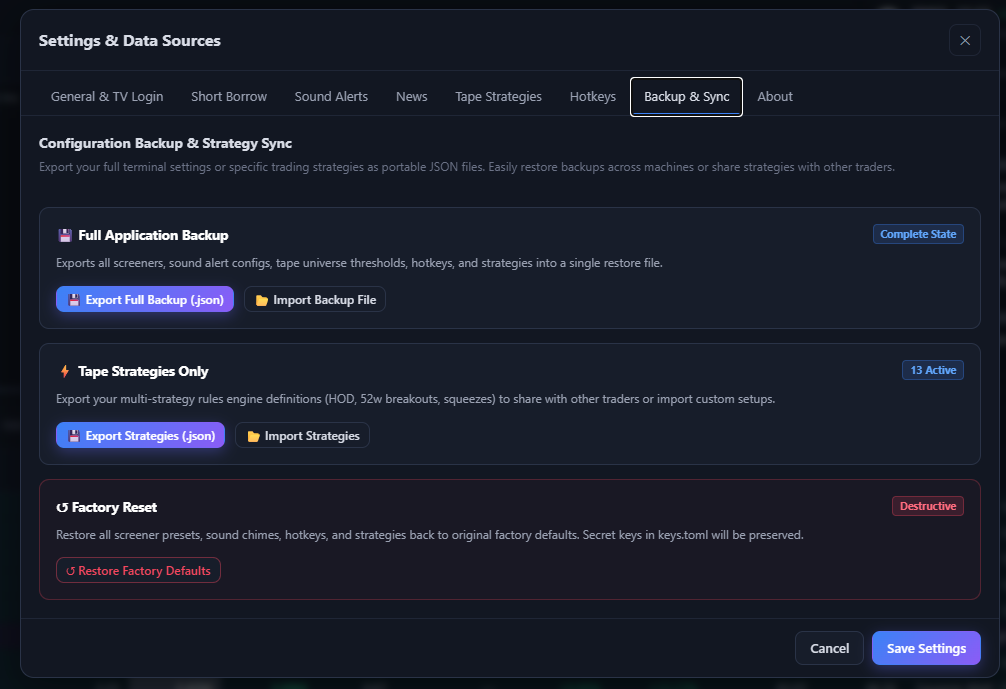
Settings → Backup & Sync: Central data directory inspection, full application backup, strategy definition sync, and factory reset.
-
Central Application Directory Card:
- Displays resolved disk path and one-click 📂 Open App Data Folder in Explorer / Finder action.
-
Full Application Backup (
Complete State):-
💾 Export Full Backup (.json): Generates a complete portable JSON snapshot of all screeners, sound alert paths, volume settings, tape universe thresholds, hotkeys, and strategies. -
📂 Import Backup File: Restores terminal state across machines or after reinstallation with immediate live-reload.
-
-
Tape Strategies Only Sync (
N Active):-
💾 Export Strategies (.json): Share your multi-strategy rules engine definitions (HOD, 52w breakouts, squeezes) with other traders. -
📂 Import Strategies: Import custom setups directly into your active tape without altering your personal screener filters or API keys.
-
-
Factory Reset Safeguard (
Destructive):-
↺ Restore Factory Defaults: Restores all presets back to original factory defaults while strictly preservingkeys.toml.
-